About: A media profile patch as the *.calpatch extension and it contains the transition curve (if applicable), the linearization curve and the ICC color look-up table.
It is recommended that any newly create custom profile(s) should be saved as a Media Patch so that it can be stored safely on a network drive in the event of a computer hard drive failure.
Related article: How to import a media profile patch
--------------------------------------------------------------------------------------------------
Step 1: To create a Media Profile Patch, click on the EasyMedia icon to launch the interface > then select the Printer icon > and click Next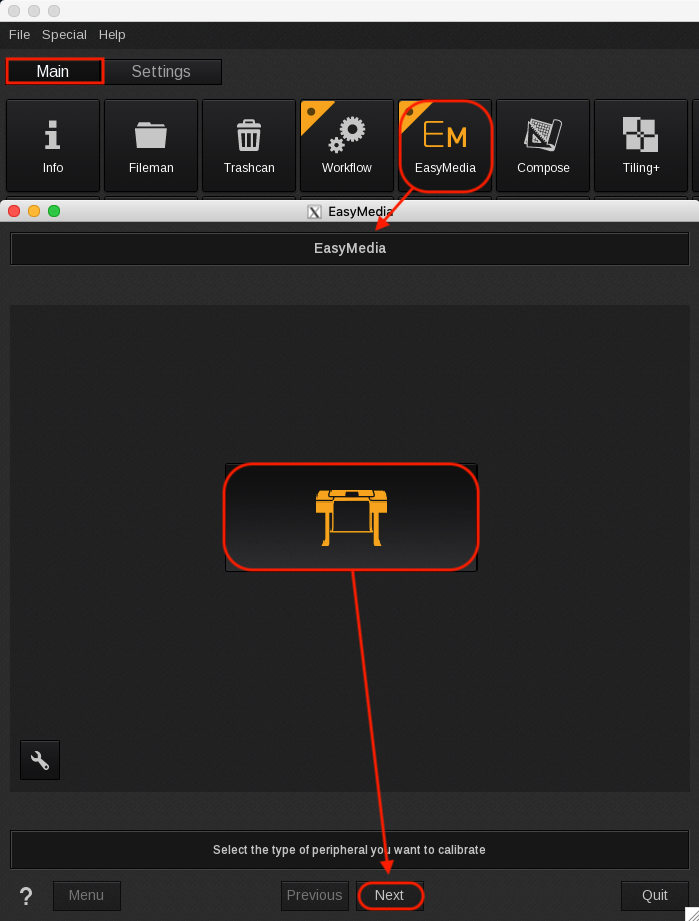
Step 2: Select the Printer Model (CalderaJET/Rho-600 in this example) > Next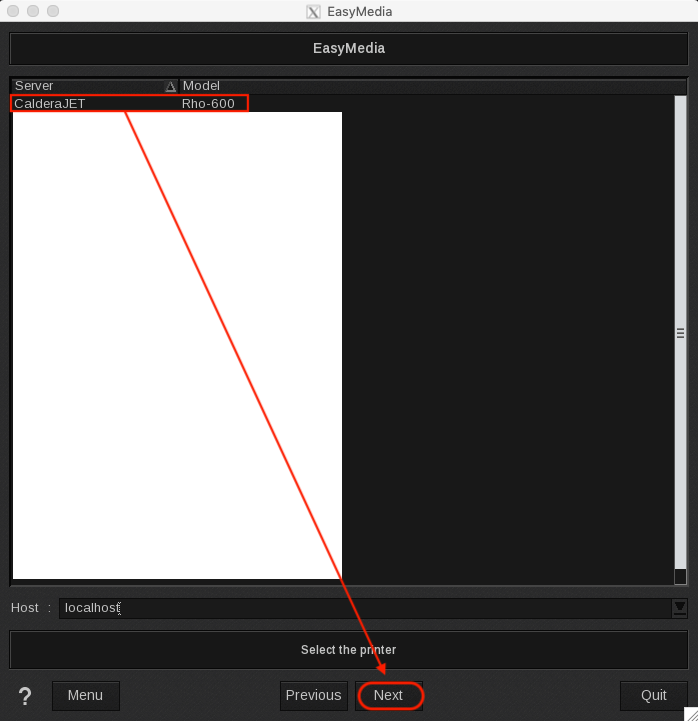
Step 3: Select the Media Profile(s) > Export > Build Patch > One Big Patch (if more than one)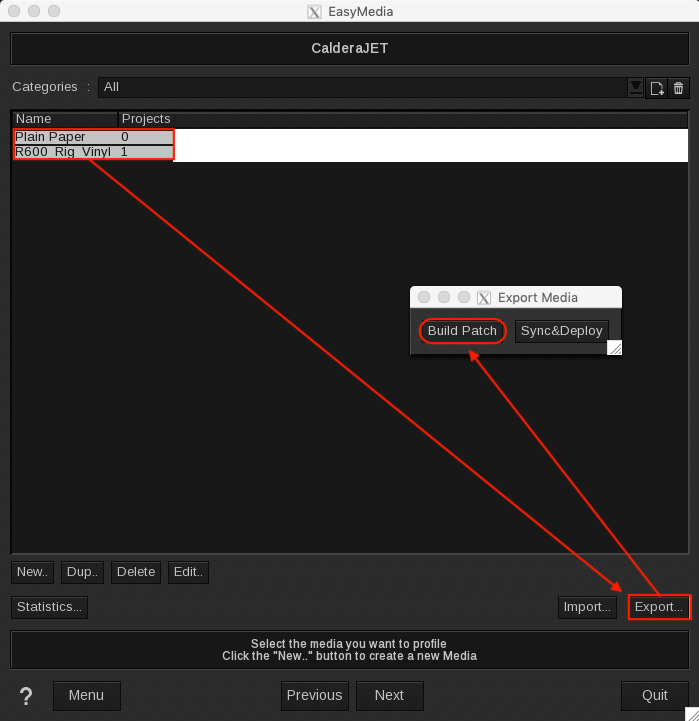
Step 4: Select the location (Desktop in this example) where the Media Profile Patch (*.calpatch) will be saved > then click Save.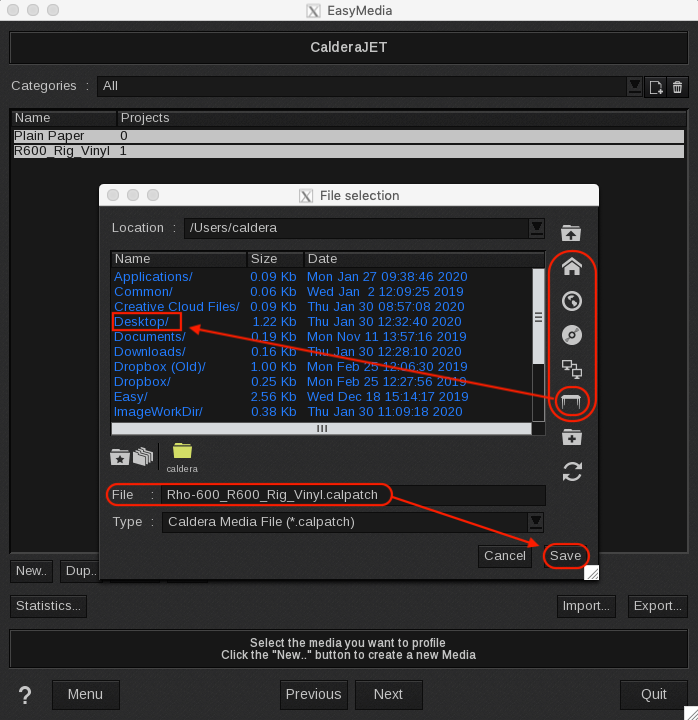
Finish