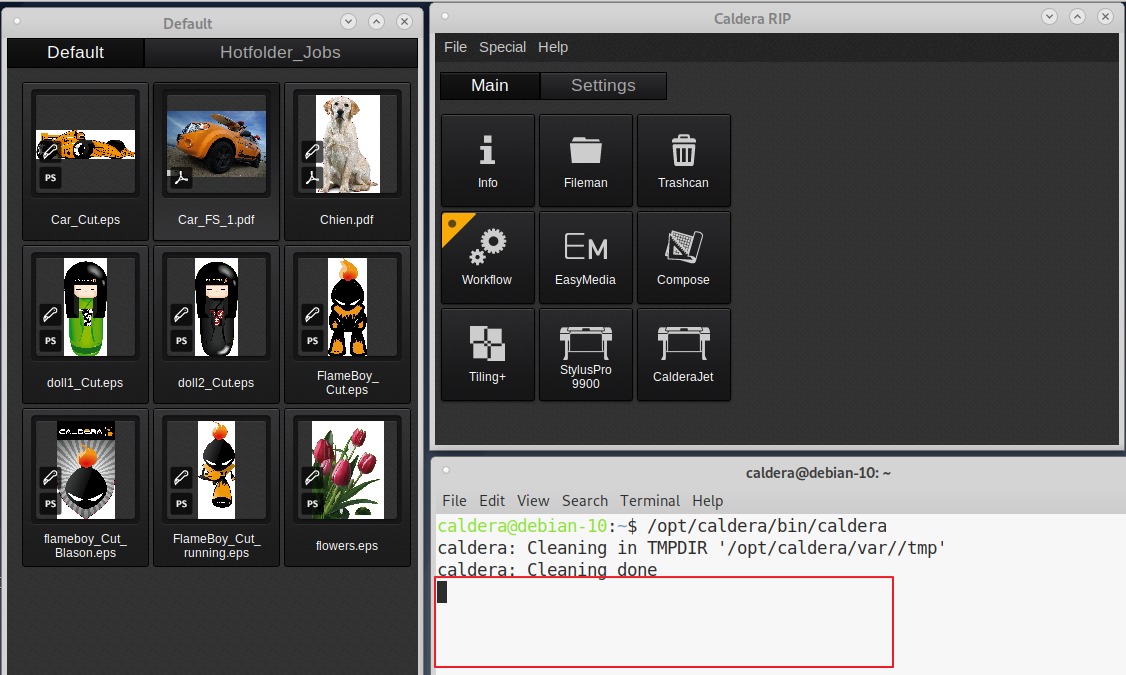
Best way to troubleshoot a QuickPrint/Workflow connected hotfolder, is to separate the hotfolder from the QuickPrint/Workflow and test each option separate:
Following link explains how to setup a hotfolder: Hotfolder setup
Following link explains how to setup a QuickPrint: QuickPrint
Hotfolder, troubleshooting:
- Disconnect the problem hotfolder from any QuickPrint/Workflow to isolate the problem (Select the hotfolder and select Edit and remove the QuickPrint or Workflow if present).
File(s) copied in the hotfolder should appear under the Image window tab, specified in the Tab column:
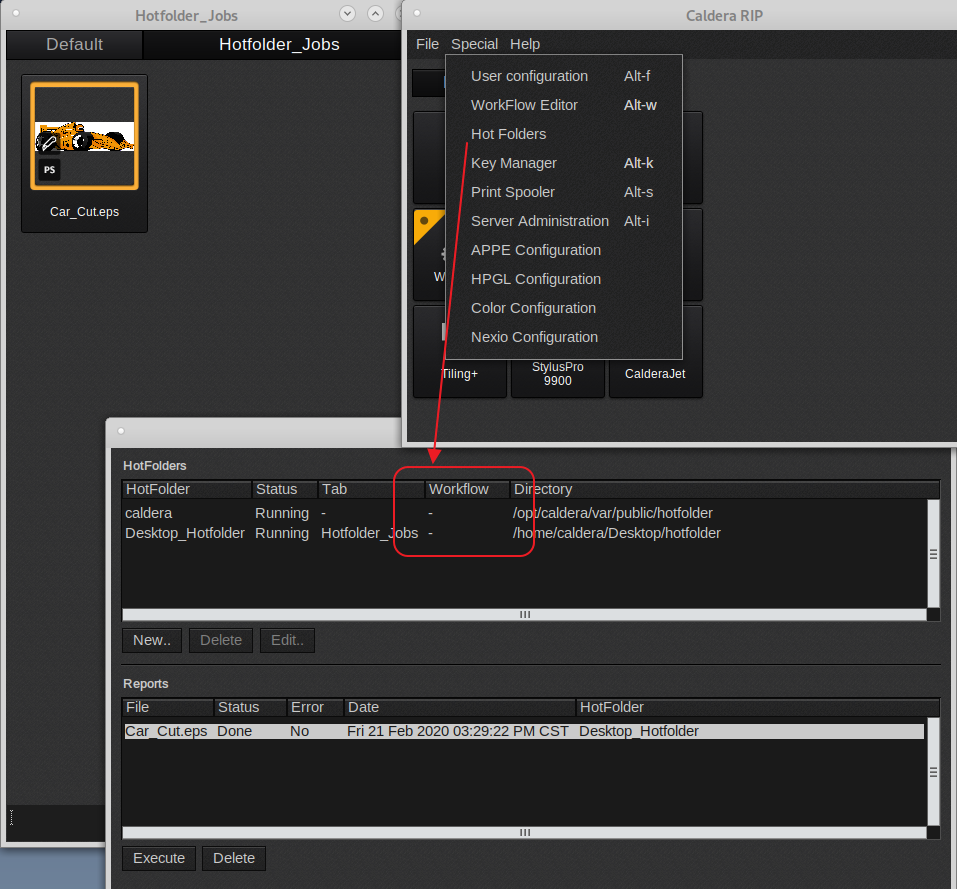
- If files are not appearing in the Image window, check for errors under Special > Hotfolders >Reports section:
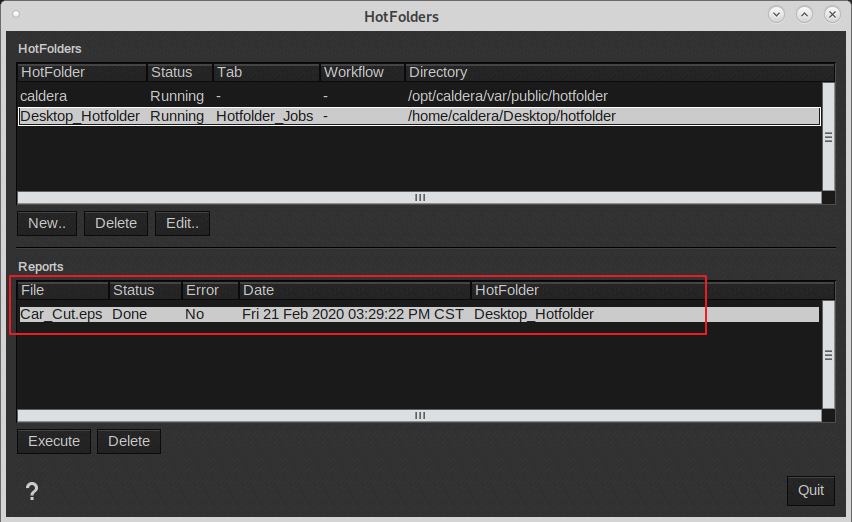
A common error, is font errors, so uncheck in FileMan Parameters > Setup, "Error if Font Substitution", more details in the following article: File not loading due to missing fonts
- A hotfolder might or might not work when on a network share. So move to local folder. In case of erratic behaviors (some files not loading) use a local folder/directory as hotfolder.
- Avoid large amount of files (1000+) in the hotfolder as it will affect the hotfolder performance (loads files slower as execution will be slower).
- Also avoid filenames with special characters like "$".

- Duplicate preview images, increase time-out. Check following article for more details:
Duplicate preview images when using a hotfolder
- Avoid saving files from an application direct into a hotfolder. The hotfolder will detect the temp file (file which an application creates while saving the real file) and this might cause issues.
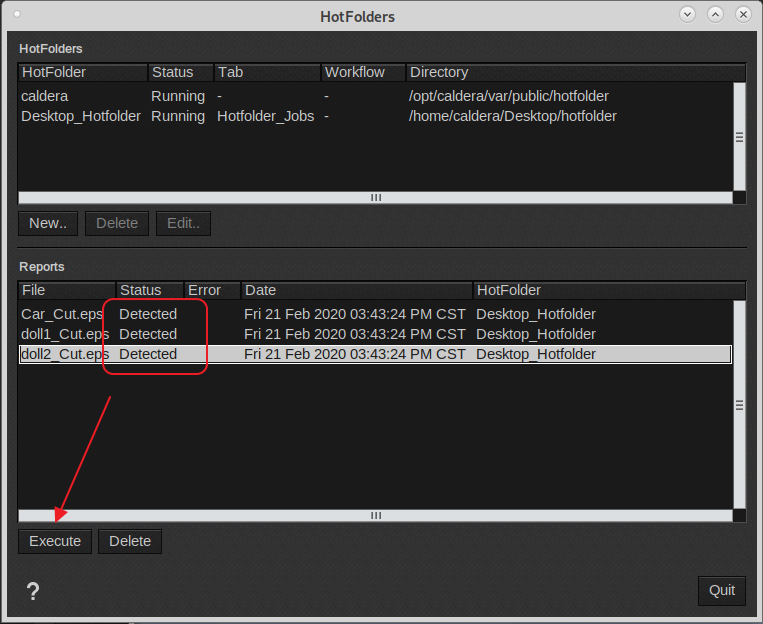
- Caldera needs to be open for the hotfolder to execute files, dropped into the hotfolder. If Caldera was not open at the time of job submission, the hotfolder the jobs are detected and can be manually executed:
- Caldera requires a VisualUser for a hotfolder to be operational. Caldera comes standard with one (Visual)User. If more than one Caldera rip will be using hotfolders one would need additional VisualUsers.
- Keep in mind that the hotfolder is of temporary nature and is not meant to be used as permanent file storage. When using a Workflow files can be automatically removed from the hotfolder when processed:
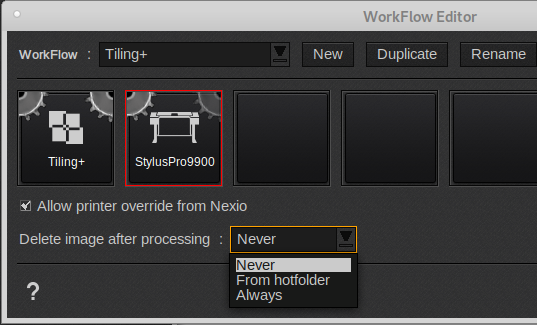
Workflow delete behaviors explained
- To load files with specific FileMan settings (known as FileMan Parameters) you need to select the folder acting as hotfolder in the Fileman window and then configure the FileMan Parameter settings. When done press OK to confirm the new settings.
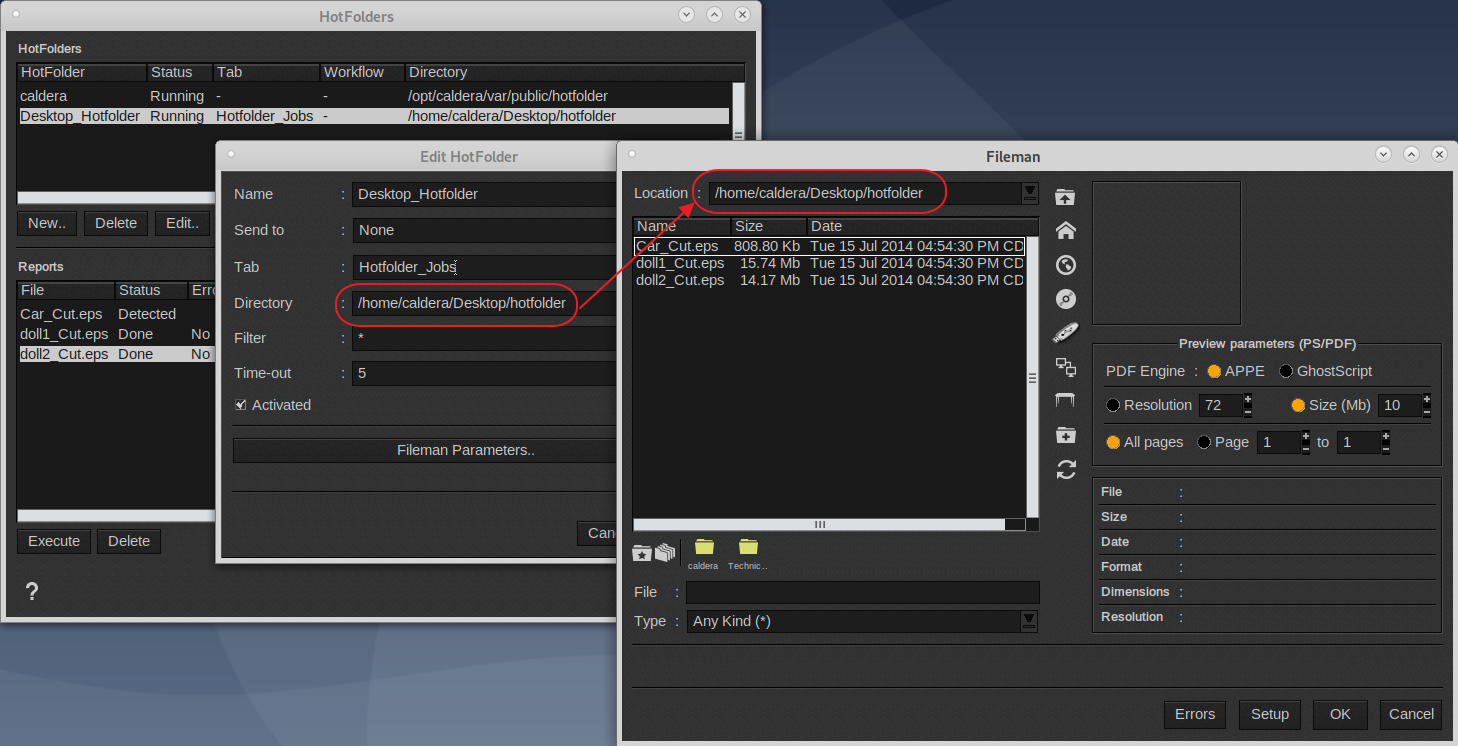
QuickPrint/Workflow:
If the hotfolder works then move to the QuickPrint/Worklow.
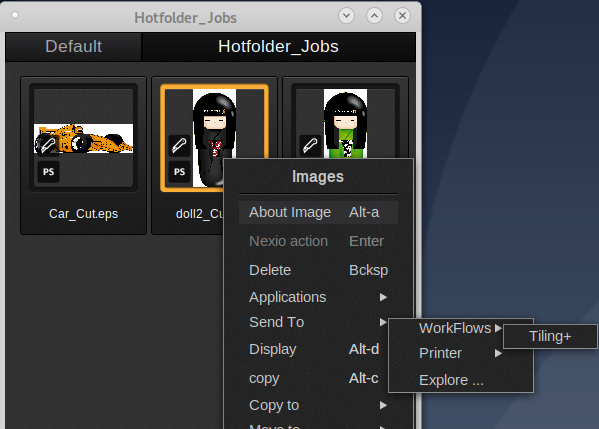
- Select file in Image Bar, right click and select the QuickPrint/Workflow.
Selecting a Workflow (left click the image, then right click and select Send to > WorkFlows > select the Workflow)
Selecting a QuickPrint (left click the image, then right click and select Send to >Printer > select the printer > select the QuickPrint)
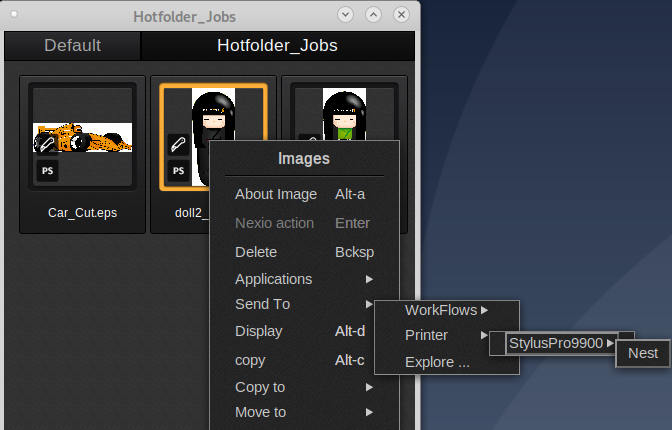
Same as above video tutorial: HowTo Use QuickPrint with the ImageBar
If the file doesn't get processed check the Workflow reports for error messages.
Common error is "Print only when scale is xxx%"
- Right click Caldera Applications Window surface and check the Workflow reports for errors in the Module/Message section
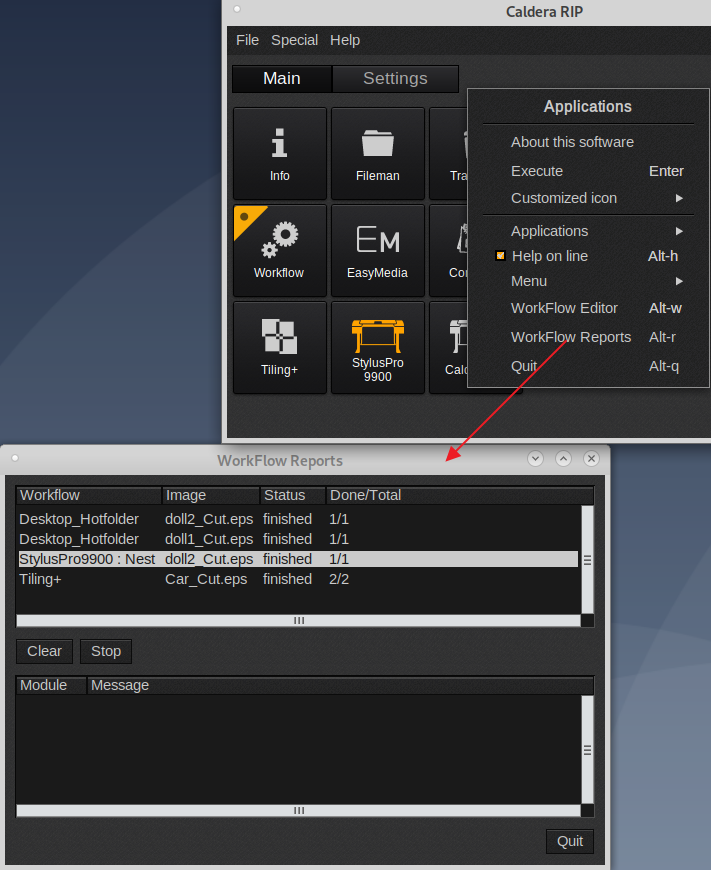
- Start caldera from the Terminal and look for errors:
Mac OS, terminal is in the Utilities folder, open Terminal and enter /opt/caldera/bin/caldera
Linux, terminal is under the System Tools section, open Terminal and enter /opt/caldera/bin/caldera
Leave the Terminal open and execute the problem Workflow/QuickPrint and look for clues/errors.