On Debian Stretch, there is a tool to check SMART Hard disk status : Smartmontools
https://www.smartmontools.org/
Please find here process to install it and check SMART HDD status
1) Go in System > Administration > Synaptic Package Manager :
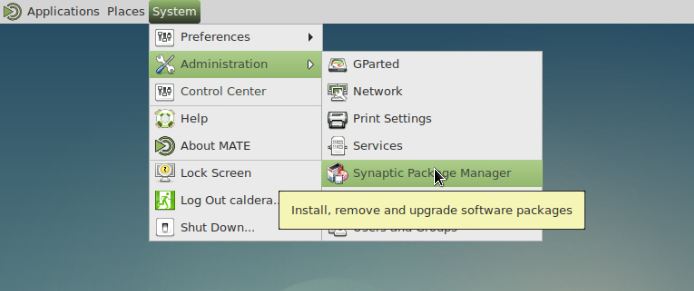
Your Root password will be prompted. Default one is caldera
) Go in Settings > Repositories :
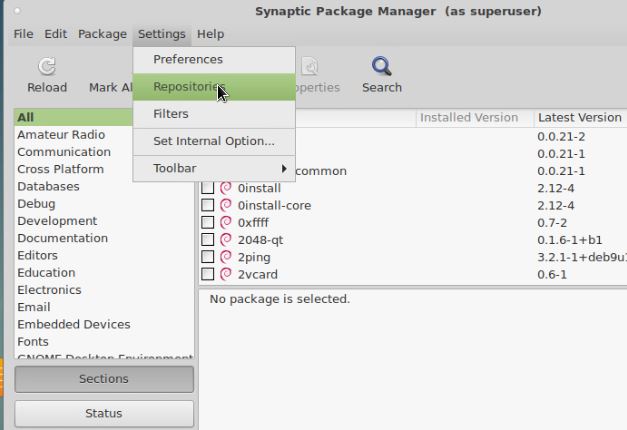
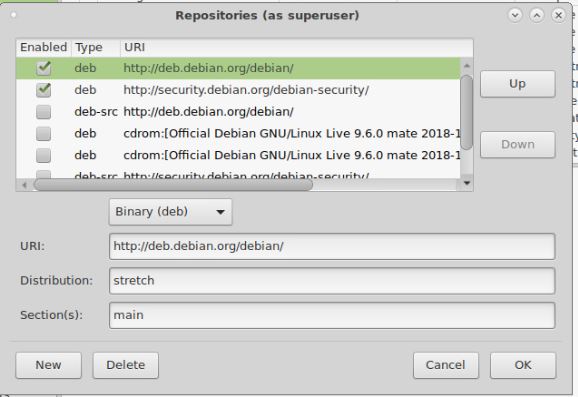
3) You will need at least default packages :
URL http://deb.debian.org/debian with stretch Distribution (resp Jessie for Debian 8.x jessie Linux) and main Section
URL http://security.debian.org/debian-security with stretch/updates Distribution (resp jessie/updates for Debian 8.x Jessie Linux) and main Section
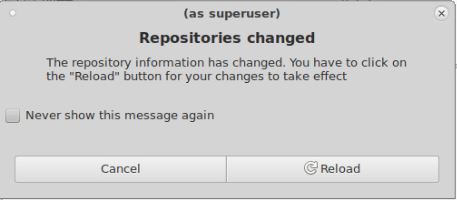
4) If repositories have changed, system will prompt to you to reload them :
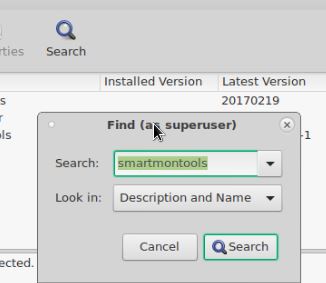
5) Then in Search > type Smartmontools :
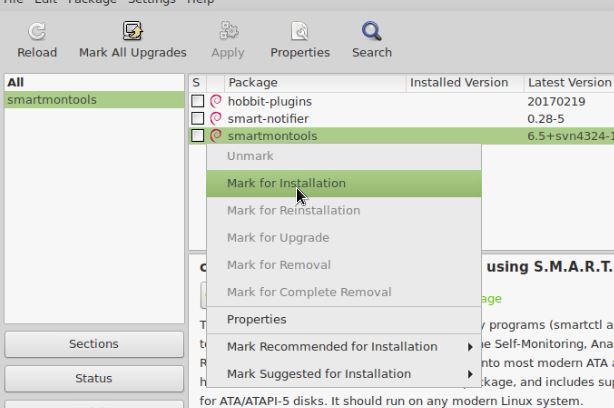
6) Smartmontools should appear then in found softwares list; right-click on it and Mark for Installation
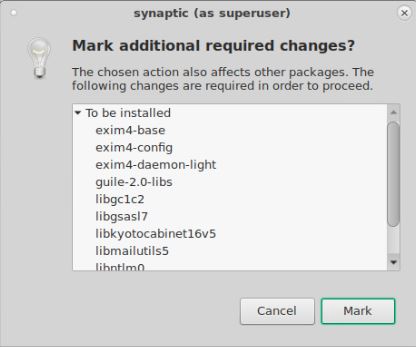
7) Click on Mark :
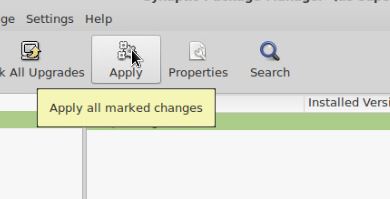
8) Then Apply :
9) Smartmontools will then appear as installed : box is green

10) You will need to know what is your HDD name on Linux. Open System > Administration > GParted
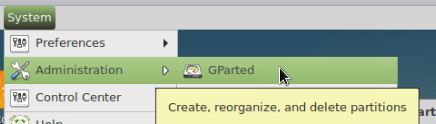
Your Root password will be prompted. Default one is caldera
11) Here for example on this PC there is only one HDD named sda :
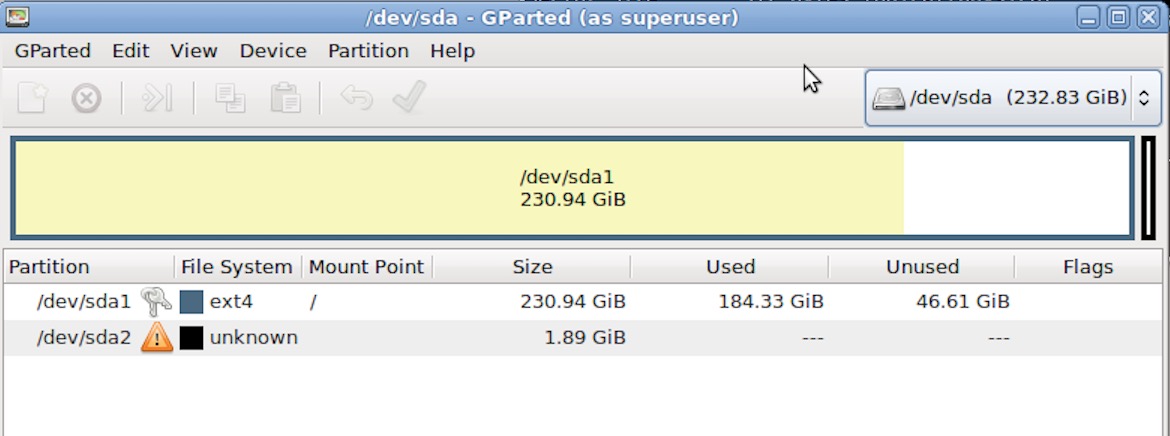
12) Go int Terminal
13) Get Root permission typing sudo -s
14) Password should be caldera by default
15) type smartctl -i /dev/sda (replace sda by default, replace by your HDD name if applicable)
Last lines will show if SMART is enabled or not. Here it is.
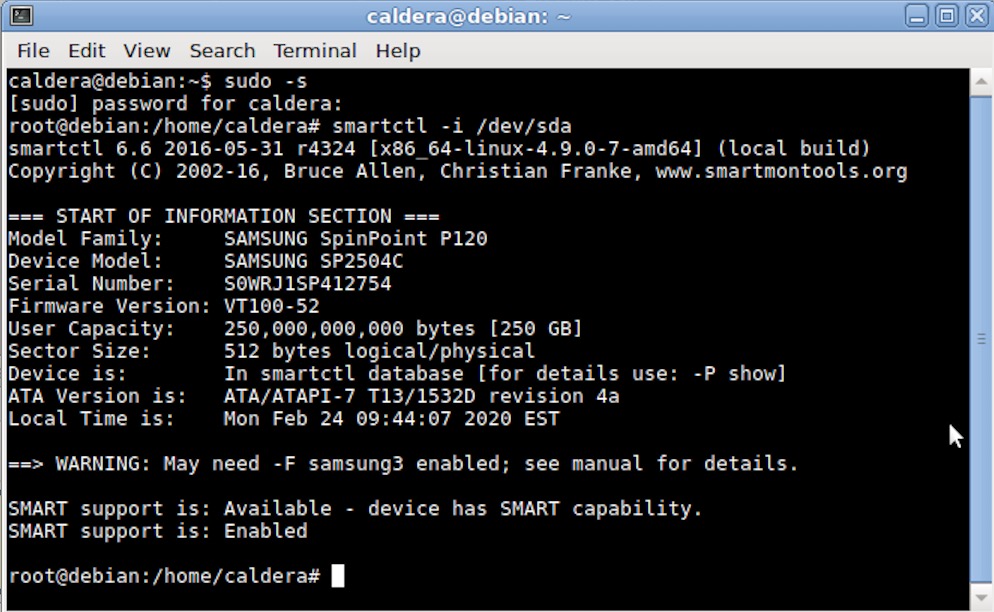
16) In order to get more complete info, type smartctl -a /dev/sda (sda by default, replace by your HDD name if applicable)
Key points are :
Power on hours, that gives a quite good overview of HDD age. Some could break around 10000h whereas average MTBF is around 30000h
Start Stop Count : how many times HDD has started with system
Reallocated Sector Ct : few are ok and common, but more hundred is a pre-fail clue.
Current Pending Sector : Clear bad information : a sector is not writable; system might fail or freeze
.