Sometimes after installing the Linux operating system or updating the graphic settings/drivers in the system you can have an issue to start the Linux: instead of reaching the Linux screen where it should be asking the credentials you will only see a blinking line in top left of the screen or have a totally black screen.
This problem usually happens because the graphical drivers are not correctly installed or set in the system. However to be able to install or reinstall the drivers you will first need to access the system again.
This article explains how to access the Linux system even if your graphic drivers are not correctly working. It can be used both for Debian Stretch (9.x) and Buster (10.x).
Start the computer and wait for the GRUB menu of the Debian to appear.
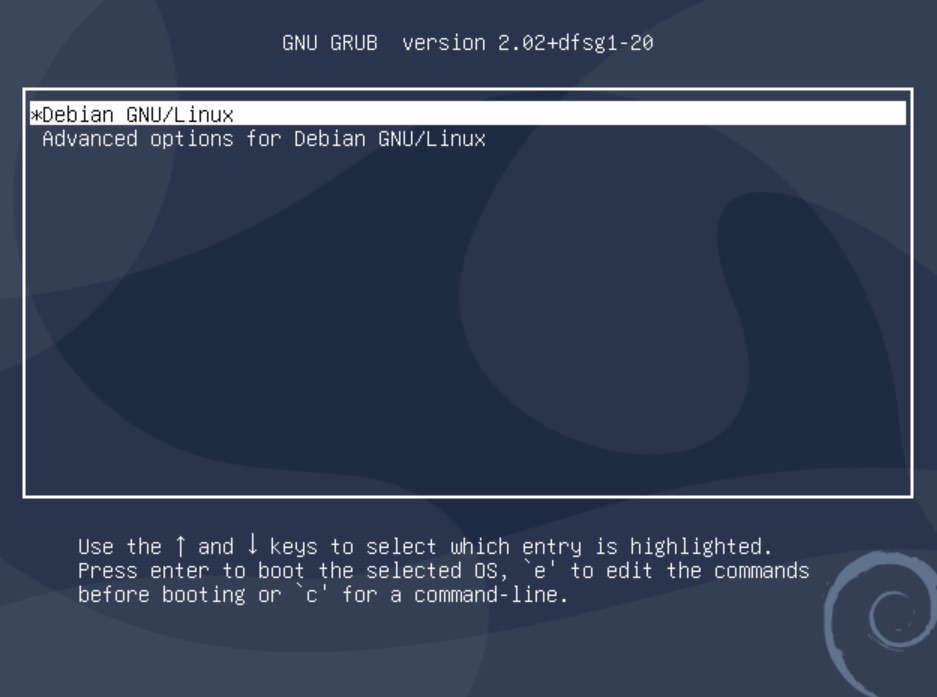
Once you see it press "e" to access the Edit mode.
You will then get the following screen:
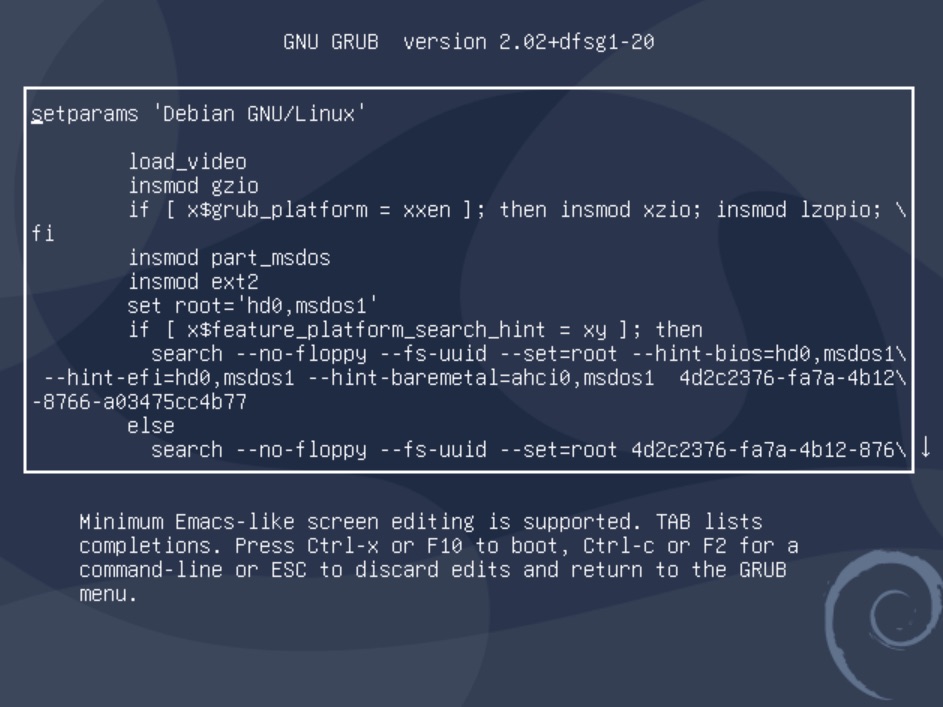
Use the down arrow of the keyboard to reach the word "quiet".
If you see a \ in the middle of the word it just means that it's the end of the line and it continues in the next line.
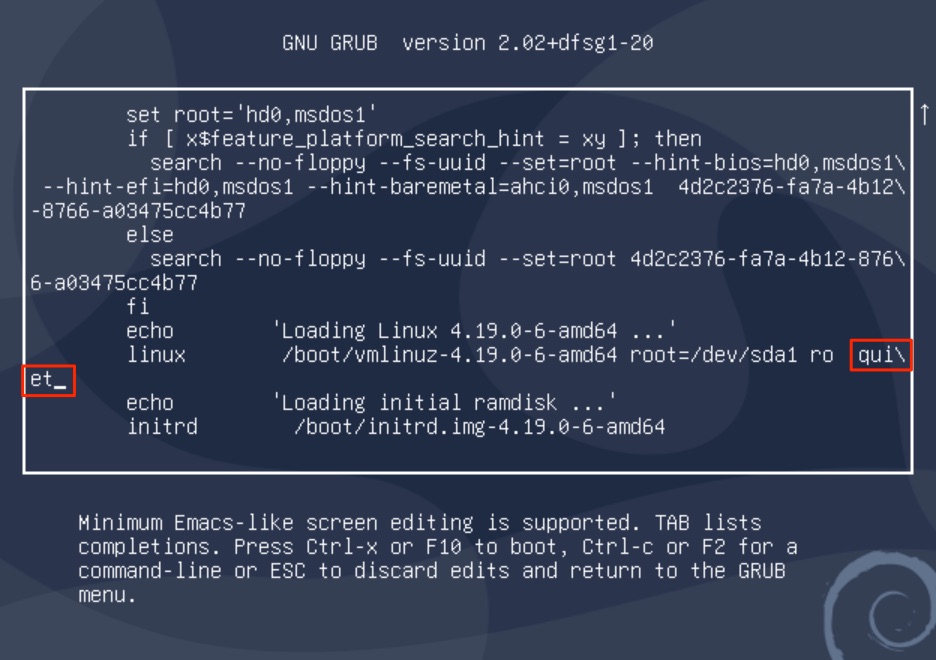
Use the arrows to reach the word and remove the word "quiet" and replace it with the word "nomodeset".
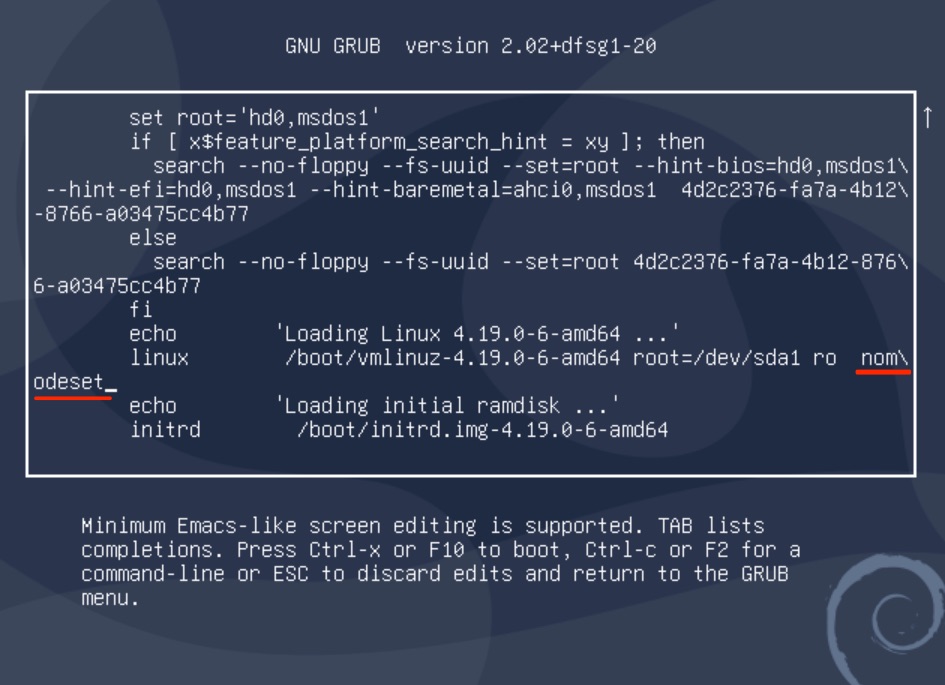
Press then “Ctrl” and “x” together to start the system with these modified settings. Be aware that if you restart the computer then these settings will not be used anymore and you may end with the same black screen as before if you did not install the correct graphical drivers.
In the case you were not able to access the system with the "nomodeset" modification you can try to replace the word "quiet" by "nouveau.blacklist=1" then validate again the start with Ctrl and x. This option is usually meant to be used when there is a Nvidia graphic card in the computer. As before, it will only be valid until next reboot.
This article was created in March 2020.