About: "Reset Data" needs to be performed when PrimeCenter is not behaving normally or is getting an error message(s) when no changes to computer hardware, operating system or software, were made before the issue(s).
______________________________________________________________________________
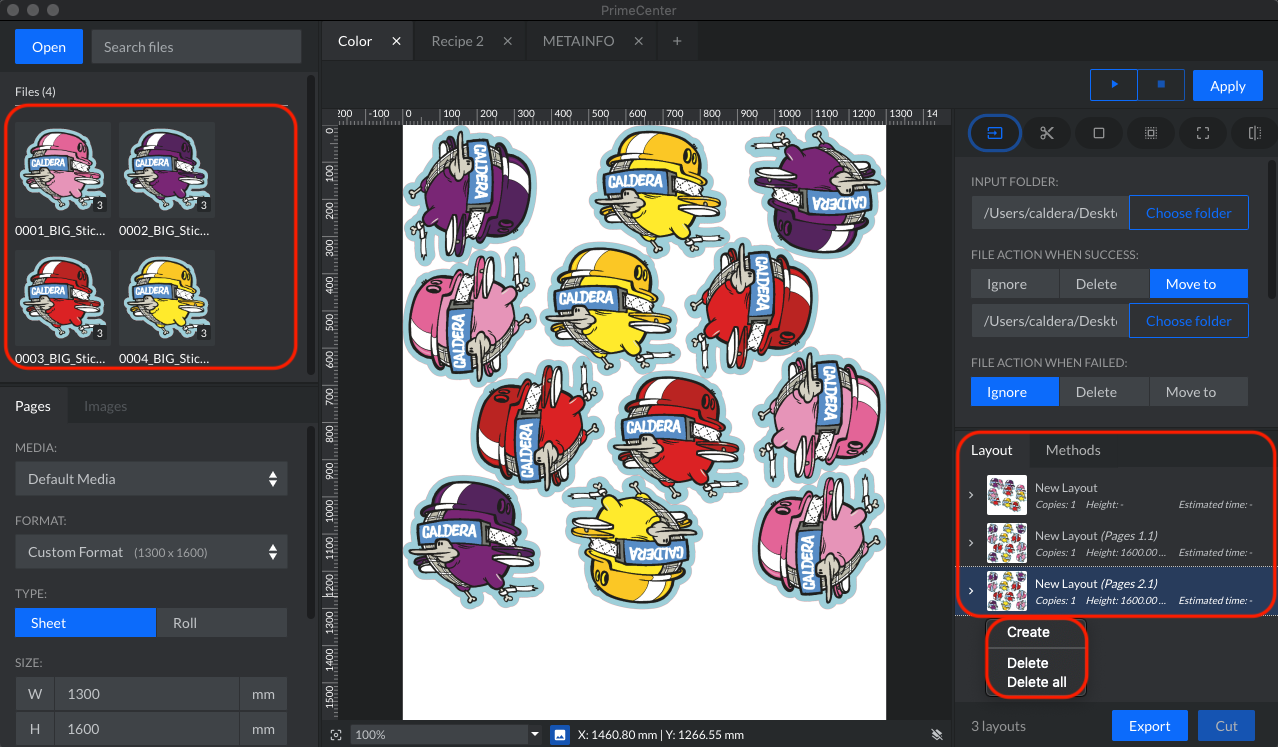
Step 1: Delete all the images from the FileManager (preview panel) and the layouts from the Layout tab (see image). Consider exporting and/or deleting current recipe's.
- Right-click or Control to "Delete all" from the two fields.
Step 2: Backup your recipes (just a precaution)
Step 3: Quit/Close down PrimeCenter.
Step 4: Navigate to the following folder.
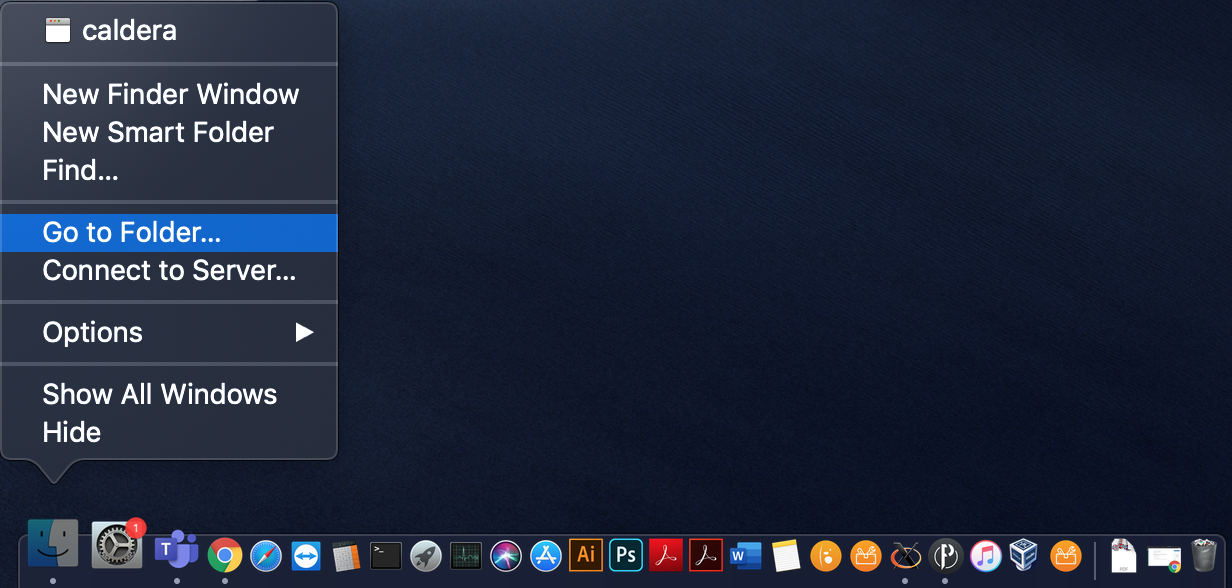
- Mac: Terminal > /Users/<user_name>/Library/Application Support/PrimeCenter/
- or Finders > Go to Folder...
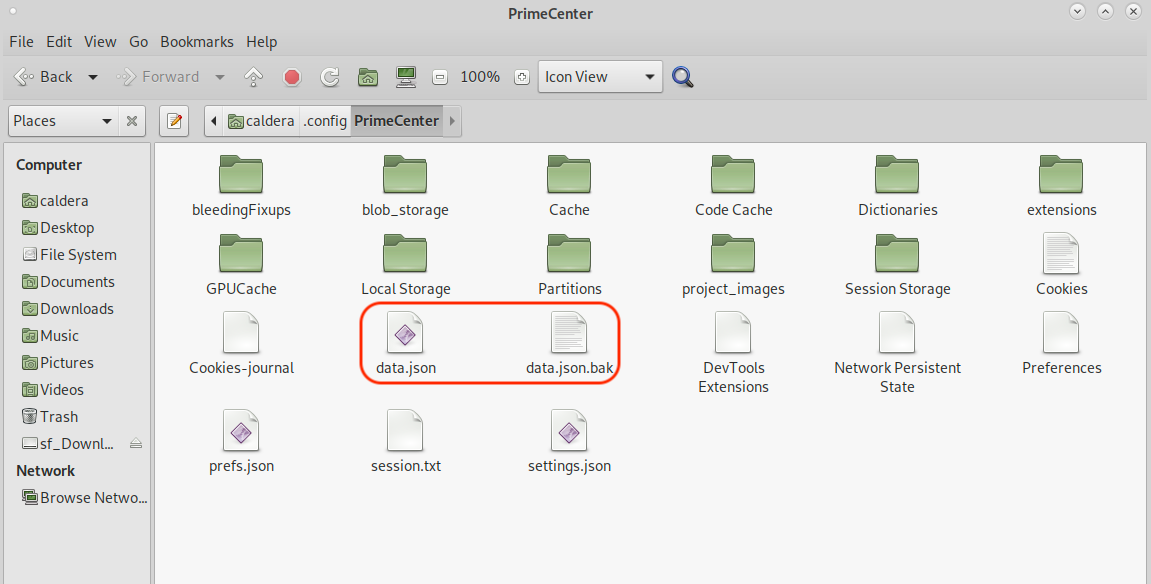
- Linux: /home/<username_name>/.config/PrimeCenter/
- Windows: %AppData%/Roaming/PrimeCenter/ (or /Users/Name_of_User/AppData/Roaming/PrimeCenter/)
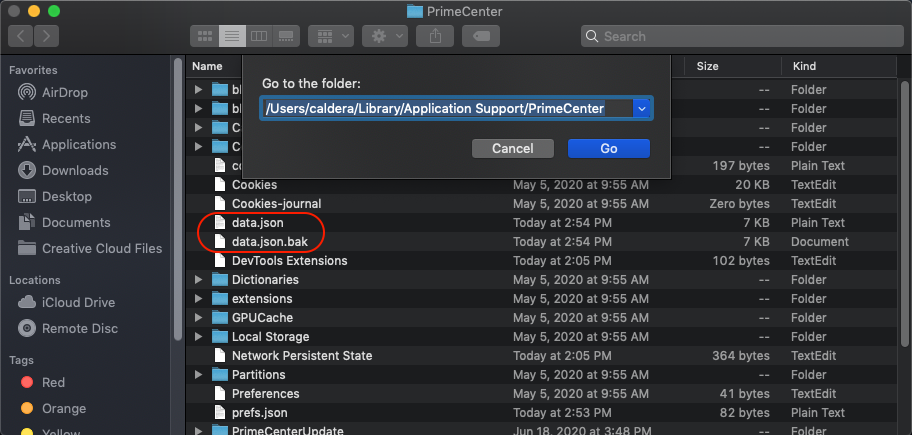
Step 5: Delete or rename (*recommended) the following 2 files (see image from a Mac).
- data.json
- data.json.bak
If the user is different than the Caldera user, change the path accordingly.
- Mac (caldera user)
- Linux (caldera user)
- Windows (caldera user)
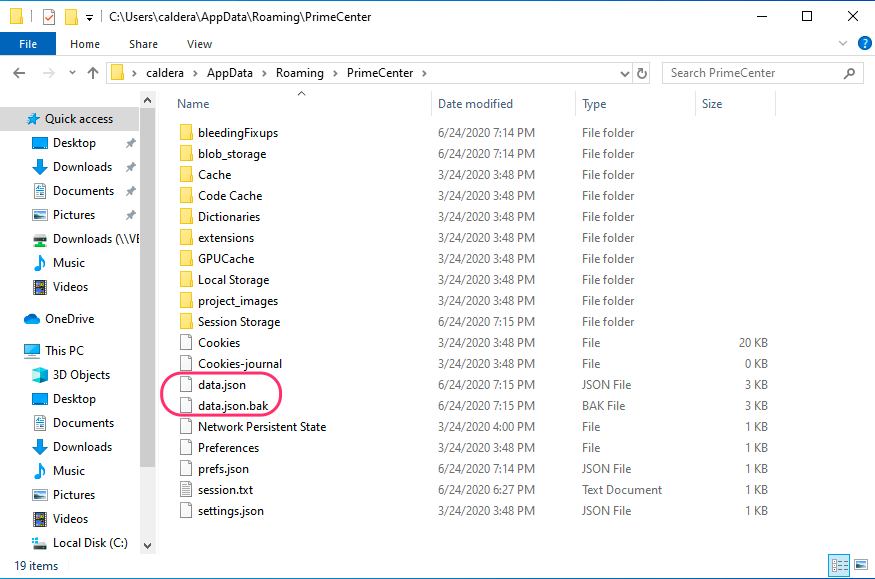
Note: New files will be created once PrimeCenter is reopened.
* For backup purposes