Warning
The rehosting procedure can be performed 5 times. Beyond this maximum, please contact Caldera.
If a change is applied in your workstation (for example when you get a new device, a new hard drive, a new graphical card, ...) the fingerprint (.C2V file) becomes obsolete. Therefore, your license will not be valid anymore. In this case, a new fingerprint needs to be uploaded. After that, you will be able to upload a new license key file (.V2C) using CalderaDock.
Export my new fingerprint
-
Open CalderaDock and go to Licenses tab. Then select Export fingerprint.

- Choose your destination folder.
- Click Export.
Rehost my license
-
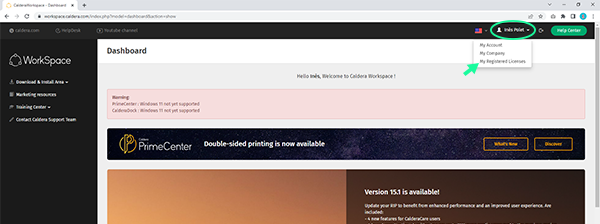
Go to Caldera WorkSpace and click My Registered Licenses on your profile menu.
-
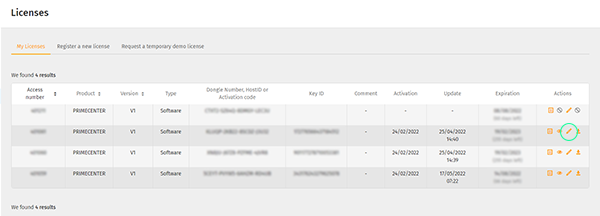
Click the pencil button to edit your license.
-
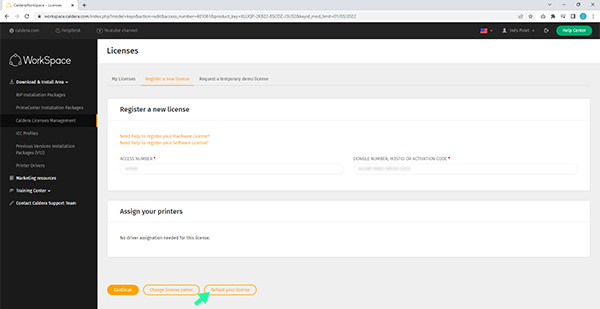
Click Rehost your license.
-
Upload your new fingerprint file you exported via CalderaDock. Click Continue and wait a few seconds for the registration to complete (the dialog will change). Then click Continue again.
-
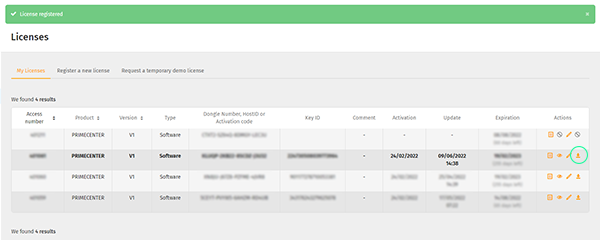
You will be redirected to your My Licenses tab where you will be able to see and download your new activation file. A green banner indicates that your license has been recently rehosted. Finally, in the list of your license, click the icon to download your activation file.
Warning
Be careful, click Download activation file and not Download license updates.

Attach my license
-
Go back to CalderaDock and go to the Licenses tab. Select Apply license file, choose the file you downloaded from Workspace and click Apply.

-
In the Licenses tab, a list of discovered licenses is shown, sorted by product. For PrimeCenter licenses, select the license you have just added and click the Attach button.
Info
The license status is the following: Pending for attachment, that's normal. It will disappear when Caldera PrimeCenter will be launched for the first time.
- Launch PrimeCenter from the Applications tab of CalderaDock or from your desktop icon.