Issue
You are unable to launch an AppImage installer for Caldera software on Linux.
Problem
The installer does not have executing permission and you have the following message:
"Could not display "...". There is no application installed for AppImage application bundle files. [...]"
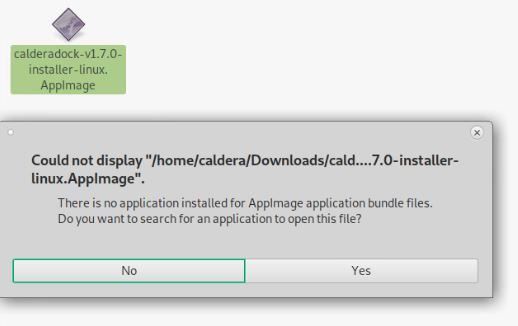
"Failed to install: not supported"
Solution
Setting the correct AppImage permission:
Same process on either Debian or Ubuntu.
- Right-click on Installer > Properties.
- Go to Permissions tab.
-
Enable Allow executing file as program.
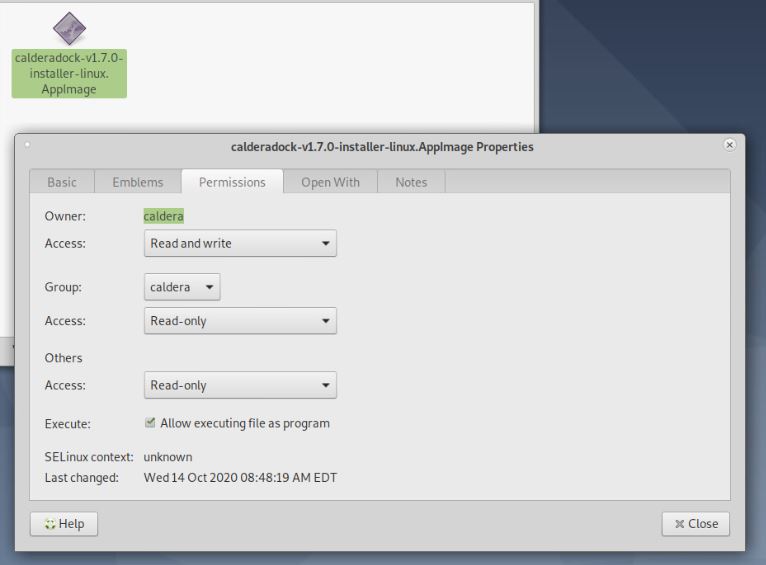
Screenshot of the Properties window on Debian
- Close.
- Double-click again on the installer.
Processus applicable on Debian.
-
Open the Terminal under the Linux Menu: Applications > System Tools > MATE Terminal.
-
In the terminal, type: sudo chmod a+x /<file_path>/*.AppImage by replacing the file path with yours and the name of the installation file. For example: /home/caldera/Downloads/calderadock-v1.8.1-installer-linux.AppImage.
- Type the user's password.
- Close.
- Double-click again on the installer.