See Debian booting messages
Can help to see errors with graphics, loading files, and other OS errors
At the GRUB screen of Debian, press “e” to access the Edit mode.
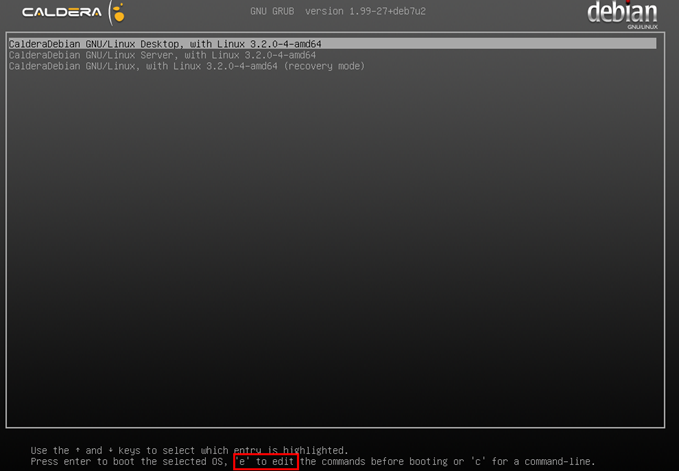
You will then get the following screen:
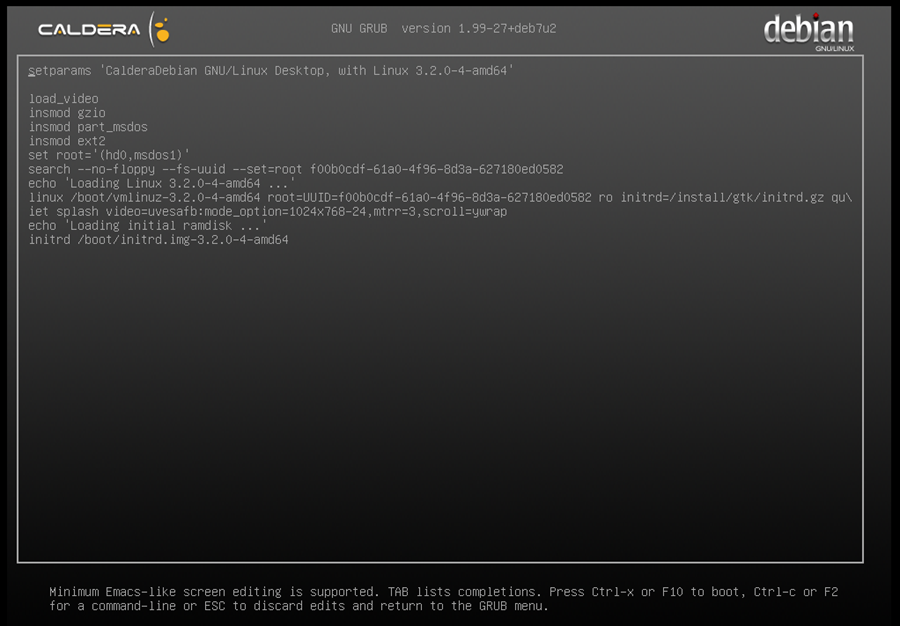
You can do the following things to modify the start of the Debian as needed:
n Remove the words “quiet splash”:
It will make disappear the loading bar of the Debian system at the start of the Debian to show what files are loaded. If there are issues during the start of the system, you will be able to see the error messages then.

n Add “nouveau.blacklist=1” after the words “scroll=ywrap”(don’t forget to leave a space between them):
It will use the old graphical driver of the system instead of the current one, it may help to solve issues with graphical drivers.

n If “nouveau.blacklist=1” did not help to start the system, reboot the computer and put instead “nomodeset” after the words “scroll=ywrap”(don’t forget to let a space between them):
It will use another graphical driver of the system instead.

You have then to press “Ctrl” and “x” together to start the system with these modified options.
Be aware that if you restart the computer then these options will not be used anymore.
PS: If you need to reinstall the Caldera Nvidia drivers you have to do the following:
1) Install Caldera (if not already installed). No need to restart the computer.
2) Install the adequate Nvidia patch (with extension .calpatch).
You can find it on the site http://support.caldera.com/downloads/Patch/Linux-Patch.
Go to the adequate version of your system and download the patch.
For example, for Debian 2.x systems you have to download the file « Patch-Debian-NVIDIA-346-35.calpatch » from the folder “…/downloads/Patch/Linux-Patch/Debian2/”.
3) Restart the system to apply the patch on it.