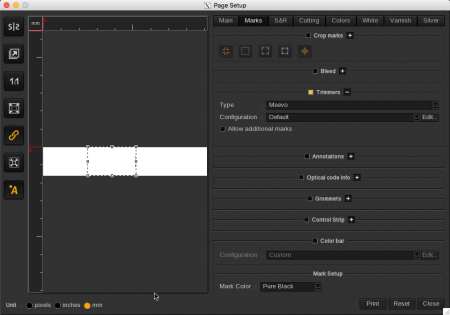
How to set Meevo trimmers?
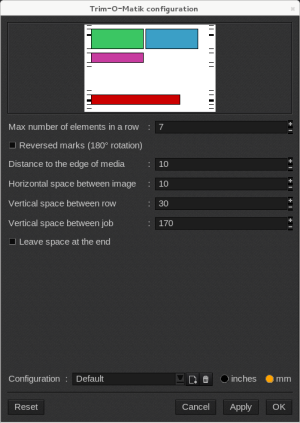
Max. number of elements in a row
Even if there is still enough space to add more images in the row, this setting defines the maximal number of elements that can be placed on a line, regardless of their sizes. This setting has a range from 1 to 7.
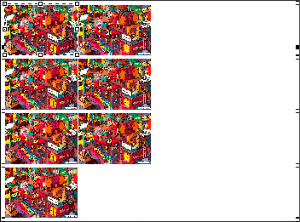
In our example, the max number of elements in a row has been set to 2.
Reversed marks (180° rotation)
This reverses the cut marks. This is useful for printers who have dye-sublimation and rewind the printed roll at the calendar. In that case, if the marks are not reversed, once the operator goes to the trimmer he will get the end of the printing first, so the marks will be wrong.
|
|
Example without the reversed marks | Example with the reversed marks |
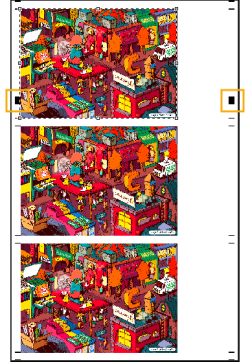
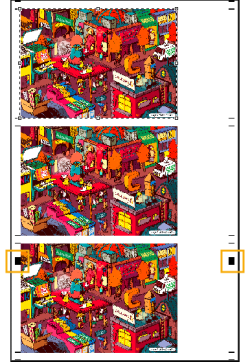
Distance to the edge of media
Indicates here the space between the cut marks and the edge of the media. The range is from 0 to 15.
Horizontal space between images
Fill in the distance between the images on the same line. The range is from 0 to 30.
Vertical space between rows
Fill in the distance between the image rows. The range is from 30 to 999.
Vertical space between jobs
Fill in the distance between the jobs. The range is from 30 to 170.
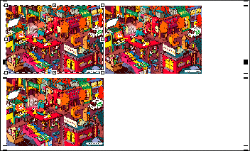
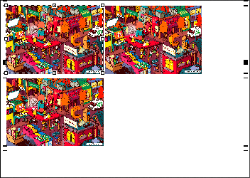
Leave space at the end
Add the value set in the Vertical space between job field at the end of the job.
|
|
Example without the option | Example with the option enabled |
Be careful, to work with the Meevo Trimmer, images have to be 390 mm high minimum. If there are not, you may not see the Trimmers marks or even the image on the preview, as displayed in the example below.