How to print and cut with Caldera GrandCut?
- Open Caldera RIP
- Double click on Fileman to open it then search the location of your file on your machine.
- Click on Open. Your image has been downloaded in the ImageBar.
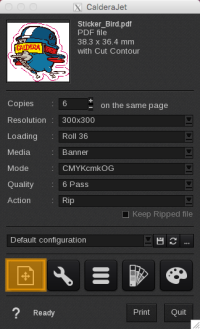
- Double click on your printer’s icon to open its print configuration. Choose the resolution, loading, media, mode and quality. If you want a simple print, the action has to be “Print”; otherwise, you can refer to the Caldera User Manual for further information about the other actions available. Drag and drop your image from the ImageBar to the printer Configuration window.
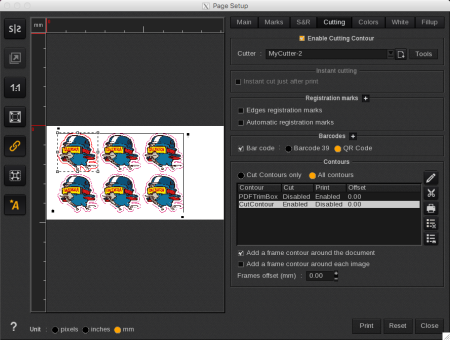
- Click on the first button on the left. It opens the preview and advanced scale settings of the page. Then go to the Cutting tab.
- There, click to Enable cutting contour and chose your cutter.
- Tools: see the previous section to get more information about the tools.
- Print options (Instant cutting, Registration marks, Automatic registration marks): you can choose to print registration marks, to add automatic registration marks, barcode or a print identification number. You can also print a QR Code containing the cut information.
- Contours: you can add a contour around the document and/or around each image. Edit the existing contours and specify if they need to be printed and/or cut.
- Click on the Print button or close the current window in order to change other printing parameters before launching the print.
- You can then find your cut file in the directory you’ve set for your cutter. Copy it on your cutter controller if you didn’t use a shared directory and follow your cutter’s instructions for the cut itself.
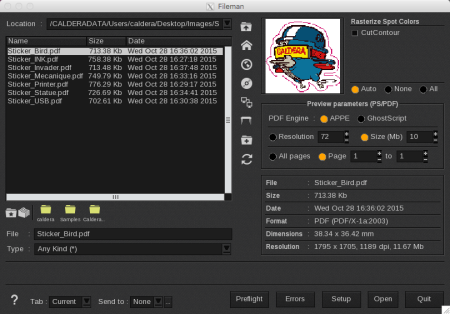
Use the left part of the window to find your file.
Depending on how you named your contour, click on Setup… then Edit Cut Contour list and check that your contour name appears in the list. If not, add it.
A name like “NAME*” means that every cut contour name which begins with “NAME” will be recognized by the RIP.
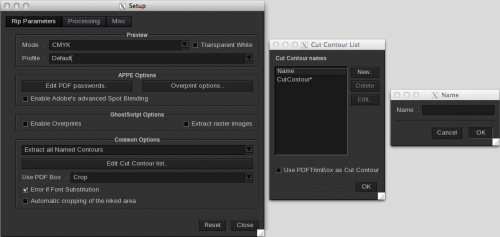
Steps to add a Cut Contour name.
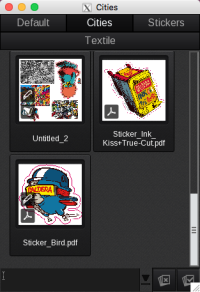
You can see the PS symbol which means the file is an EPS and a cutting knife symbol which means this file has cut contours recognized by the Caldera RIP.