Issue:
An enabled Time Machine automatically makes hourly backups for the past 24 hours, daily backups for the past month, and weekly backups for all previous months. The oldest backups are deleted when your backup disk is full.
Problem:
This works very well when Time Machine is set to backup to an external drive but it could result in disk space issues when the backups are saved on the local drive especially if it backs up ripped files.
Also Time Machine will not automatically free up the disk space, even though it's supposed to.
Solution:
First check if there are local saved backups.
Open Terminal (Utilities menu) and enter:
tmutil listlocalsnapshots /This will list the local backups.
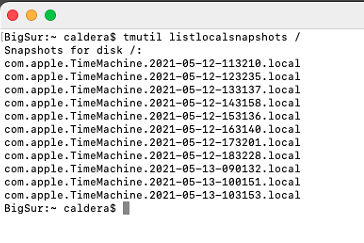
In this case there are quite a few locally saved backups.
To delete:
tmutil deletelocalsnapshotsAnd specify the backup (using the date and time) to be removed.
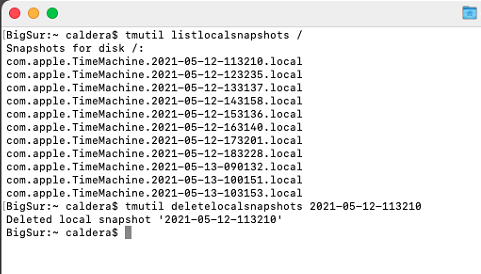
Once cleaned, it should free up the used disk space.
Going forward (having backups is a very good idea), consider the following.
1) Use an external drive for backups, https://support.apple.com/en-us/HT201250
2) Use an Utility like this one to change the backup frequency, https://tclementdev.com/timemachineeditor/