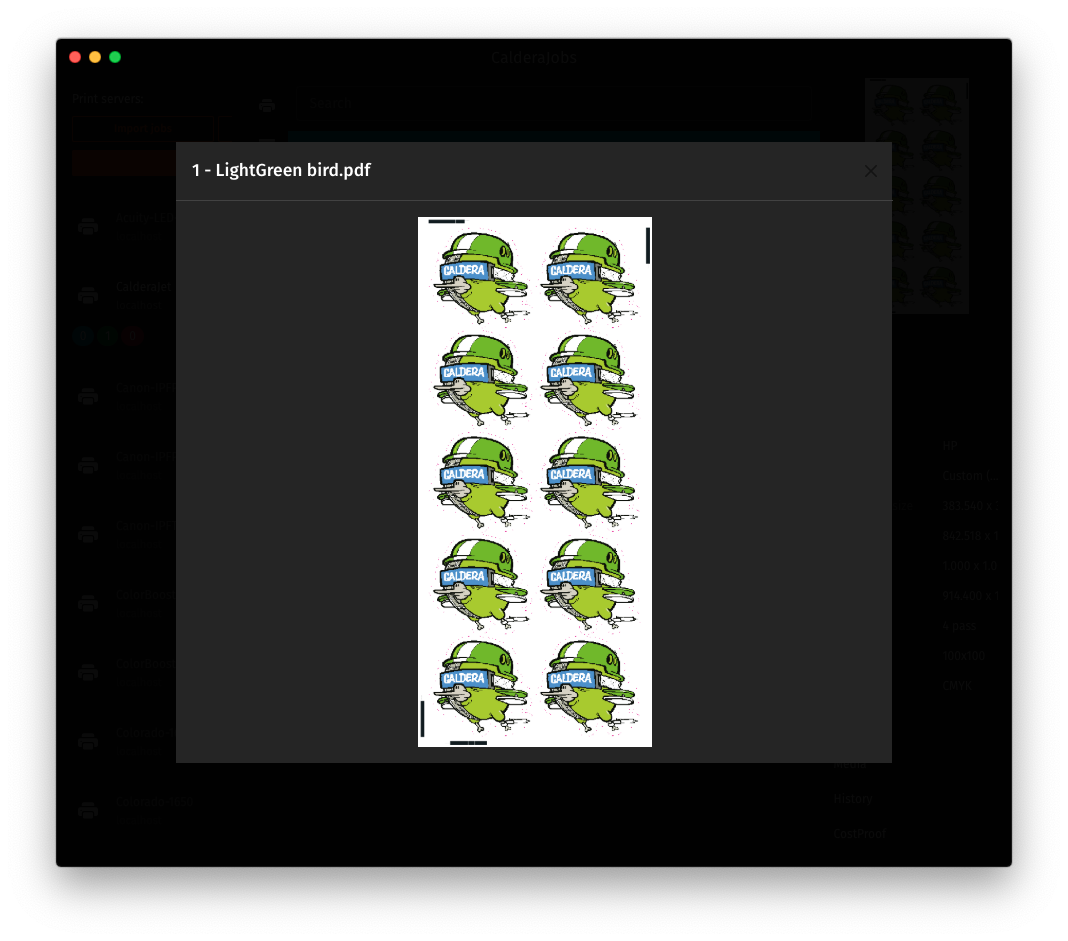
With the Preview (*), we have made job verification and production management a lot easier. Within the Caldera Spooler and CalderaJobs, open a preview in full screen and zoom in to easily identify the jobs inside the nest and check the marks before printing to avoid unwanted errors and waste.
(*) Note that this feature is only available for Care users in V14.1
If you haven't subscribed to our CalderaCare program please contact your Caldera dealer or a member of our sales team. https://www.caldera.com/contact/
Important note: Preview is not a proof of the print as it happens before the RIP process and is available at submission in the Spooler. It is a preview of what is going to be RIP to check visual content.
We will see how to get a Preview from CalderaRIP spooler module (1) and using CalderaJobs application (2)
1. Caldera RIP Spooler
- Load a file with File Manager module
- Drag & Drop the file into a Caldera Print module
- Configure your Print module with your printing parameters
- Select any of the available Print "Actions"
- "Print" the file
- Launch Caldera Spooler module
- Select the Ripped job in the Done queue
Example in Spooler:
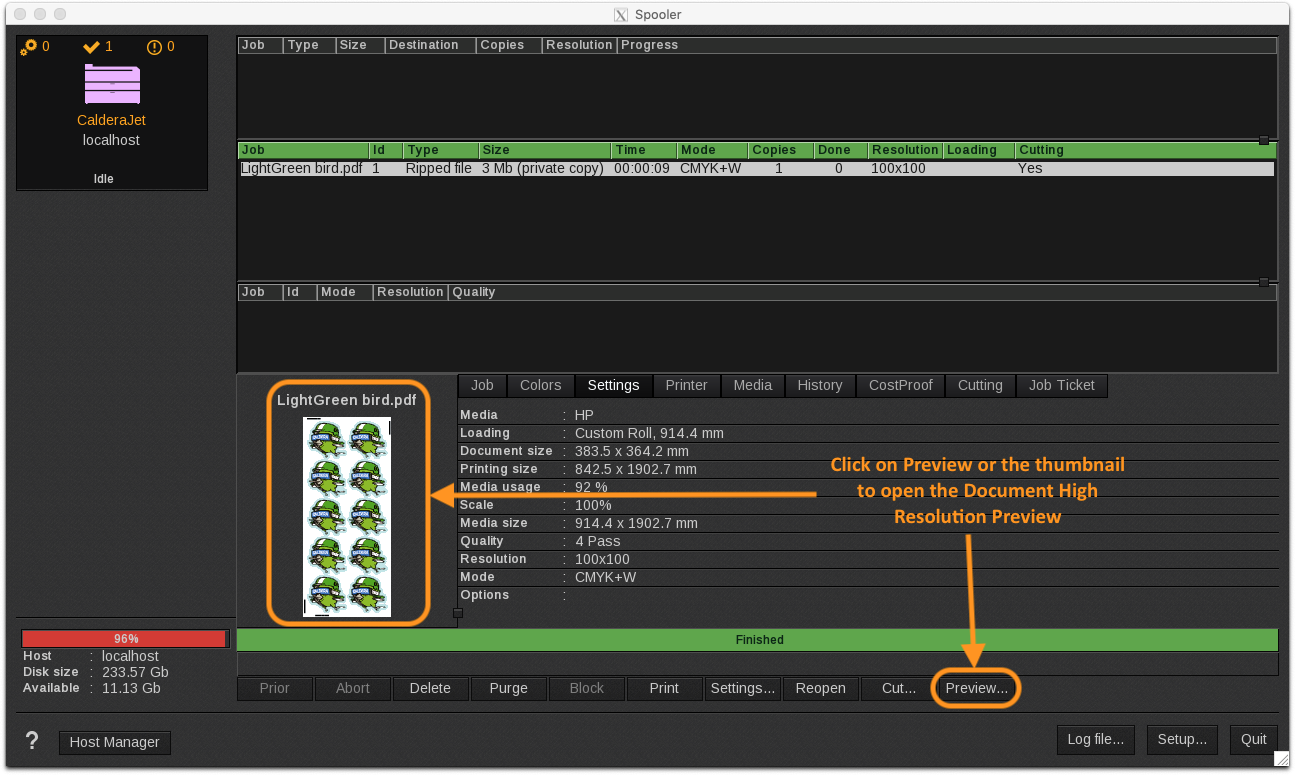
- Click on "Preview" button or "Double click" with your mouse on the job thumbnail to get a Preview
- You can also access using the "space" shortcut on your keyboard.
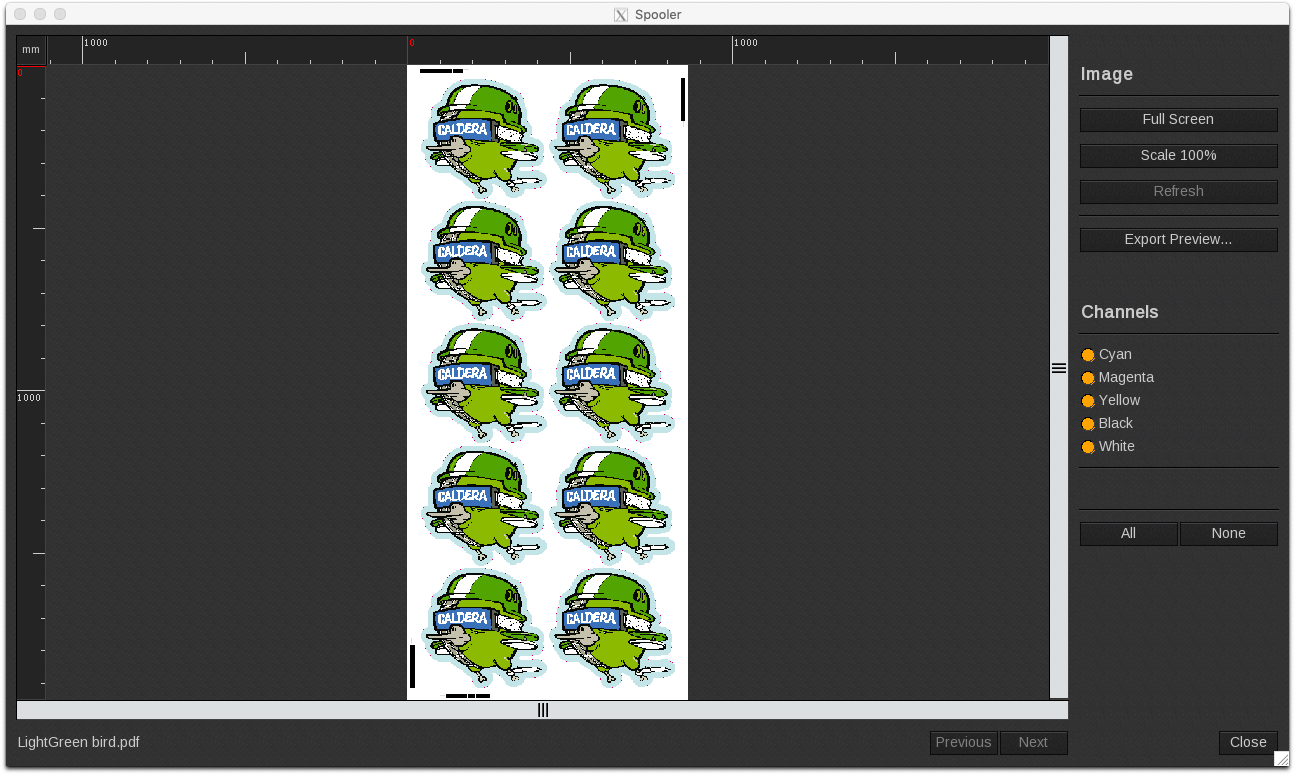
You can Zoom in/out into the document preview using your mouse and CTRL key.
- Zoom in: CTRL + Left click
- Zoom out: CTRL + Right click
You can use "Full Screen" button to have a complete view of your job. (ALT + R)
You can use "Scale 100%" button to see your job preview at 100% (ALT + 1)
You can use the following key combination to choose the proper zoom scale:
- ALT + 1 => Scale 100%
- ALT + 2 => Scale 200%
- ALT + 3 => Scale 300%
You can export your job preview in TIFF format using the following button in order to send it to a customer as an approval or proof, or to print on a smaller printer to use it as a label for your delivery process:

You can choose to see the job's "Channels"
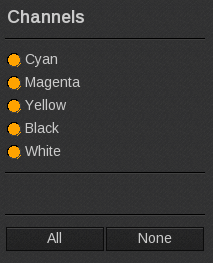
Select the Channels you want to see in the preview. Note that it is not in the colorspace of the print mode selected but in the original image colorspace and it can miss data that are added by Caldera at a later stage like Spot inks or Color bars.
Tips & Tricks:
If you want to see only the magenta channel for example:
Click on "None" button and then enable the Magenta channel.
2. CalderaJobs
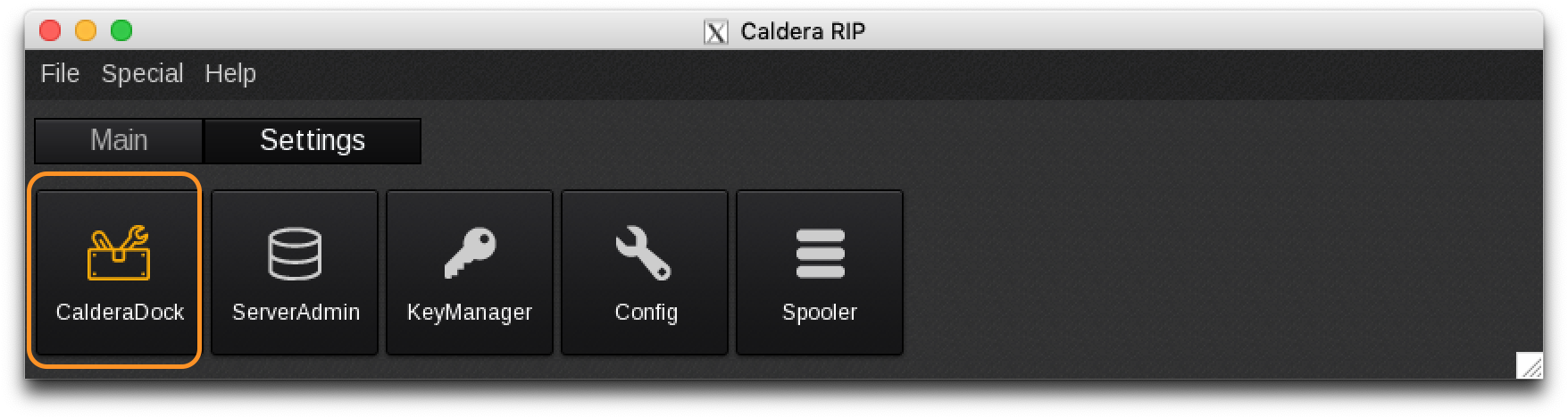
- Launch CalderaDock module from your Caldera RIP Application bar
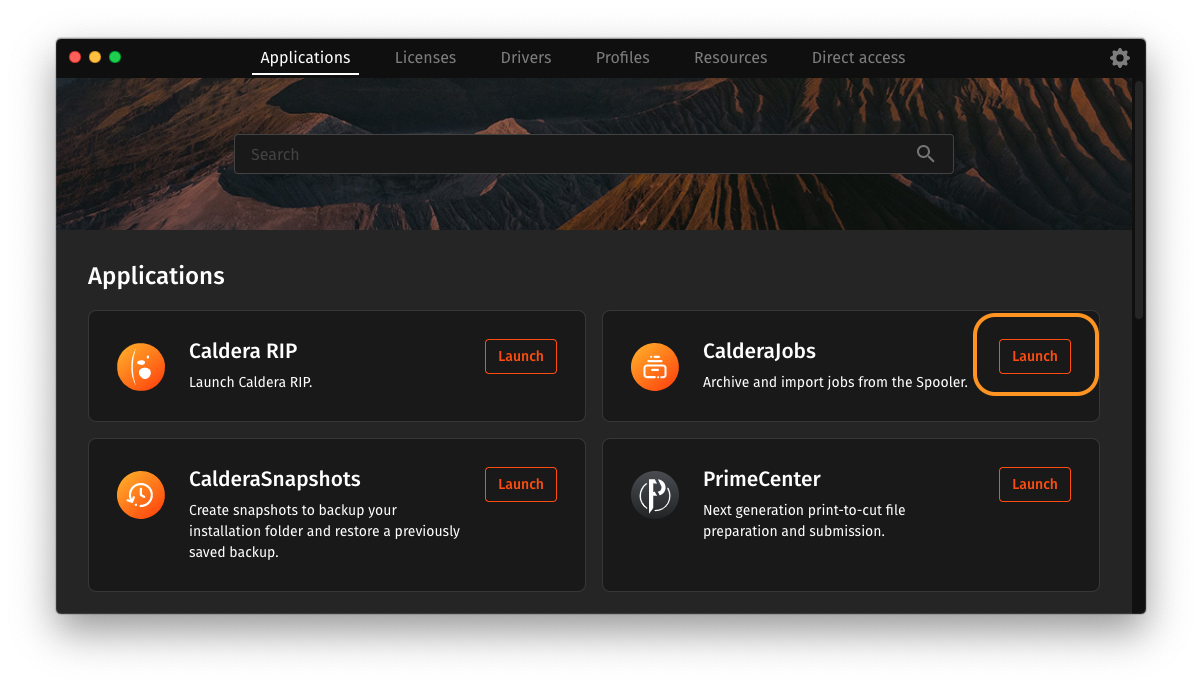
- Launch CalderaJobs module from CalderaDock Applications
- Select the Ripped job in the Done queue
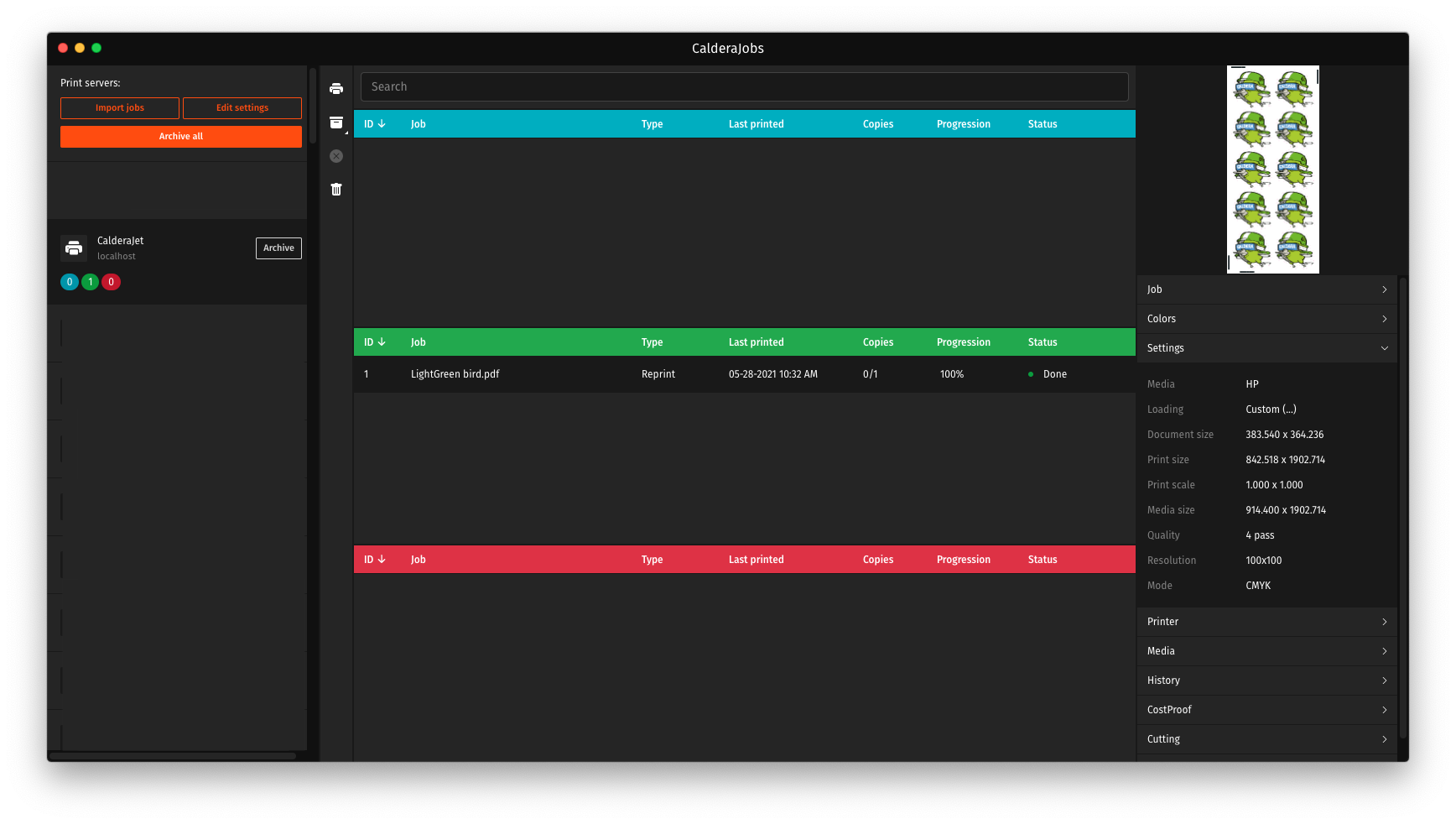
- Click with your mouse on the job thumbnail to get a Document Preview