Unable to login. And before reboot you might have received messages that the disk is full.
Root partition (in a typical Caldera Debian install this would be sda1 or the root partition.
Reboot and at the Grub screen select recovery mode: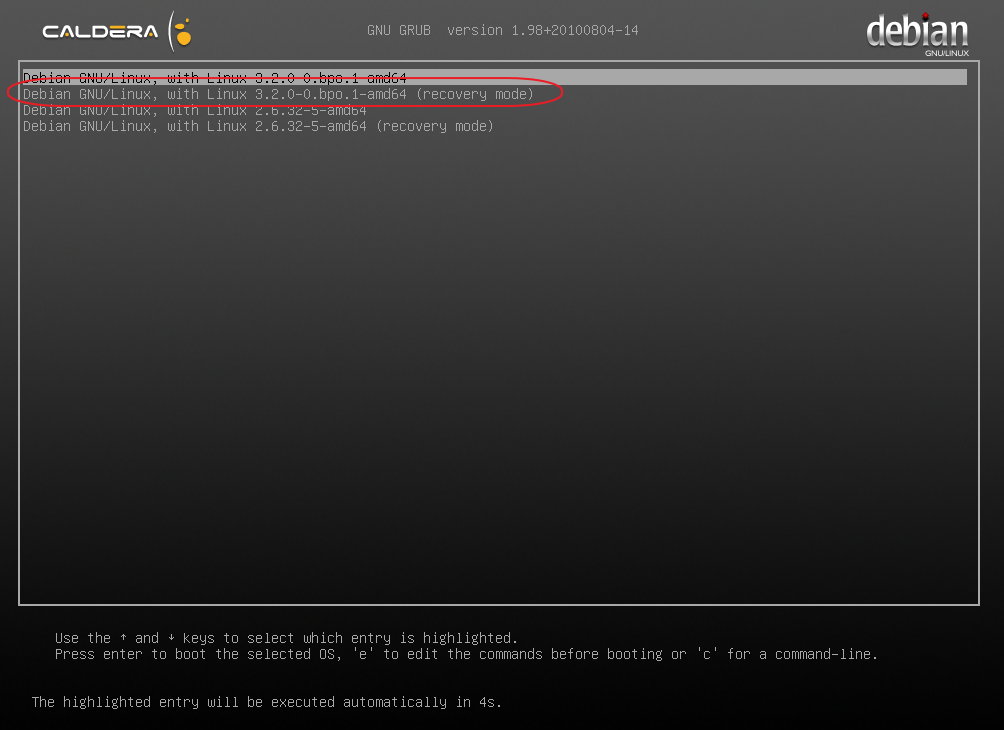
At the prompt enter the root password: caldera (case sensitive)
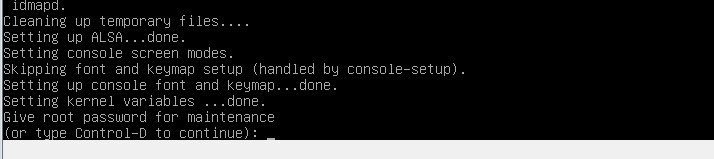
type:
df -h
This should show the available space for each partition. If /dev/sda1 is full the system will not boot into the Caldera user interface.
du -hd 1 /
This command will show the amount of data for each folder in the root, which will help identifying data accumulation.
Typical locations which accumulate data:
cd /home/tmp or /opt/caldera/var/tmp (version 13.1 or newer)
pwd (you should see /home/tmp path. Means that you are in the right folder)
When you are in /home/tmp you have to clean the tmp folder :
rm -rf * (be CAREFUL, make sure that you are in the correct folder before doing that !!)
cd /tmp or cd /opt/caldera/var/tmp (version 13.1 or newer)
pwd (you should see /tmp path. Means that you are in the good folder)
When you are in /tmp you have to clean the tmp folder :
rm -rf * (be CAREFUL, make sure that you are in the correct folder before doing that !!)
cd /home/caldera/ImageWorkDir
pwd (you should see /home/caldera/ImageWorkDir path. Means that you are in the correct folder)
When you are in /home/caldera/ImageWorkDir you have to clean the tmp folder :
rm -rf * (be CAREFUL, make sure that you are in the good folder before doing that !!)
Once you have some free space, type : reboot
If the system still doesn't start, login in recovery mode again and go all the way to the prompt again and use the following commands to find out where data is located.
How to Find It:
For problems with your system partition, unmount all but your system folders using the sudo umount -a command.
-
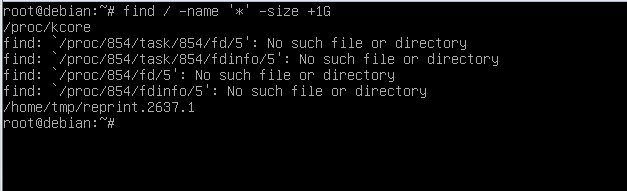
Run the following command to search for files larger than 1GB. Disregard findings which include /proc/.
-
sudo find / -name '*' -size +1G
-
- Any file found larger than 1GB is a likely suspect for further investigation, especially any file found on one of the user's mount points. Mount points will normally be empty unless a device is mounted to it.
-
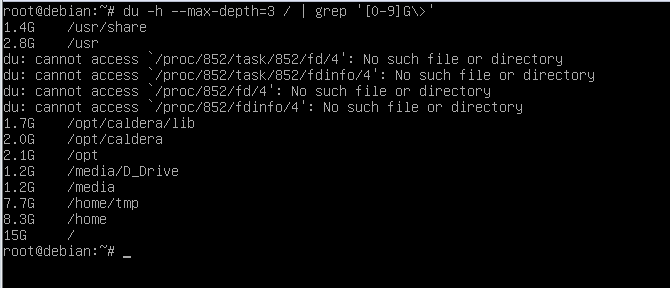
If the backup contains many smaller folders, such as a music collection, rather than look for one large file the user may wish to look at the combined folder size. In this case, run the following command. It will look for folders using more than 1GB of space if the grep option is included.
-
sudo du -h --max-depth=1 / | grep '[0-9]G\>'
-
-
Once large folders are located, you can refine the search by identifying a specific folder as the starting point and/or increase the maxdepth level. The folders /usr, /root, and /home will normally be included in the results. If all your mount points are in the /media folder, your search might be: sudo du -h --max-depth=2 /media.
Also check /var/log for large syslog and deamon.log files.