When deleting items using the graphical user interface don't forget to empty the user specific Trash can (present on the desktop).
If deleting items using Caldera Tools (file browser with administrative rights) any deleted item will be saved in the root Trash and unfortunately this one is not accessible from the graphical user interface.
The root Trash is located at:
/root/.local/share/Trash
To check if there's any data inside use the following terminal command (commands and folder names are case sensitive).
Login as root/admin first after opening terminal:
sudo -s
(password is caldera)
du -h /root/.local/share/Trash
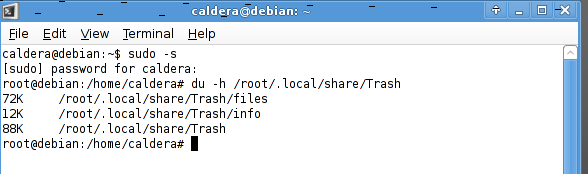
If there's data in the Trash then do the following:
cd /root/.local/share/Trash
check with the following command you're actually in the correct folder:
pwd
and it should return the path /root/.local/share/Trash

After being done you can check the overall available disk space by:
df -h
After typing two times exit the terminal window will close.
Tip. When entering a path in terminal you can use the TAB key to complete the full name of the directory so if you would type:
cd /ro and then hit TAB it should complete the cd /ro in cd /root/