Problem:
In time the spooler will be populated with log files or rip files and this could cause issues with lack of disk space, sluggish graphical user interface behavior, PRC errors (key server disconnects).
Solution:
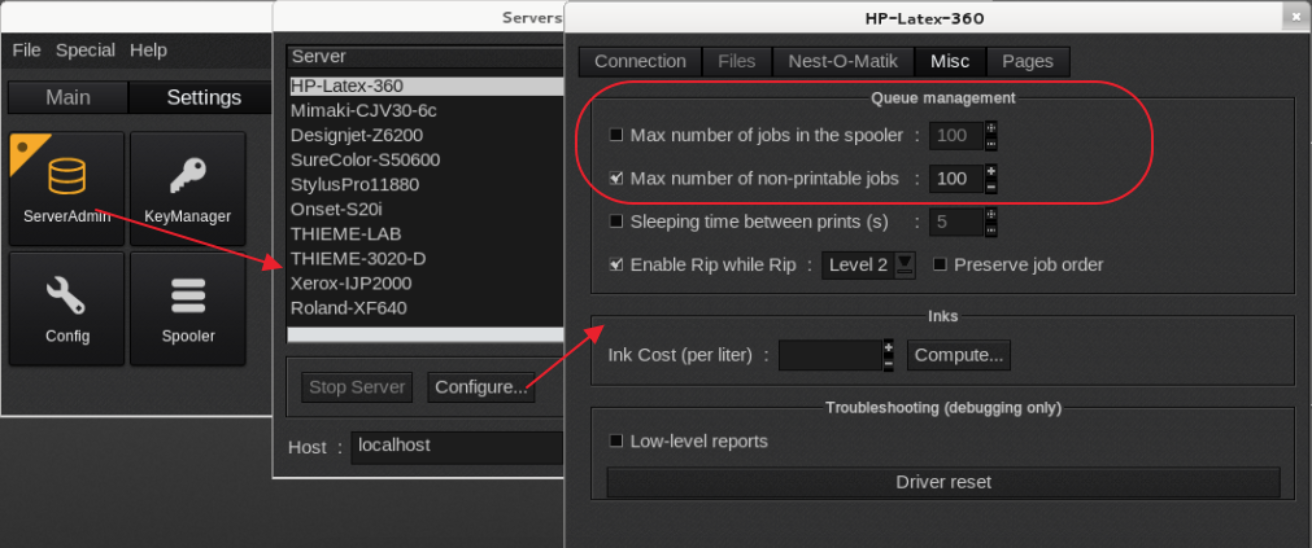
The queue management can be set for each driver. It will automatically reduce the amount of files in the Spooler or alert the user when a preset amount of ripped files has been reached:
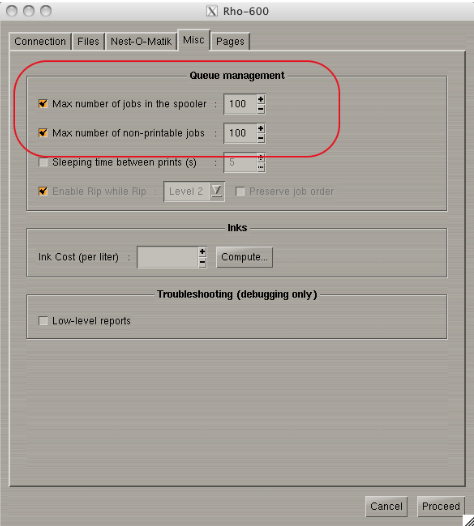
Settings Tab > Server Admin > highlight the printer, Configure > Misc tab, “Queue Management”
1) Max number of jobs in the Spooler.
This will apply to ripped jobs stored on the Caldera rip, when the number is reached Caldera will state that the Spooler is full and it requires user intervention to delete the ripped jobs to continue.
2) Max number of non-printable jobs.
This applies to the log files left by jobs which already printed and there was no ripped version saved. This will automatically cycle after a print job when the maximum is reached.
Version 9 and older: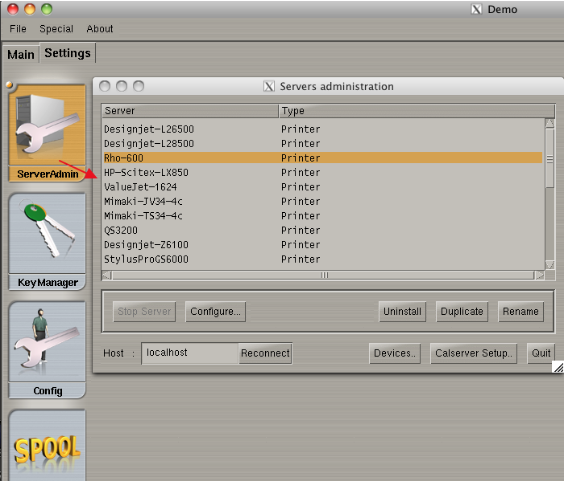
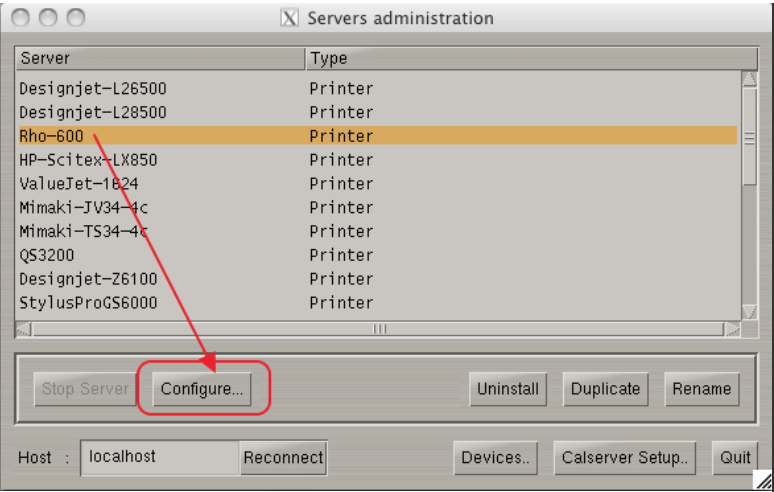
Version 10 and newer: