Question - How to not cover Cutting / Crop marks with White ink when the White is generated from CMYK data or with full page coverage.
Answer - In the White ink tab check "Do not cover Cutting/Crop marks" option when the method "Generate from CMYK data" or "Full page coverage" is selected.
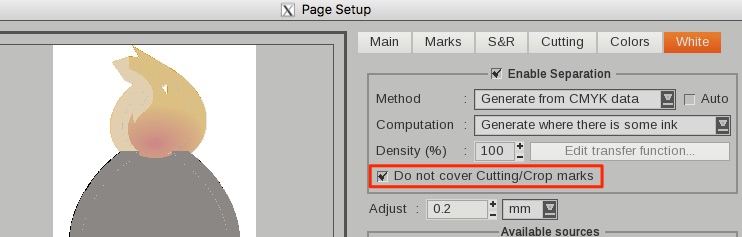
Important: Please be aware that this option is not putting White ink over or under the color used to print the cutting or crop marks. It means that if the crop marks are printed using 100% black then anything else that is printed using 100% black will not have any white under or over it.
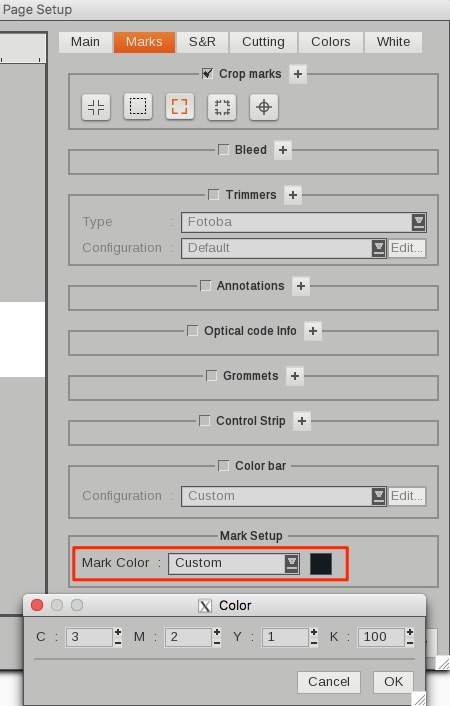
To avoid this problem it's advised to change the color of the cutting or crop marks to some other color that has less probability to be used during printing like "3% Cyan, 2% Magenta, 1% Yellow, 100 Black".
To do that you have to go to the "Marks" tab of the Page Setup icon of the print module and change the "Mark color" field of the Mark Setup area to "Custom".
Click then on the color next to the field to put the wanted value for the color of the cutting or crop marks. Click on "OK" to validate the change.