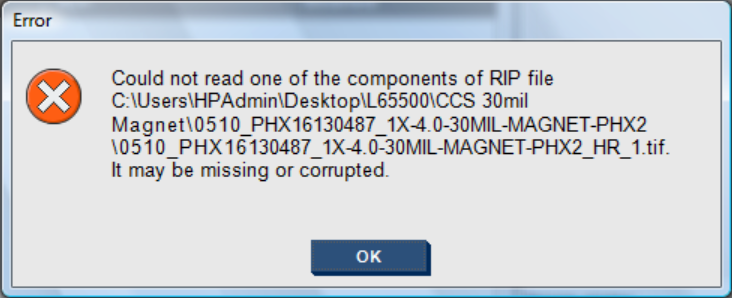
When ripping to a HP-Latex Series printer this error occurs on the IPS. "Could not read one of the components of RIP file"
File corruption happens because the media type is no longer linked to the profile.
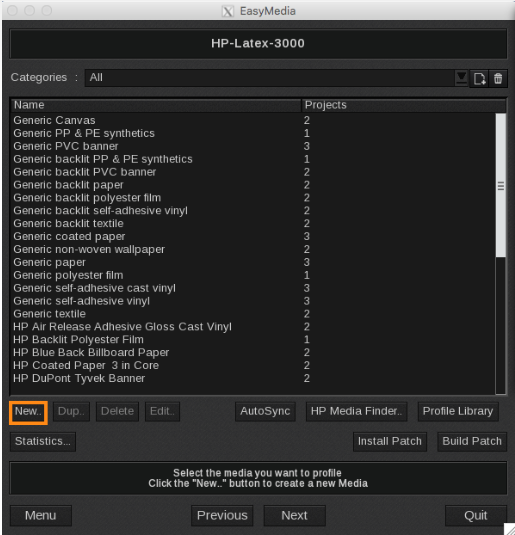
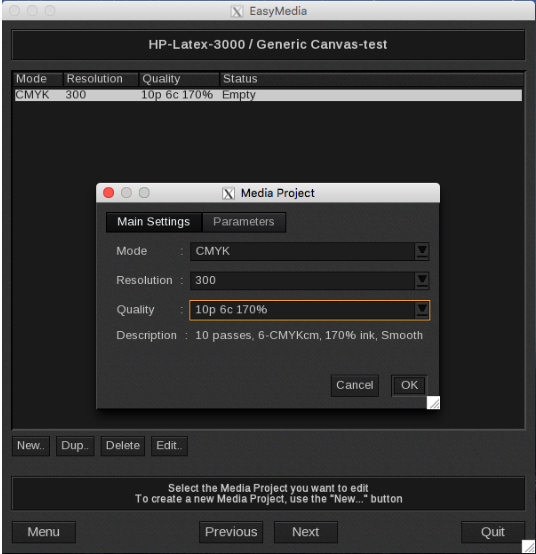
In order to resolve this error you will need to relink the profile through EasyMedia. Open EasyMedia and select your printer. Click "New"
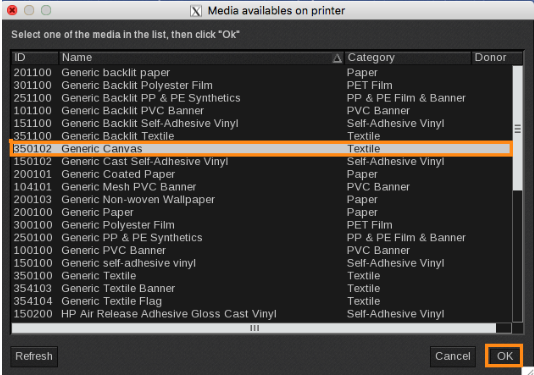
The list of available medias on the printer will populate the screen select the media you want to relink and click OK.
If the media is not already present, please refer to the printer manual on how to add a new media on the printer. Also make sure that the IP address of the printer is configured (On the HP IPS Tools > Preferences it will show the printers IP address (not to be confused with the IP address of the HP IPS)) by going to Settings -> ServerAdmin -> select your HP Latex -> Configure -> Connection -> replace 'localhost' with the IP address of your printer controller.)
For newer HP-Latex printers the IPS ip address will work instead of the Printer IP address.
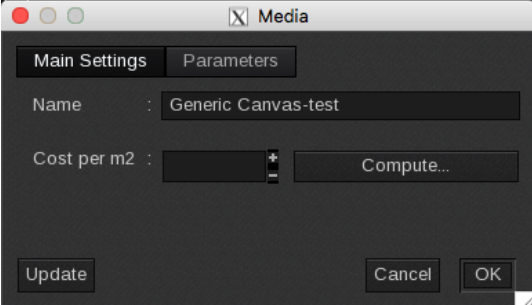
Then name the media. You will need to create a unique name for the media because the printer will not allow more than one media with the same name.
Choose the Mode, Resolution and Quality of the profile that already exists on the printer then click OK.
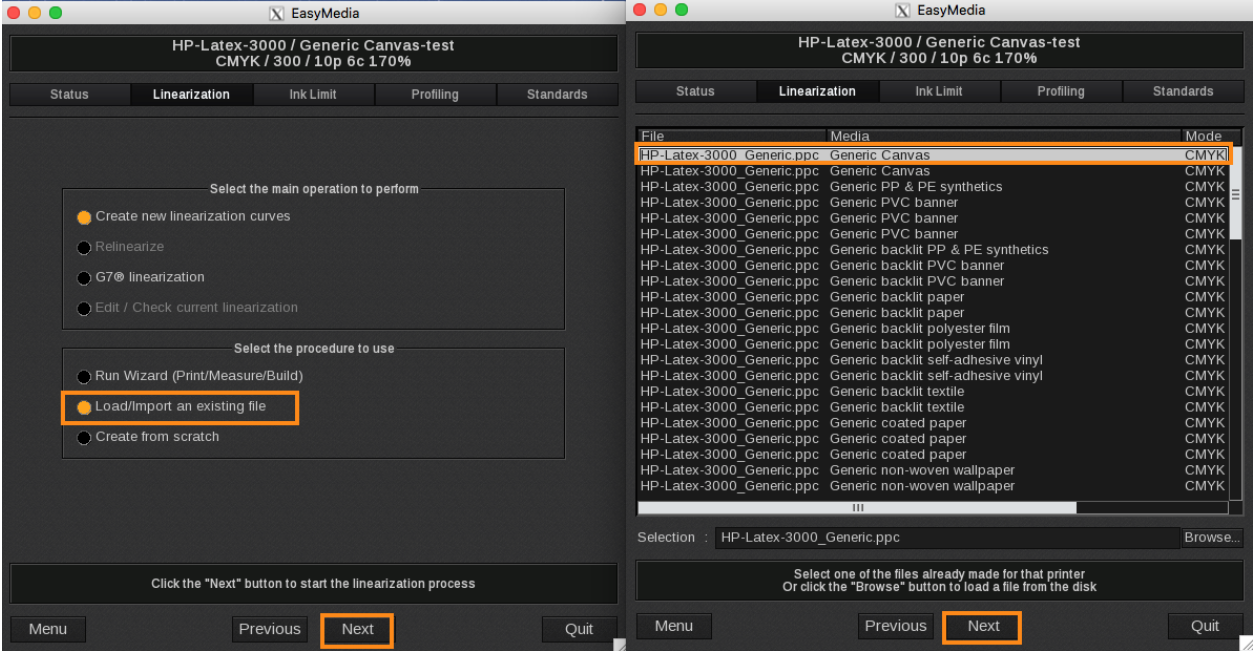
In the Linearization tab select Load/Import an existing file, select the .ppc file associated with the profile from the list in Easy Media or select "Browse" and select the file from any directory.
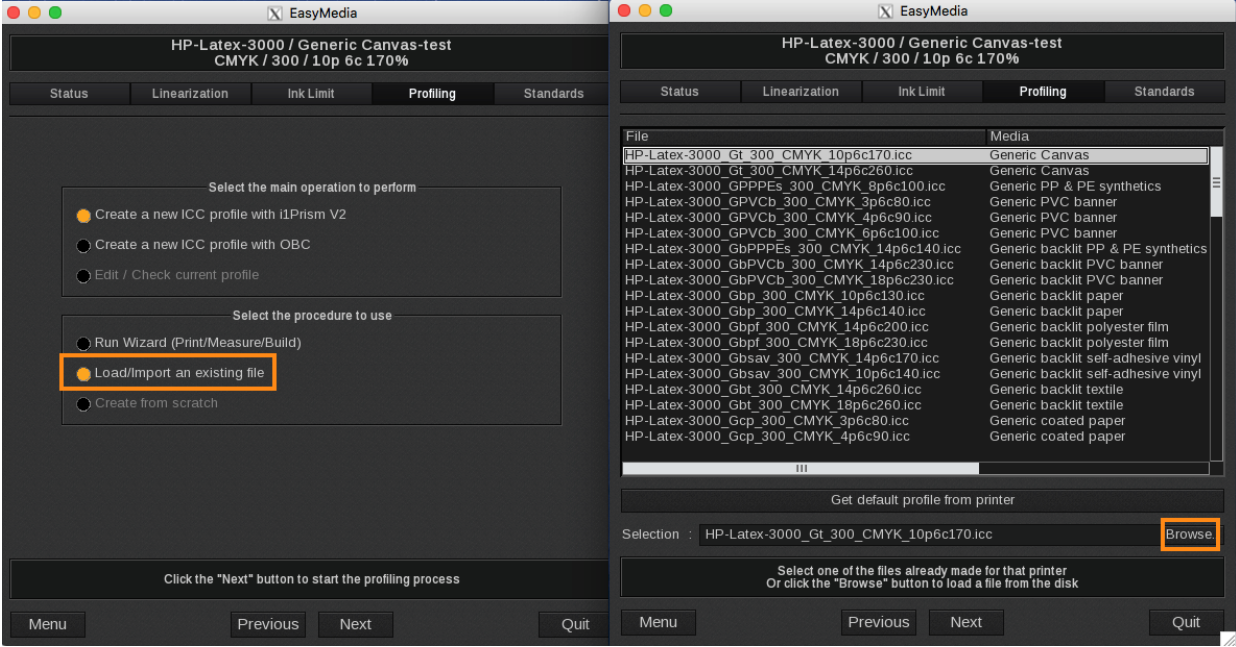
Click the profiling tab, select "Load/Import an existing file" and click next. Select the .icc profile from the drop down list or click browse and navigate to the directory the .icc profile is located.
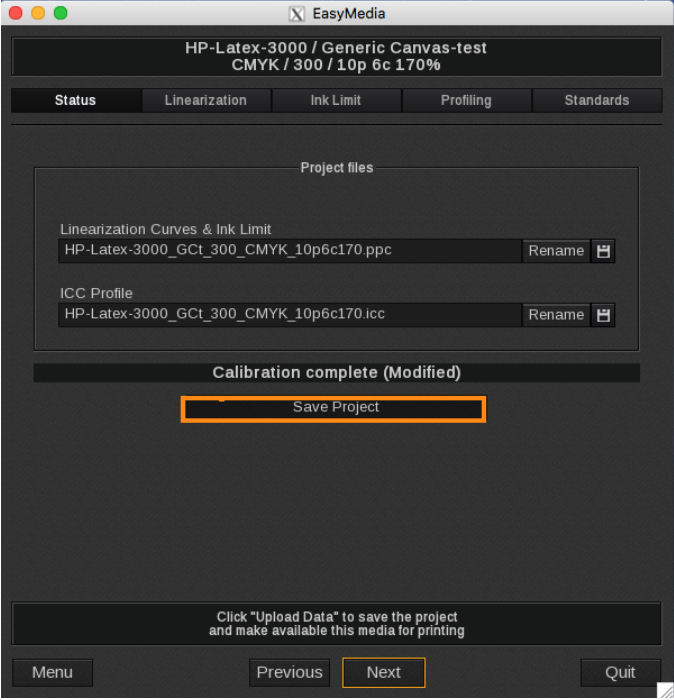
Click the status tab and click "Save Project". Now your profile has been relinked with your printer and the error will not occur.
Delete the old profile and then rename your new profile with the name of the original. This is especially important if you have a Workflow calling out for the old name.
____________________________________________________________________________________________________________
Internal note: Also check/remove the /opt/caldera/lib/shared printer related files.