Symptom:
The Caldera printer driver for the Inca Spyder/Onset doesn't include all printer specific resolutions as this can be different for each printer.
Problem:
The so called device details text file which is supplied by Inca or in an existing install it can typically be found on the old rip will update the Caldera printer driver with the missing resolutions and print modes.
So in case of an already previous used rip (typically Colorgate or Wasatch) locate the IncaDeviceDetails.txt file.
For new installs either Inca or FujiFilm should be able to provide the file based on the serial number of the printer.
Solution:
Copy the IncaDeviceDetails.txt to the Caldera rip.
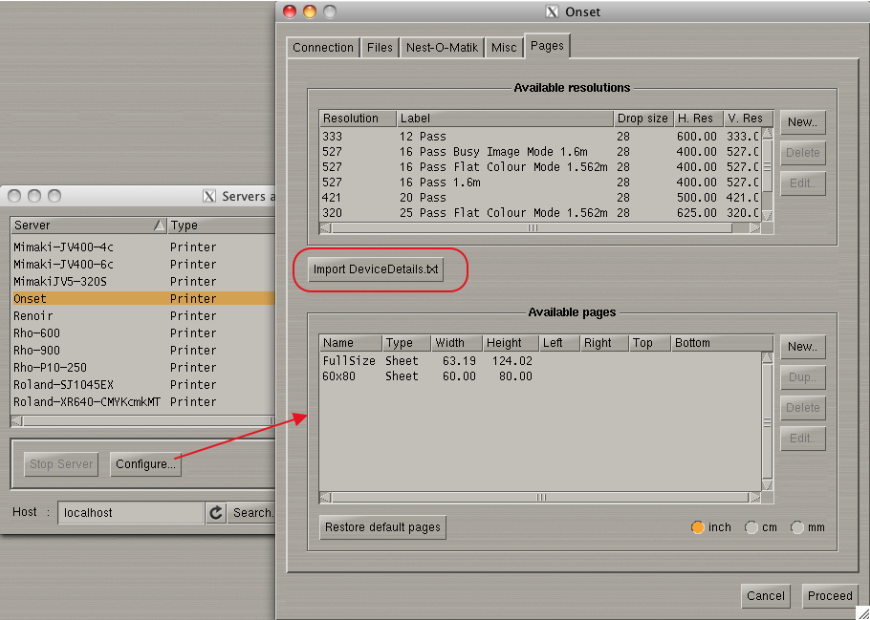
For version 9 the following applies
Settings Tab > Servers Admin > select the printer > Configure button > Pages Tab, click the "Import DeviceDetails.txt" button. A file browser will open allowing you to select the IncaDeviceDetails.txt > Then Proceed (password caldera) and the resolutions should appear in the printer driver.
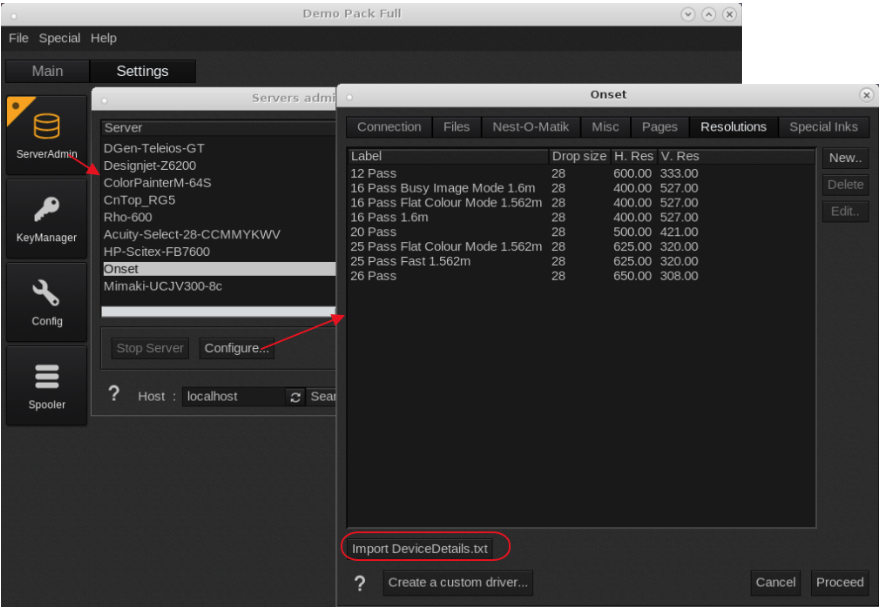
For Caldera version 10 or newer, the DeviceDetails is to be loaded from the resolutions tab:
Settings Tab > Servers Admin > select the printer > Configure button > Resolutions Tab, click the "Import DeviceDetails.txt" button. A file browser will open allowing you to select the DeviceDetails.txt > Then Proceed (password caldera) and the resolutions should appear in the printer driver.