Connection
The printer can only be driven using USB communication.
The RJ45 port only supports maintenance operations and notifications through email.
Resolution
The Model printers support the following graphic resolutions: 360*360, 540*360, 540*720, 720*720, 720*1080, 720*1440, and 1440*1440.
Recommended resolutions depend on media, ink configuration, and quality/speed. For more information see the Mimaki recommendations available online.
Modes
The Model supports the following modes:
- CMYK: Cyan, Magenta, Yellow Black
- (4 colors only) BMYK: Blue Magenta Yellow Black
- (8 colors only) CMYKcm: Cyan, Magenta, Yellow, Black, light cyan, light magenta
- (8 colors only) CMYKcmk: Cyan, Magenta, Yellow, Black, light cyan, light magenta, light black
- (8 colors only) CMYKcmkO: Cyan, Magenta, Yellow, Black, light cyan, light magenta, light black, Orange
- (8 colors only) BMYKbm: Blue, Magenta, Yellow, Black, light blue, light magenta
- (8 colors only) BMYKbmkO: Blue, Magenta, Yellow, Black, light blue, light magenta, light black, Orange
If a profile is saved the mode used by default is one of the first media profiled. Otherwise, the mode selected by default is the first one on the list.
Qualities
Qualities depend on the selected resolution, media, and mode. Some combinations may not have compatible qualities. Compatible qualities may change for each firmware and printer.
Qualities are built on the following model:
<number of pass> <uni-directionnal/bi-directionnal> <high speed/normal speed>.
Ink
The following inks are available:
- SS21 (Solvent Ink)
- BS31 (Solvent Ink
- ES3 (Solvent Ink)
- Sb (Aqueous Ink)
- Solvent Chines Ink
- Aqueous Chinese Ink
Waveform
You can use the Default mode or a waveform(WF3 or WF4 or WF5, or WF6). Available waveforms may change according to your resolution.
For "normal ink" (Sb, Bs, SS, and ES), the choice does not have an incidence.
Be careful, with the Chinese inks when you select Default, the printer uses the waveform saved on the machine by the user but if you select a specific waveform it will use the one chosen.
Special inks
Separation
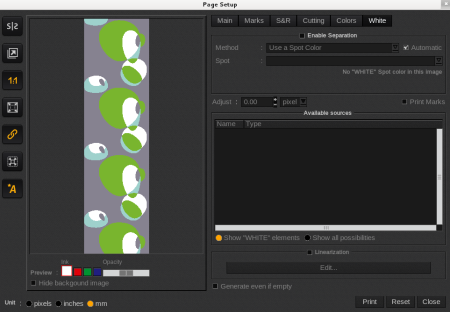
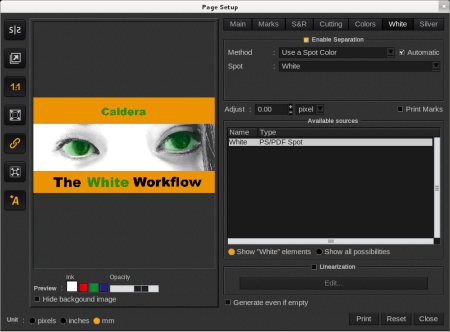
To use the Special inks, you must enable at least one special ink separation in the Page Setup of the Print module (White or Silver tab), and select the appropriate separation method to use the special ink. Only 8 colors drivers have a Silver tab.
Only 8 colors drivers has a Silver tab.
Multi-layer
The printer is able to perform multi-layer printing. You can print, at the same time, two layers, one above the other and with special and normal inks (called color).
For more information about the inks, you want to apply, see the Printer section.
Known issues
After canceling a job from the panel or a crash, the USB communication between the printer and the computer might be in an incoherent state. If so, you should always be able to see the status, but trying to print a job will result in a job error. Please stop the driver in the server administration, then disconnect the USB cable (from the computer side or printer side), clear the remaining data on the printer, and then reconnect the USB cable.
After canceling a job from the Caldera RIP, the data already sent to the printer is stored on it and can only be removed by switching the printer to the local state and clearing the data from the printer panel. If the led on the panel is blinking when the printer is in a remote state, it means that some data will remain on the printer.