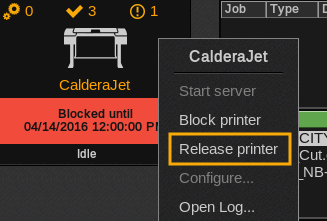
The function Block a printer allows you to put all the active job (blue queue) in waiting state. Usually, this option will be chosen when one needs to block the printing queue for the whole weekend).
- Open the Spooler. Select your printer and right-click its icon.
- In the menu that appears, select Block.
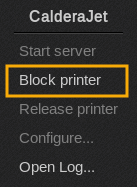
- Here you have two options. You can either choose to Block printer until explicitly released button (which will then demand that you perform a manual release), or Block printer until button, which will allow you to select a day and an hour (usually, this options will be chosen when one need to block the printing queue for the whole weekend).
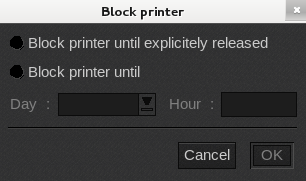
- Click OK to confirm. From now on, until the printer is released, no more job will be printed (please note, however, that if one is currently being processed, it will still be completed normally.
- To release the printer manually, simply right-click its icon in the Spooler and choose Release Printer.