A specific CostProof key is necessary to use this function.
The option CostProof allow to have an estimated printing cost by computing ink and media consuming per job. You can see the cost of your job in a dedicated tab into the Spooler.
- Open the Spooler.
- Choose the job on which you want information.
- Go to the CostProof tab.
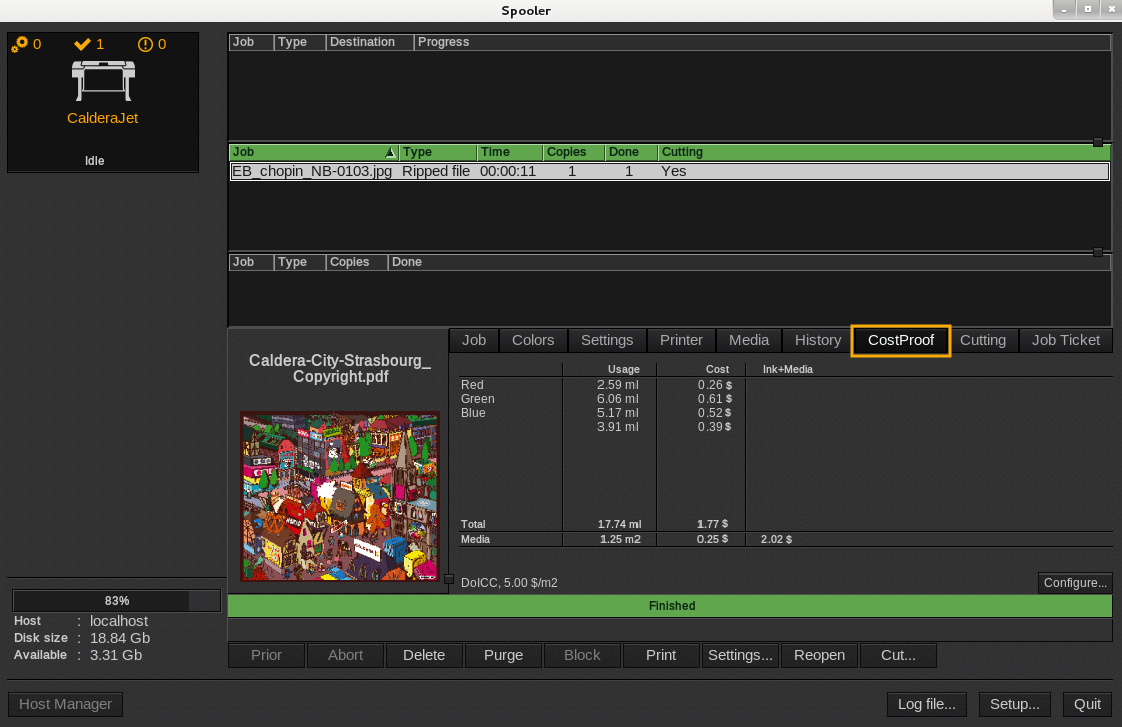
- If CostProof had already been set up, the cost of your job will appear. If you want to set up or change the information, go to the next step.
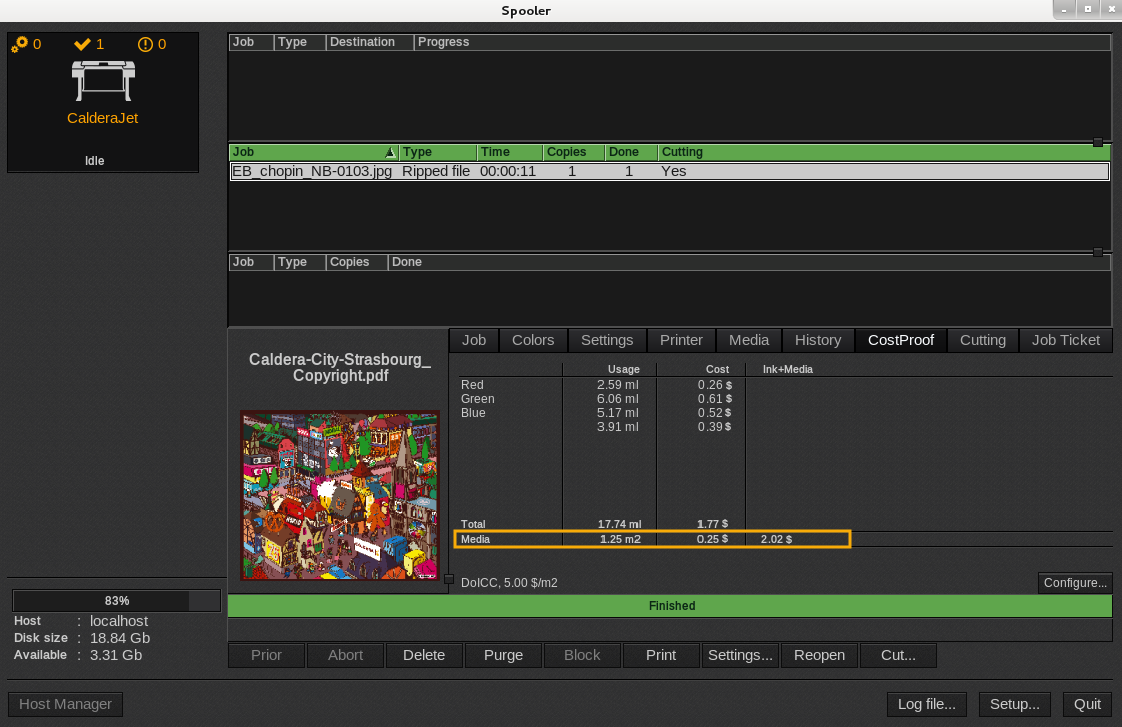
- Click the Configure ... button.
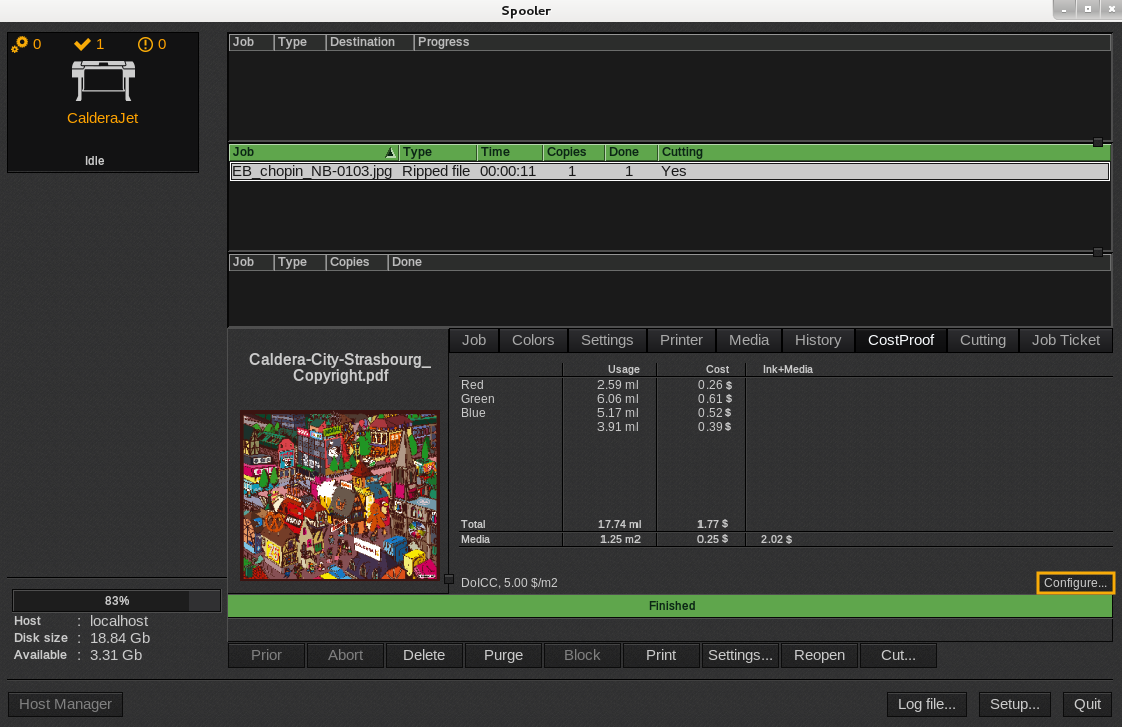
- In the window that appears, type the ink cost per liter.
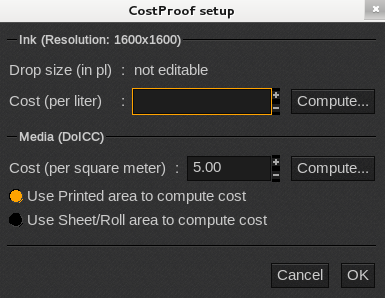
- If you ignore the cost per liter, click the Compute.. button.
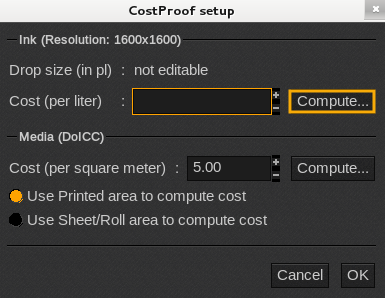
- In the window that appears, type the bottle's content and choose the unit in the drop menu (ml, cl, l).
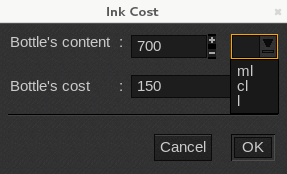
- Confirm by clicking the OK button. The cost per liter will be automatically computed and will appears in the CostProof Setup window.
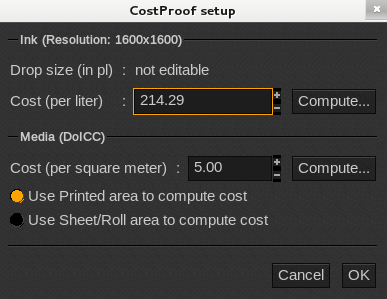
- Enter the cost of your media (per square meter). If you ignore it, click the Compute.. button.
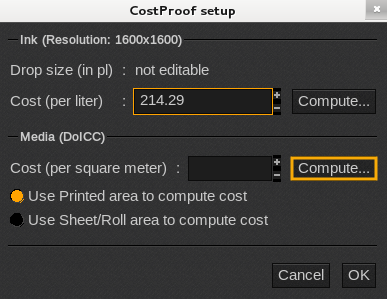
- In the window that appears, first indicate the roll width and choose the unit (M, cm, mm, inches, feet) then type the roll length and choose the corresponding unit followed by the cost.
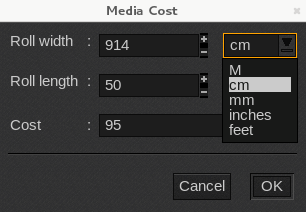
- Confirm by clicking the OK button. The cost per square meter will be automatically computed and will appears in the CostProof Setup window.
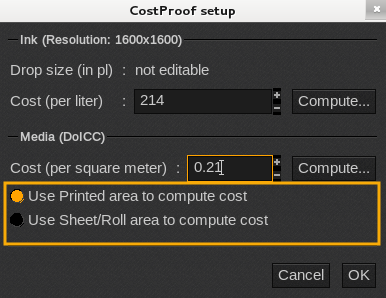
- To compute the cost of your media you can either choose "Use Printed area to compute cost" or " Use sheet/Roll area to compute cost".
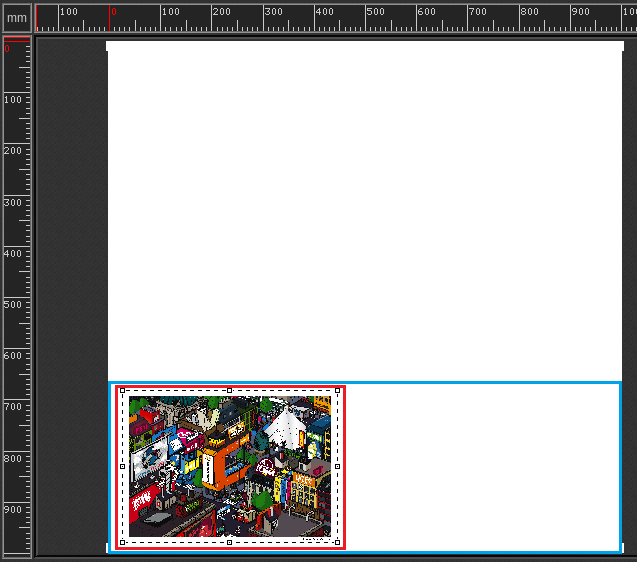
If you choose the first option, only the surface inside the red contour will be taken into consideration.
Whereas if you choose the second one, all the width of the sheet/roll will be taken into account meaning the whole surface inside the blue area.
This function is not available with printers which have their own grid or do not detail the drop's size.