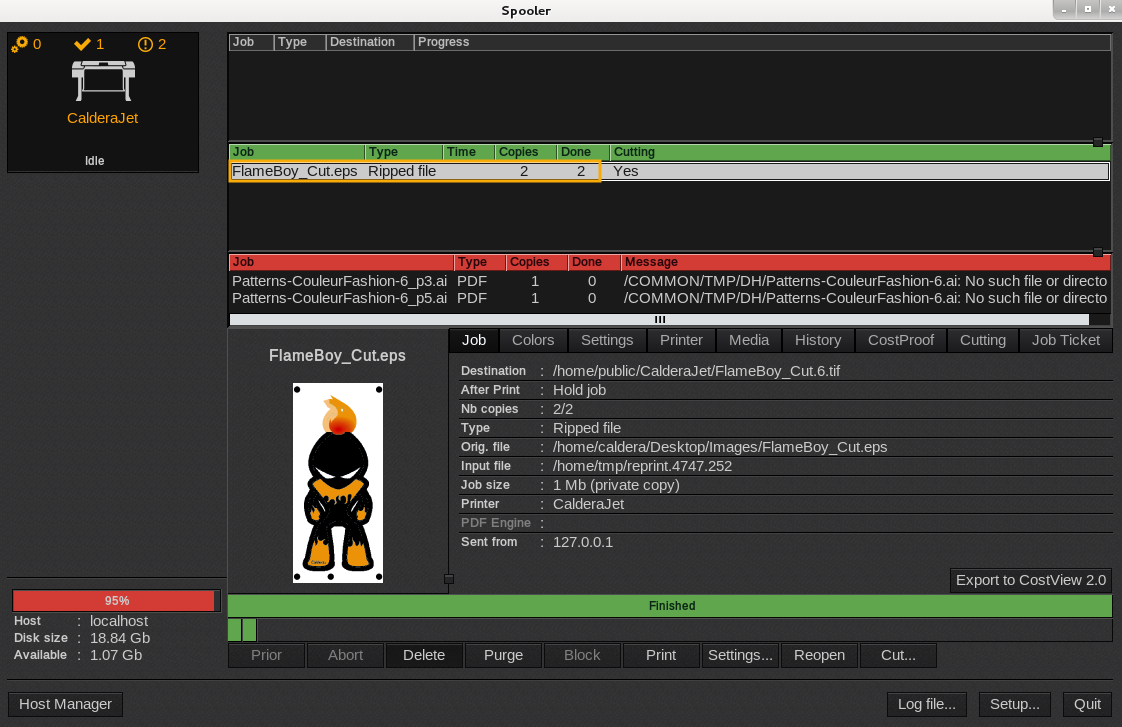
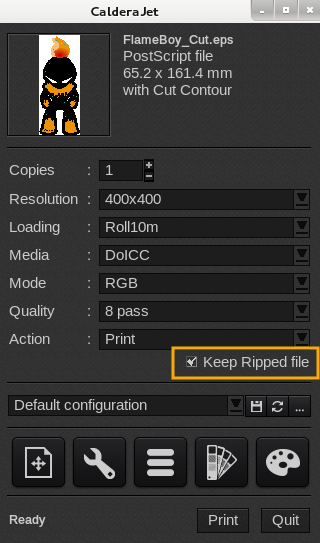
This function consists in modifying the number of copies to print. This one is very useful when you want to add copies, modify the number of copies to print, or re-print. In order to use this option, when you send the job you have to keep the box Keep Ripped file checked.
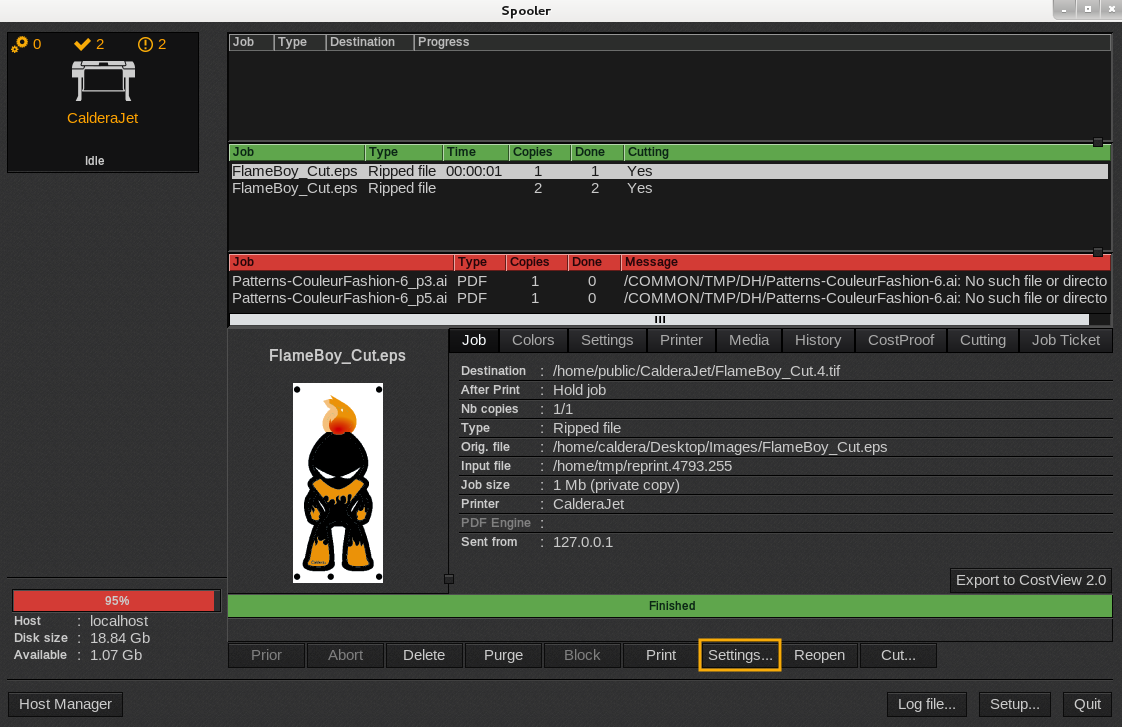
- Open the Spooler. In the pending queue, select the job you wish to make more copies of.
- At the bottom of the window, click the Settings... button.
- Then in the window that appears, click the Main tab. In the field Number of copies, fill in the number wanted (2 in our example).
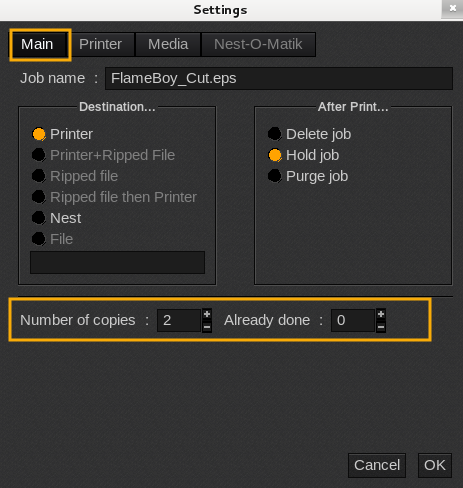
NOTE: The settings window contains a parameter name Already done. This value is used to keep track of the number of copies successfully printed, in case errors were to occur during the printing. For instance, if you send 10 copies of a job, but the printer stops in the middle of the fourth one (e.g. because there is no more paper), the job will be put in an error state, with the value Already done set to 3 whereas Number of copies will stay to 10. This way, when you release the job, only the remaining 7 copies will be printed.
- Click OK to come back to the Spooler window.
- Click Print to launch (or launch again) the printing.