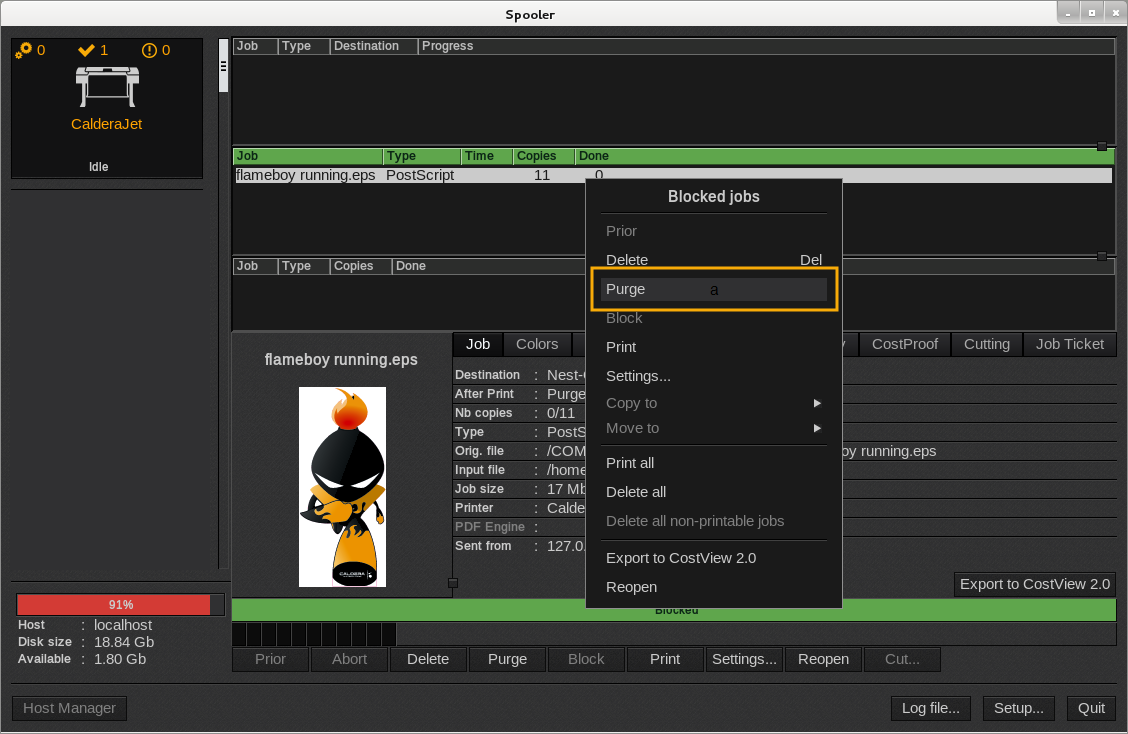
The function Purge allows you to erase data that comes with your printed job. So you can save space disk.
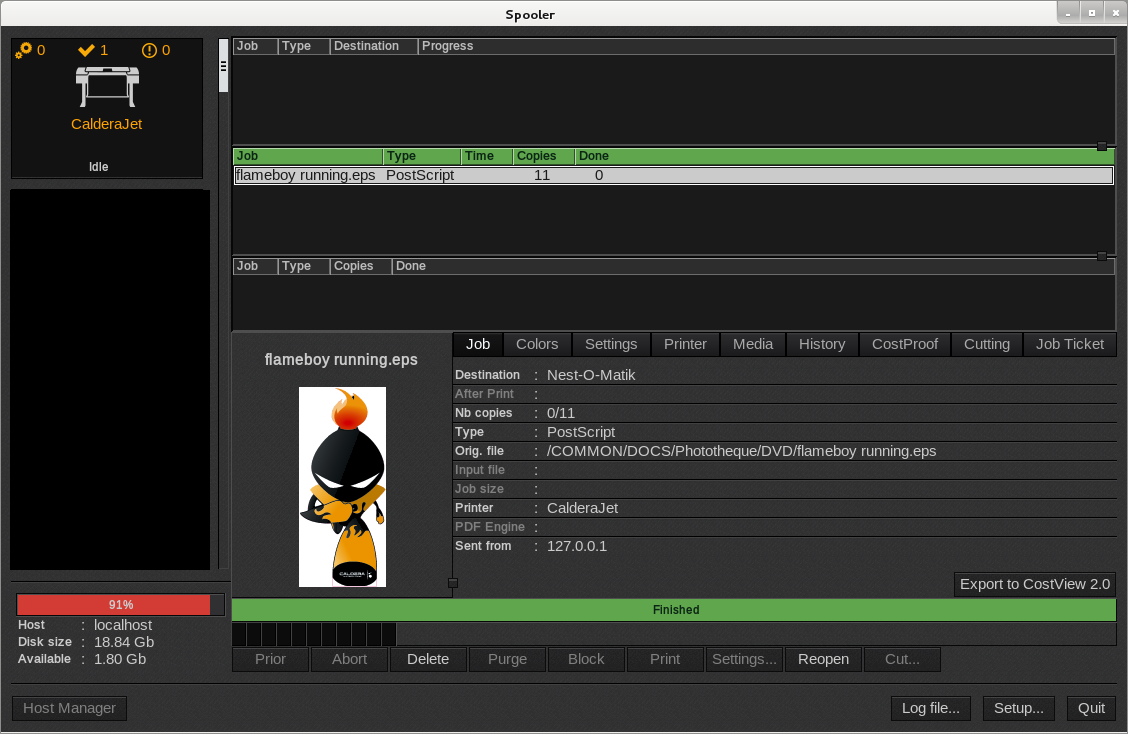
Fields After Print, Input file, Job size, PDF engine will not appear anymore and you will not be able to click Print and Settings.
Be careful, once the purge done, the job can not be printed again and parameters can not be changed.
Be sure the job import has been made in CostView before purging it in the Spooler, otherwise you will not be able to import the job in CostView.
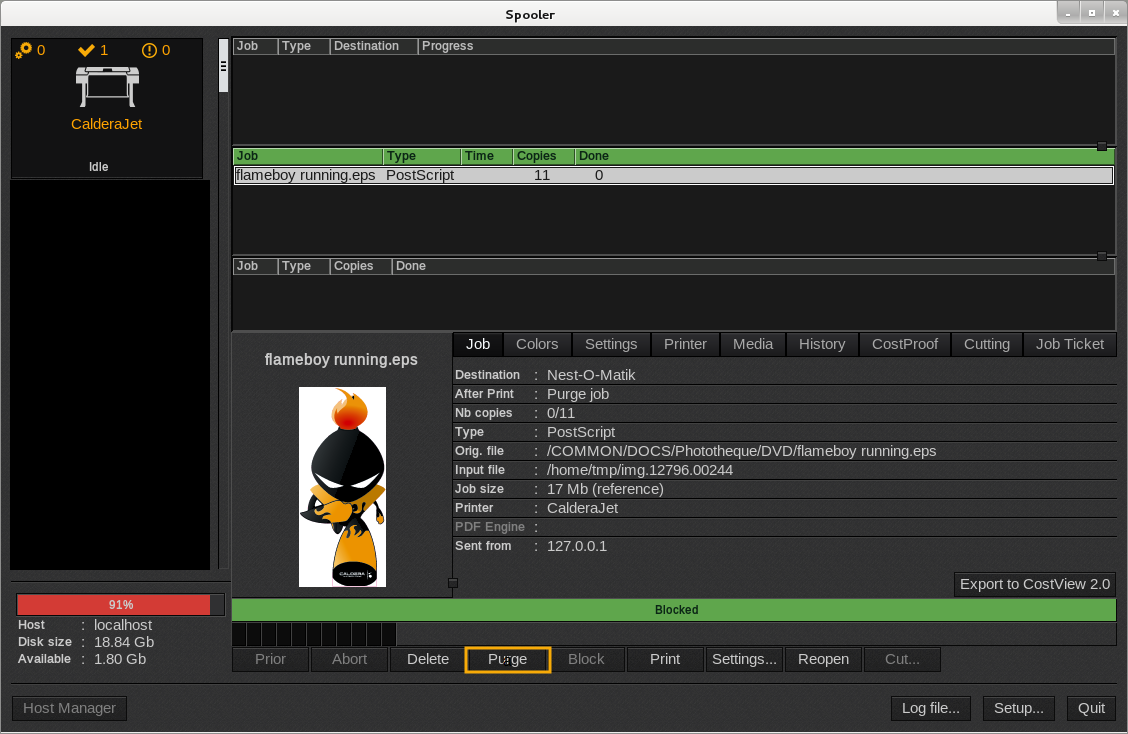
First method:
- Open the Spooler.
- Select your job in the print queue.
- At he bottom of the window, click the Purge button.
Second method:
- Open the Spooler.
- Select your job in the print queue.
- In the menu that appears, click Purge.