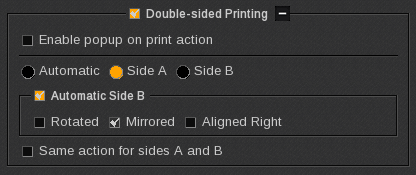
This document explains how to configure the HP PageWide XL Pro Series printers for double-sided printing (DSP). Please refer to the manufacturer user manual to get more information.
HP PageWide XL Pro printers and Caldera DSP feature
Those printer drivers are compatible with Double-Sided Printing (DSP) features. You can configure the DSP into: Caldera-HP PageWide XL Pro print module > Specific settings
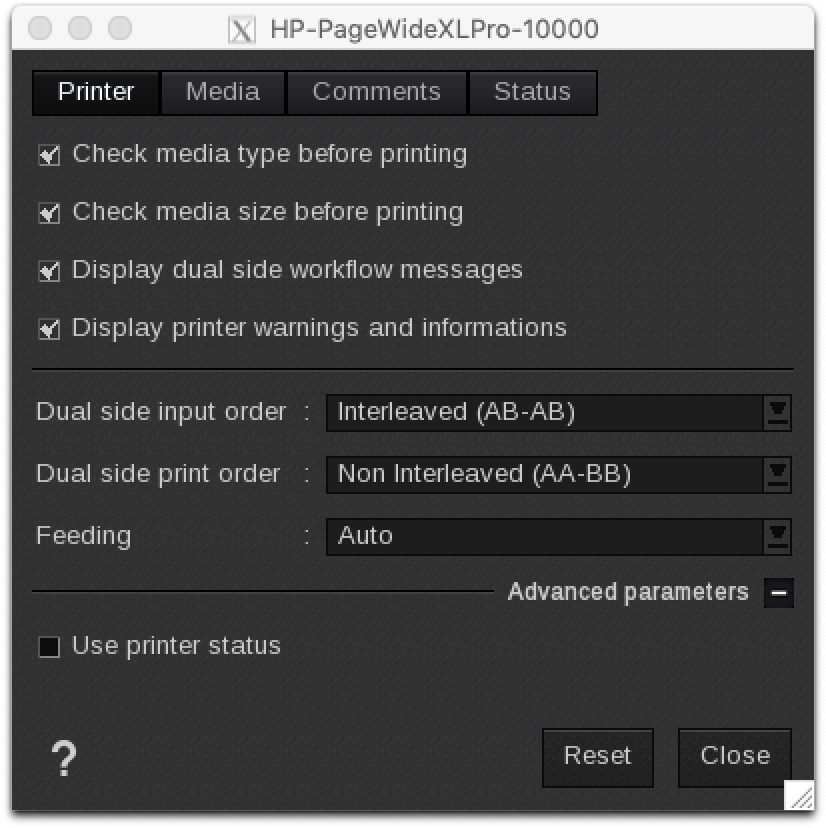
- Dual Side input order: Define how the incoming file (Multipage PDF) has been generated
- Interleaved (AB-AB) Page1=odd - Page2=even - Page3=odd - Page4=even
- Non Interleaved (AA-BB) Page1=odd - Page3=odd - Page2=even - Page4=even
- Dual Side print order: Define how the file (Multipage PDF) will be sent to controller
- Interleaved (AB-AB) Page1=od - Page2=even - Page3=odd - Page4=even
- Non Interleaved (AA-BB) Page1=odd - Page3=odd - Page2=even - Page4=even
- Caldera DSP feature can be used with Adobe multipage PDF files.
- Make sure that the multipage PDF file you generate have all the same page dimensions.
- The multipage PDF files can be generated in multiple ways. Check Case 1; Case 2; Case 3 below.
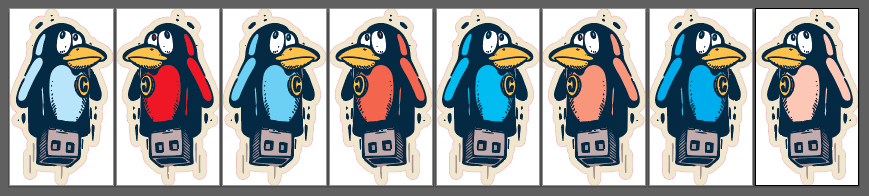
- Case 1: Example of an "8" pages PDF file that contains the following information:
|
Page 1 Side A-1 |
Page 2 Side B-1 |
Page 3 Side A-2 |
Page 4 Side B-2 |
Page 5 Side A-3 |
Page 6 Side B-3 |
Page 7 Side A-4 |
Page 8 Side B-4 |
We have a multi-pages PDF file that contains Side A and Side B pages.
- The "Blue birds" will be printed on Side A
- The "Red birds" will be printed on Side B
IMPORTANT NOTE:
Even pages (Red birds) are already mirrored into the multi-pages PDF file.
We can configure Caldera (DSP) and HP PageWide XL Pro Series drivers to print the files in a certain ways:
- Dual Side input order: Define how the incoming file (Multipage PDF) has been generated
- Interleaved (AB-AB) Page1 - Page2 - Page3 - Page4 - Page5 - Page6 - Page7 - Page8
- Dual Side print order: Define how the file (Multipage PDF) will be sent to controller
- Interleaved (AB-AB) Page1 - Page2 - Page3 - Page4 - Page5 - Page6 - Page7 - Page8
- Non Interleaved (AA-BB) Page1 - Page3 - Page5 - Page7 - Page2 - Page4 - Page6 - Page8
The Caldera print module DSP feature has to be enabled too.
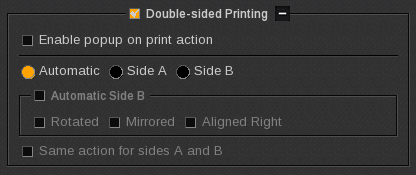
Open the Specific settings icon and go into the "Main tab" and Enable "Double-sided Printing" and the "Automatic" feature as shown below:
- Case 2: Example of an "8" pages PDF file that contains the following information:
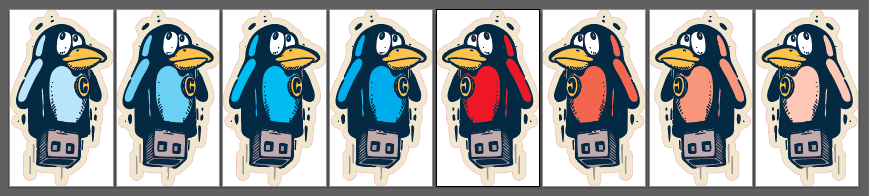
|
Page 1 Side A-1 |
Page 2 Side A-2 |
Page 3 Side A-3 |
Page 4 Side A-4 |
Page 5 Side B-1 |
Page 6 Side B-2 |
Page 7 Side B-3 |
Page 8 Side B-4 |
We have a multi-pages PDF file that contains Side A and Side B pages.
- The "Blue birds" will be printed on Side A
- The "Red birds" mirrored in the file will be printed on Side B
IMPORTANT NOTE:
Red birds are already mirrored into the multi-pages PDF file.
We can configure Caldera (DSP) and HP PageWide XL Pro Series drivers to print the files in a certain ways:
- Dual Side input order: Define how the incoming file (Multipage PDF) has been generated
- Non Interleaved (AA-BB) Page1 - Page3 - Page5 - Page7 - Page2 - Page4 - Page6 - Page8
- Dual Side print order: Define how the file (Multipage PDF) will be sent to controller
- Interleaved (AB-AB) Page1 - Page2 - Page3 - Page4 - Page5 - Page6 - Page7 - Page8
- Non Interleaved (AA-BB) Page1 - Page3 - Page5 - Page7 - Page2 - Page4 - Page6 - Page8
The Caldera print module DSP feature has to be enabled too.
Open the Specific settings icon and go into the "Main tab" and Enable "Double-sided Printing" and the "Automatic" feature as shown below:
- Case 3: Example of an "4" pages PDF file that contains the following information:
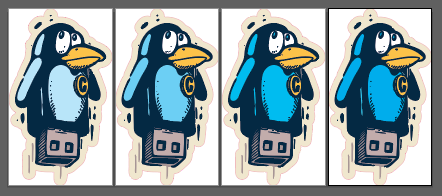
|
Page 1 Side A-1 |
Page 2 Side A-2 |
Page 3 Side A-3 |
Page 4 Side A-4 |
We have a multi-pages PDF file that contains only "4" Side A pages.
- The software will automatically generated Side B based on Side A design
- The "Blue birds" will be printed on Side A & mirrored on Side B
IMPORTANT NOTE:
We will have to Enable "Mirror image" feature to let the software do the mirroring.
Additional warning: text will be mirrored as well
We will have to let the software create the Side B pages based on Side A designs.
We can configure Caldera (DSP) and HP PageWide XL Pro Series drivers to print the files in a certain ways:
- Dual Side input order: Define how the incoming file (Multipage PDF) has been generated
- Non Interleaved (AA-BB) Page1 - Page2 - Page3 - Page4
- Dual Side print order: Define how the file (Multipage PDF) will be sent to controller
- Interleaved (AB-AB) Page1 - Page2 - Page3 - Page4 - Page5 - Page6 - Page7 - Page8
- Non Interleaved (AA-BB) Page1 - Page3 - Page5 - Page7 - Page2 - Page4 - Page6 - Page8
The Caldera print module DSP feature has to be enabled too.
Open the Specific settings icon and go into the "Main tab" and Enable "Double-sided Printing".
Enable "Side A" and "Automatic Side B" to create the Side B pages based on Side A designs.