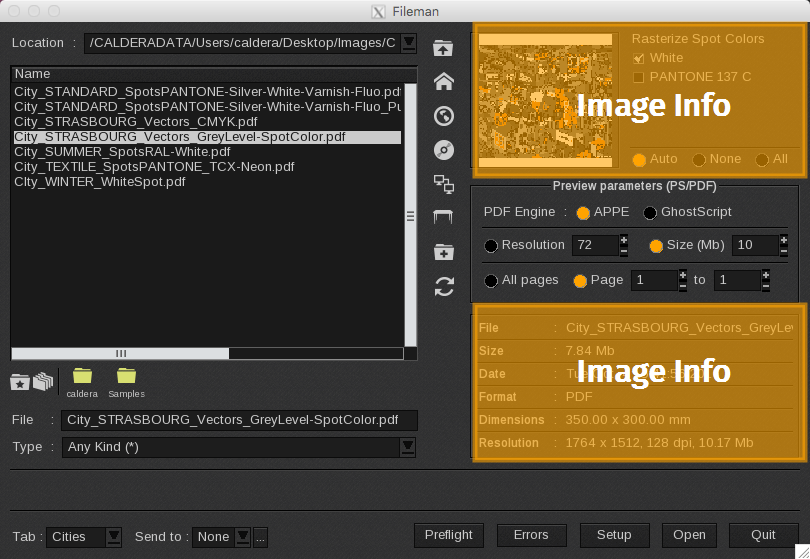
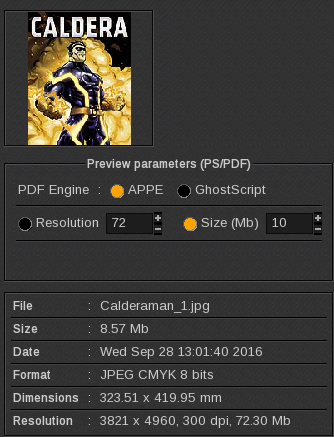
After navigating the files, click on your selected file once to access the Image Info, which includes its thumbnail and technical characteristics:
Examples with different images
| Simple JPEG | Photoshop PDF with Spot Colors detected |
 |
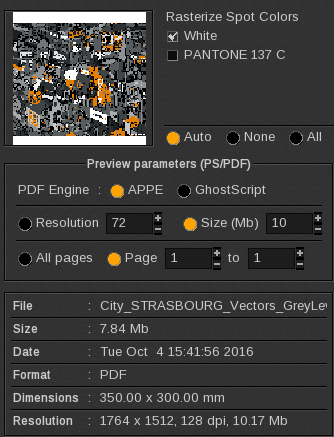 |
In the case of Adobe PDF files, CalderaRIP will automatically detect spot colors, as long as they are correctly created and named in the design software (learn more).
You can choose whether to rasterize all detected spot colors or not.
Image Info displayed
In the File Info area, you can obtain the following information:
- File: File name.
- Size: File size in megabytes.
- Date: File creation date.
- Format: Image format (JPEG, TIFF…).
- Dimensions: Image dimensions (in current unit).
- Resolution: Resolution in DPI and image size in megabytes, once loaded.
Considerations
- A thumbnail will be displayed only if the image is in TIFF, JPEG, or Adobe PDF format.
- In this sense, vector files do not display as thumbnails in the FileManager. However, after uploading your image, if you select it again in the FileManager to reload it, the thumbnail will then be displayed.
- By default, double-clicking on a vector file in the FileManager window will initiate the upload. Be sure to set your FileManager parameters first.