The File Navigation section allows you to browse folders and select files for loading into CalderaRIP by double-clicking with the left mouse button.
When you click on a file once, the Image Information will be displayed on the right, including its thumbnail and technical characteristics:
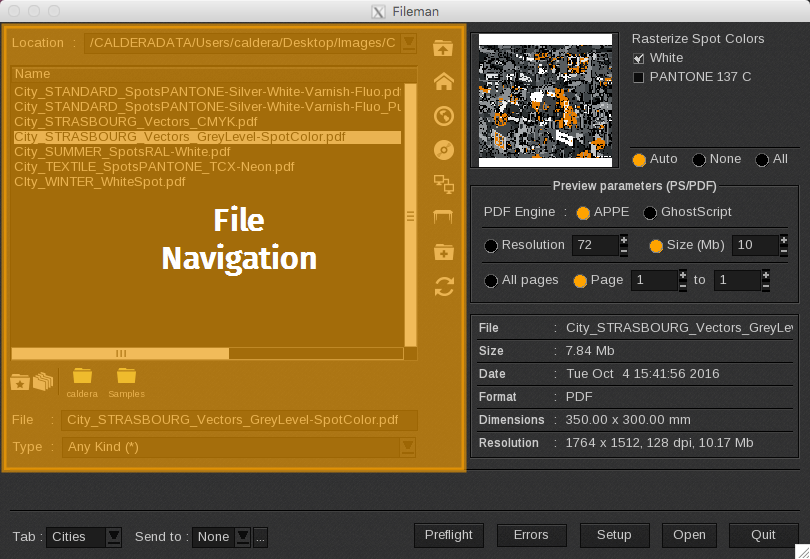
There are several icons you can use to navigate to the folders where your images are located:
-
 To browse the Parent folder of the folder you are currently in.
 -
 To browse in the Home folder.
 -
 To browse in the Public folder.
 -
 To load images from a CD.
 -
 To browse the Network folder.
 -
 To browse to the Desktop.
 -
 To create a new directory.
 -
 To refresh the current directory.
 -
 To set the current directory as a favorite.
 -
 To manage your favorite directories: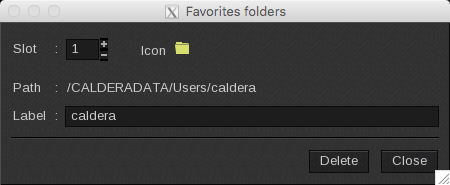
- You can choose the slot and the icon of your favorite folders.
- The path by default is /Users/<Username>
- In the label, you can choose how to name your favorite folder.
Recent folders

Click the down arrow while in the Location field to access recent folders.
File Filter

Enter your file name in the File field to highlight it in the list. You can also filter your images by file format using the Type field.
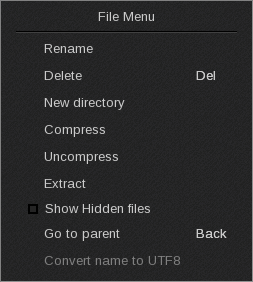
File Menu
Right-clicking in the files area (the left side of the window) opens the File Menu. This menu provides options to rename or delete the selected file(s), create a new directory, display hidden files, and more: