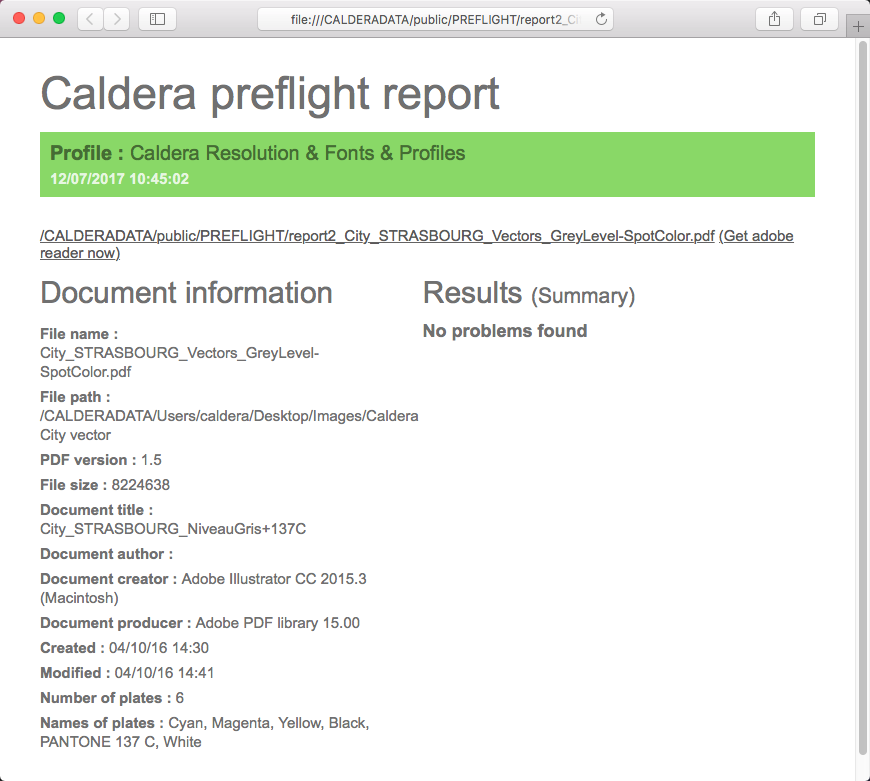
The General tab displays information regarding the manipulated file and the original file
Image
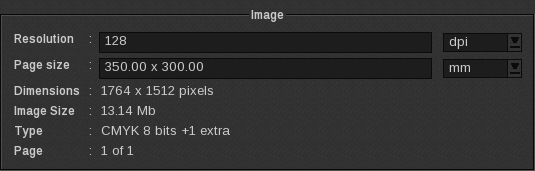
The Image section displays information regarding the manipulated file, the one housed in the .
-
- Resolution: image resolution. For vector images, this data corresponds to the resolution of the preview. It can be displayed either in dpi or in dots/mm.
The resolution can be changed here (raster image only). Just enter the new resolution in the field. The page size will change accordingly. The changes are automatically saved.
-
- Page size: size of the image on the page. It can be displayed either in inches or mm.
-
- Dimensions: size of the image in pixels.
-
- Image Size: storage space used (in bytes) by the image on the disk.
-
- Type: color mode and depth of the image’s colors (in bits).
-
- Page: which page of the document the image corresponds to (in rasterized PDF documents, for instance, there can often be several pages).
File
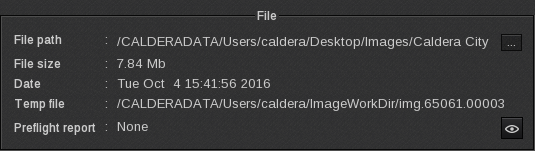
The File section displays information regarding the original file that was loaded into the software using Fileman.
-
- File path: path to the file associated to the image. The link turns red when the original file location changes. This may happen with vector images because the file is read again to match the resolution of the recent print job.

If the File path is broken, use the […] button to open the File selection window. Browse to the image’s new location and click Load to relink the File path.
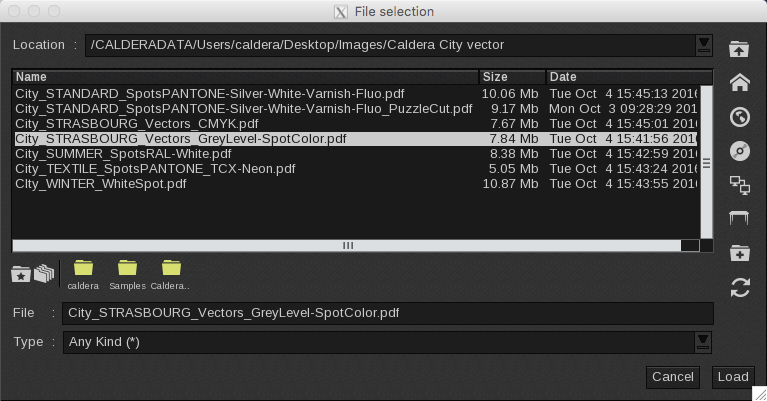
For raster files, the preview data is used during the processing. Therefore, the File path is only displayed in read-only mode.
-
- File size: storage space used (in bytes) by the image on the disk.
-
- Date: file’s created on date.
-
- Temp file: link to the temporary file used by Caldera RIP software and its module.
-
- Preflight report: if a preflight report exists for the file, its location is displayed here, written in green if it passed, in orange if it was closed to pass and in red if it didn’t pass.

-
-
- Clicking on the eye opens the preflight report file.
-