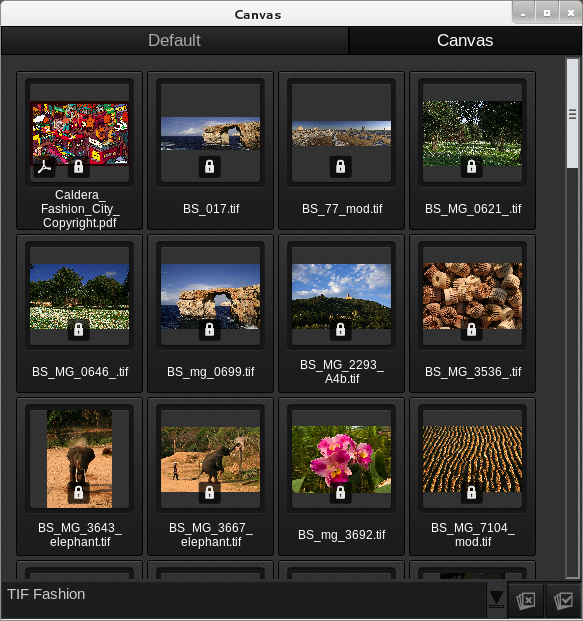
This article discusses the filter feature, which is a text field that enables real-time filtration of data. The filtering process begins as soon as you enter the first character in the field, allowing for quick and efficient searches:
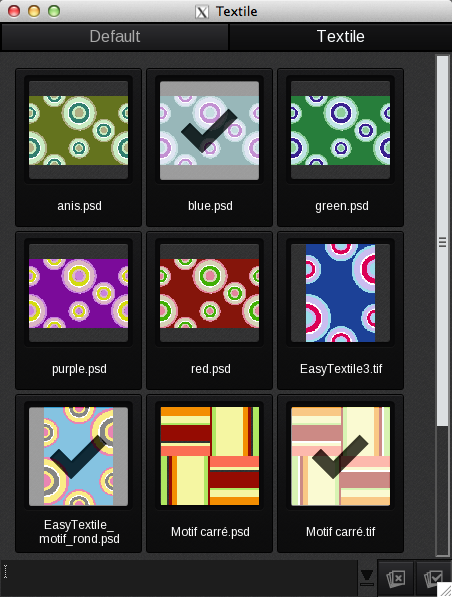
The filter is applied simultaneously across all tabs and remains active when you switch between them.
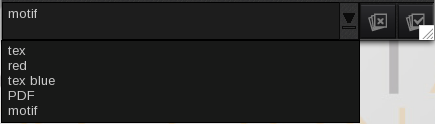
To save your filter option in the "Last Selections" list, press Enter while your cursor is still in the filter text field. You can access your “Last Selections” list by clicking the downward arrow to the right of the filter text field.
To clear a filter, simply highlight the text in the filter field and delete it.
Info
Only the 5 last entries are saved.
Filter options
Right-click in the ImageBar to open the Images Menu. Select Filter options to configure the filter in the ImageBar. These filter options apply to the freeform filter field.
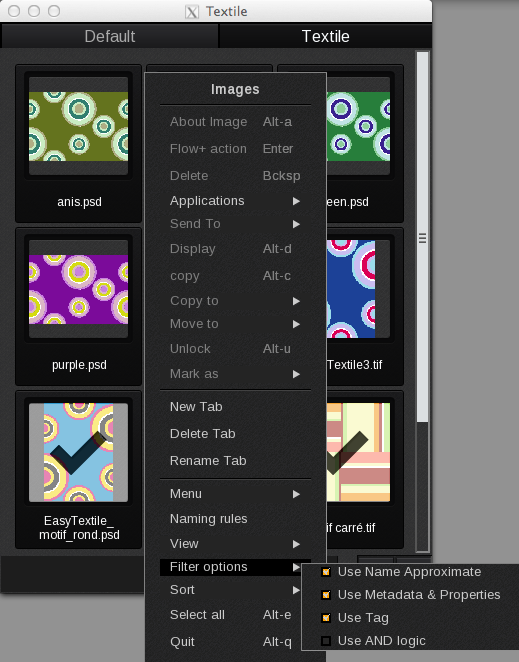
- Use Name Approximate: The filter narrows results even if the text includes errors and approximations.
- Use Metadata and Properties: The filter narrows results based on metadata and file properties including resolutions and job ticket information (Customer, Sales, Ticket Number).
- Use Tag: The filter narrows results based on the comments saved in the image.
- Use AND logic: The filter narrows results based on all the text entered. All the terms typed have to be present for the image to be displayed.
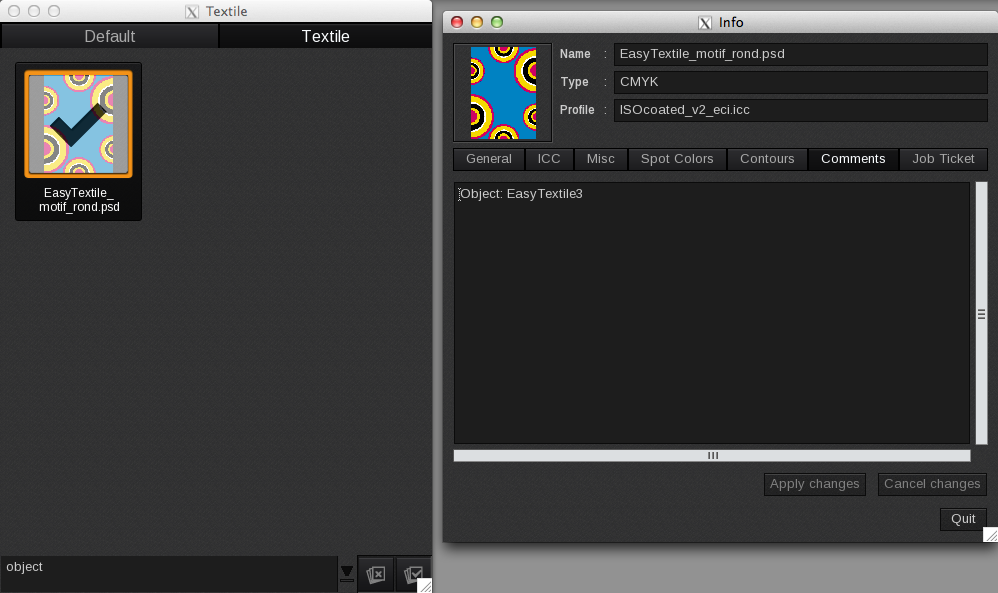
Example of how filtering works when the Use Tag feature is enabled. The word Object typed into the filter filed produces a result.
File format filter
To search for specific file formats, enter the format in capital letters into the filter text field. Examples include: PDF, JPEG, TIFF, and PSD.
Info
The filter cannot differentiate between EPS and PS file formats.
Multiple filter
You can refine your search results by entering multiple words in the filter field. Simply type the first word, followed by a space, and then the next word, continuing this pattern. The results will be filtered to include all the words you have entered.
Info
If the Use AND Logical feature is enabled, all filter criteria must be present in the image data to yield results.
For example, the results can be narrowed to include TIF files or files that mention “Fashion” in their title, metadata, or tags.