
When the Color bar area is enabled a “Color bar” (aka “Color Stripes” or “Gutters”) is added to your print. The color bar prints multiple bands, one for each ink. The goal is to have the printer firing ink at all times to prevent abrupt density variations and the nozzle from clogging.
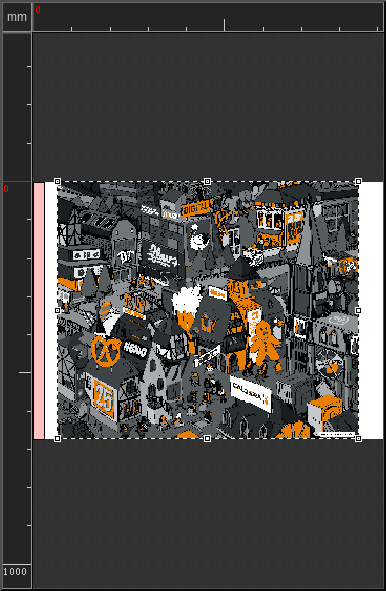
The Color bar is represented by a pink bar in the preview.
Add a configuration
To create a new configuration, click on the Edit button.
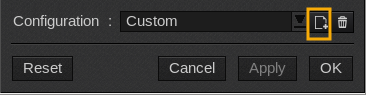
Then click on the new icon in the Color bar configuration window
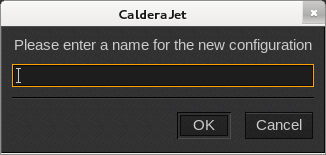
Enter a name for the new configuration and click OK.
It will now appear on the color bar configuration list.
Note: Color bar configurations are shared between all the Printer modules.
Edit a configuration
To edit a configuration, select it from the list and click Edit.

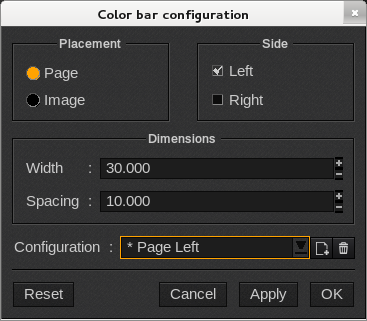
As you make your changes in the Color bar configuration window, a star is placed ahead the configuration’s name to indicate that changes have been made but not yet saved.
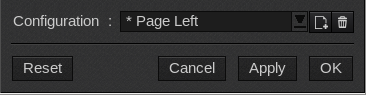
To save your changes click the new icon and then click OK.
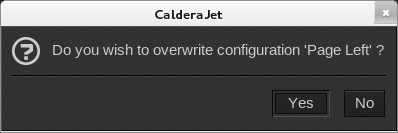
You will be prompted to confirm you want to overwrite the configuration. Click Yes to confirm.
Delete a configuration
To delete a configuration, select it from the list and click Edit.

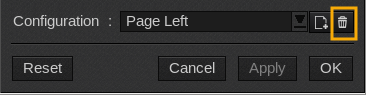
In the Color bar configuration window, select the configuration from the list and click on the Trashcan icon.
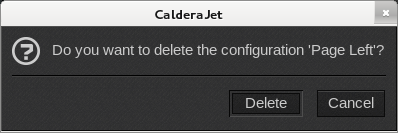
You will be prompted to confirm you want to delete the configuration. Click Delete to confirm.
You cannot delete the « Custom » configuration. However you can change its parameters.
Settings
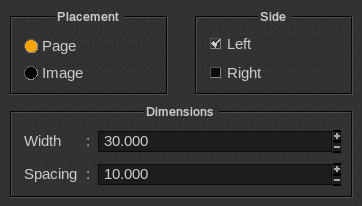
The Color bar configuration window displays the settings of the color bar.
-
- Placement: places the Color bar either next to the Page (right after the margin) or next to the Image.
-
- Side: places the Color bar on the Left or on the Right.
-
- Dimensions: sets the total Width (for all the inks) and the Spacing between the Color bar and the edge of the page or the image.
Actions
The Color bar configuration window allows the following actions.

-
- Reset: restores the saved configuration.
-
- Cancel: closes the window without applying the changes.
-
- Apply: applies the changes and keep the window open.
-
- OK: applies the changes and closes the window.