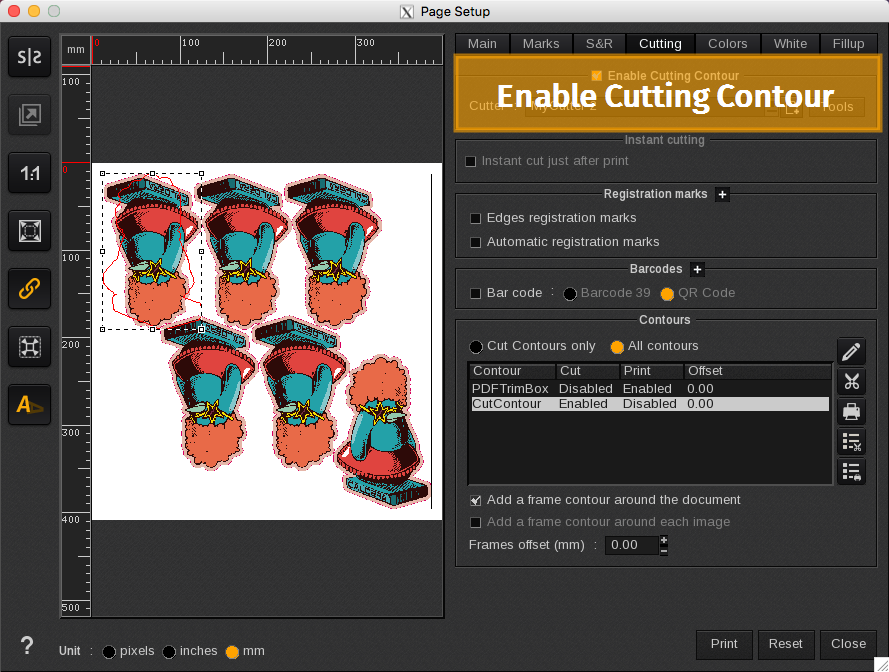
The Enable Cutting Contour area is where you enable the cutting features and where you select your cutter driver. Check the box next to Enable Cutting Contour to activate the cut features.

- Cutter: Selects your desired cutter driver. Use the arrow to display the list of available cutter drivers.
-
 : Opens the Cutters configuration window: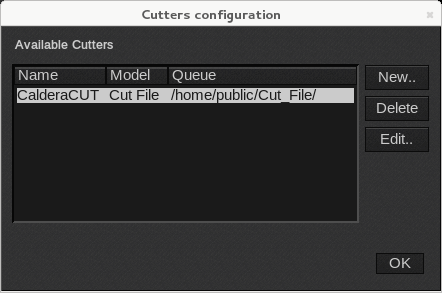
-
The New and Edit… buttons open the cutter parameters window and the Delete button removes the cutter from the list:
-
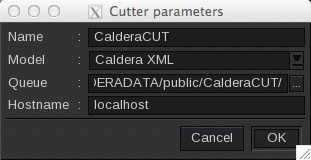
These fields have to be filled to add a cutter:
- Name: As it will appear in the cutter list.
- Choice of the Model among those supported by CalderaRIP (the arrow displays the list).
-
Queue: Displays the path to the directory where the cut files will be created.
Info
When a document is processed through VisualCut, a cut job is generated at the end of the print process and sent to a local cutter queue.
Each installed cutter has its own cut job queue, available in the corresponding cut module. -
Hostname: the cutter address or network name used on the network to recognize the machine (IP address or localhost for example).
-
These fields have to be filled to add a cutter:
-
The New and Edit… buttons open the cutter parameters window and the Delete button removes the cutter from the list:
-
Tools: opens the Cutter tools configuration window, with options that can vary by cutter model.
Please refer to the dedicated article to learn more about the Cutter Tools Configuration.