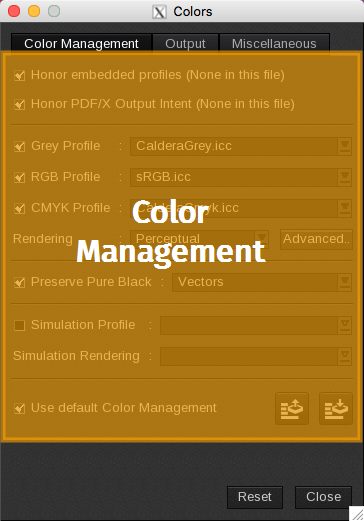
This tab replicates the Color Management tab found in the Color Configuration module, and allows you to modify the color profiles utilized prior to printing.
- Honor Embedded Profiles: When activated, this option uses any profiles that are embedded in the image file. It serves as the input profile during processing.
- Honor PDF/X Output Intent: This setting applies any embedded PDF/X Output Intent found within the file, ensuring accurate color representation.
- Color Profiles (Grey, RGB, CMYK): Defines the input profiles for images if the Honor Embedded Profiles option is disabled or if no embedded profiles are available. Note that the effectiveness of these settings may vary based on the image content.
- Rendering: You can specify how input profiles are rendered. Options include Perceptual, Colorimetric, Colorimetric+BPC, Saturation, and Absolute.
Advanced button: Clicking this button opens a new window. The Images and Vectors tabs are identical, allowing separate color management for raster images or vector graphics. Depending on the loaded image in the Print module, certain sections of the window may not be visible.
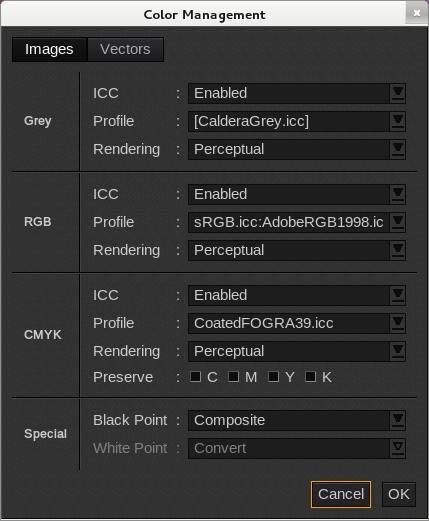
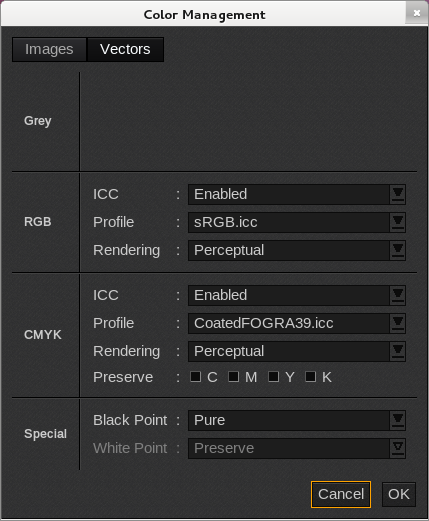
- ICC: This option toggles the use of ICC rendering for the specified object type.
- Profile: Allows you to apply a specific ICC profile to the image for accurate color reproduction.
- Rendering: You can choose how the ICC profile is rendered during conversion, with options including Perceptual, Colorimetric, Colorimetric+BPC, Saturation, and Absolute.
- Preserve (CMYK Areas Only): This setting lets you disable the ICC conversion for colors made from a single ink.
- Black Point: Determines whether the input black is printed using all four inks (Composite) or solely black ink (Pure).
- White Point: Available only for Absolute Rendering, this option allows you to choose whether to preserve the white point or convert it.
- Preserve Pure Black: This feature enables the printing of pure black (100% Black) using only black ink. If not enabled, a composite black will be used instead. You can specify whether this applies to Vectors, Images, or both.
- Simulation Profile: This feature enables the simulation of one media type for another, provided that the destination gamut is larger than the simulated one. You will need to enable this feature to apply a simulation profile to your image, followed by selecting the appropriate profile.
- Simulation Rendering: Specifies the rendering intent for the conversion from the simulation space to the final device space. You should select either Colorimetric (with or without BPC) or Absolute.
- Use Default Color Management: By selecting this option, the application will ignore the current window settings and instead apply the global color management settings.
 : This loads a previously saved color management configuration file (.cmo).
 : This option saves the current settings in a color management configuration file (.cmo).