
The Visual tab displays the image and allows you to make some spot color modifications.
When you select a spot color from the list, it is highlighted in the image preview. In the bottom left corner, the name of the spot color appears and it lists the number of zones where the spot color appears.
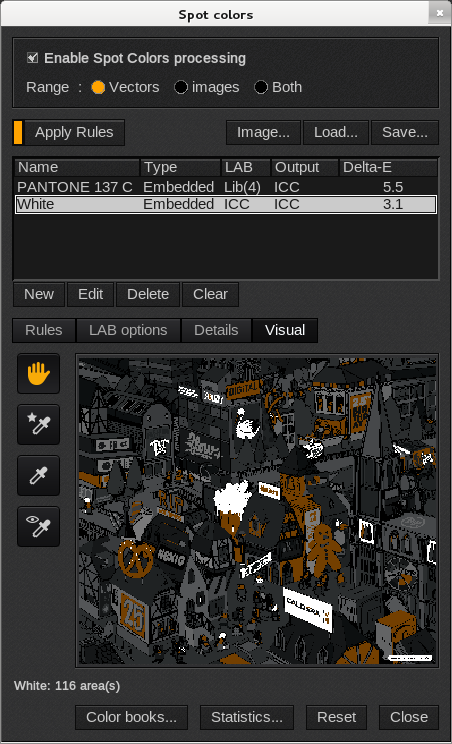
Edit tools
 Zoom icon: zooms in and out of the image. Use the left button on your mouse to zoom in, the right button to zoom out, and the middle button to move the image.
 Create a spot color icon: creates a spot color. Use the eyedropper to select a color on the image. The new spot color is created with its CMYK values as its name.
 Edit a spot color icon: edits a spot color. First select a spot color from the list and then click on the eyedropper. Then click on a color in the image. The selected spot color will take on the values of the color selected from the image.
 Identify a spot color icon: identifies a spot color. Use the eyedropper to click on a color in the image. If the color selected corresponds to a spot color, then the spot color will become highlighted in the list. If the color selected in the image does not correspond to a spot color, then a message will appear indicating there is no matching spot color.