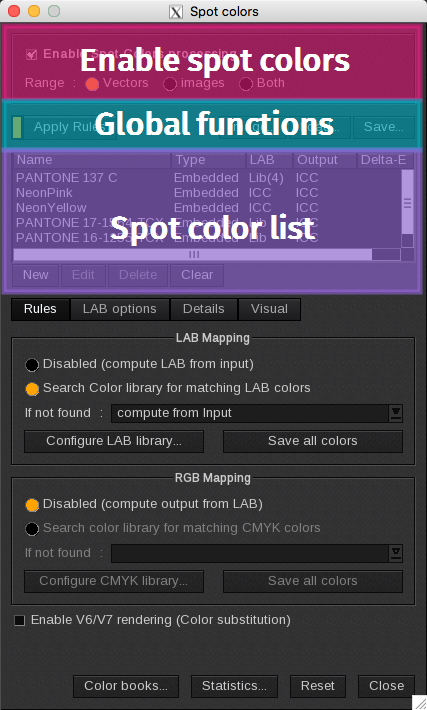
Enable Spot Colors Processing

-
- Enable spot colors processing: activates the spot colors.
-
- Range:
-
-
- Vectors: applies the spot colors to vectors of the image.
-
-
-
- Images: applies the spot colors to raster data only.
-
-
-
- Both: applies the spot colors to both vector and raster data.
-
Global Functions

- Apply Rules: enabled by default. This applies the rules defined in the Rules tab. It is used for Automation purposes (Workflow and QuickPrint).
- Image…: opens the Image window.
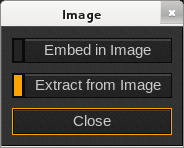
- Embed in Image: embeds the entire list of spot colors in your image. As long as the image stays in the ImageBar, each time you drag it to a Print module, the spot colors will be recognized.
- Extract from Image: reloads the list of colors embedded in the image. It automatically extracts the colors each time a new image is loaded into the Print module.
- Close: closes the Image window.
- Load…: loads the spot colors file.
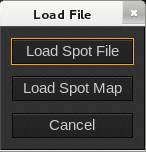
- Load Spot File: loads a list of defined spot colors (.spot file format). When you click Load, choose between the following:
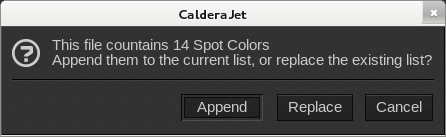
- Append: adds the spot colors to the list.
- Replace: replaces the spot colors in the list.
- Cancel: cancels the action without saving.
- Load Spot Map: loads a list of defined spot colors, as well as their CMYK output values: the color substitutions (.spotmap file format). When you click Load…, the following options appear:
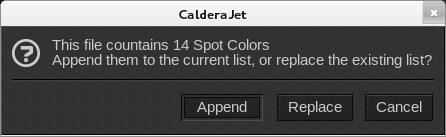
- Append: adds the spot colors to the list.
- Replace: replaces the spot colors in the list.
- Cancel: cancels the action and returns to the previous window.
- Cancel: closes the window without saving the changes.
- Save…: saves the current spot colors into a file
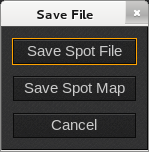
- Save Spot File: saves the list of defined spot colors (.spot file format).
- Save Spot Map: saves the list of defined spot colors, as well as their CMYK output values: the color substitutions (.spotmap file format).
- Cancel: closes the window without saving the changes.
Spot Color List
The spot color list displays information on each spot color. Click a header to sort the list by ascending or descending order.
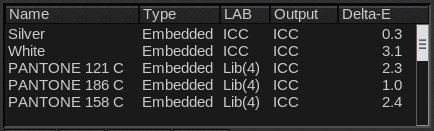
- Name: Name of the spot color.
- Type: Type of the Color
- Embedded: the color was recognized in the file.
- Additional: the color was added in the Visual tab.
- LAB: indicates where the LAB values come from:
- Lib: the spot color was found in the library.
- ICC: the output values were computed from the input values.
- Custom: the LAB values were set up directly in the Details tab.
- Output: indicates where the output (CMYK, CMYKcm, CMYKOG…) values come from:
- Lib: the spot color was found in the device library (direct CMYK mapping).
- ICC: the output values were computed from the LAB values.
- Custom: the output values have been directly set up in the Details tab.
- Delta-E: lists the distance between the LAB input value and the LAB output value of the color. A Delta-E less than 2 means that the reproduction of the color will be very good. A Delta-E greater than 10 means the reproduced color will be noticably different than expected.
Below the spot colors list there are four buttons:

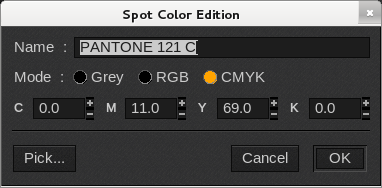
- New: opens the New Spot Color window to create a new spot color.
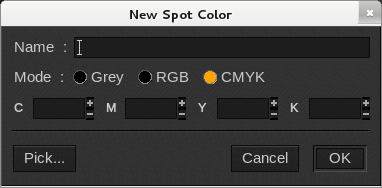
- Name: applies a name to the spot color.
- Mode: defines the color space of the spot color between Grey, RGB and CMYK.
- Values: defines the spot color values. The components depends on the Mode. Values can be entered manually or automatically using the Pick button.
- Pick…: opens the Visual tab with the color picker tools to select the color directly on the image. When selected, the values are filled in the Values field.
- Cancel: closes the window without saving.
- OK: saves the new spot color and closes the window.
- Edit: opens the Spot Color Edition window to edit the spot color.
- Delete: removes the spot color from the list.
- Clear: removes all the spot colors from the list.