The Rules tab allows you to define rules (these actions are initiated by default) in the LAB and CMYK color spaces. The purpose is to avoid having to manually define all the spot colors in an image.
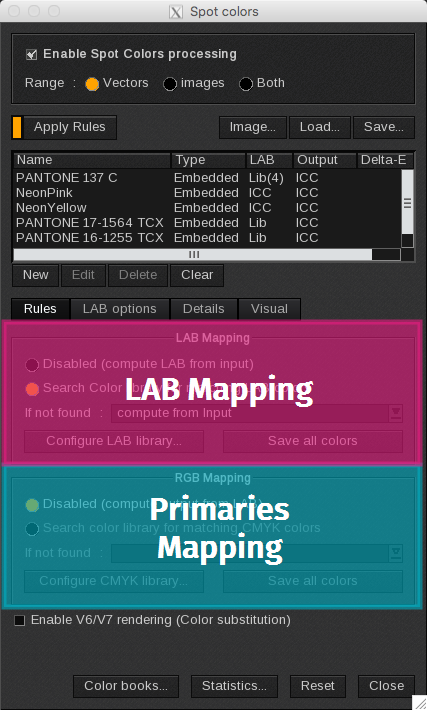
LAB Mapping
This section defines the rules that are used to retrieve the LAB values of a spot color.
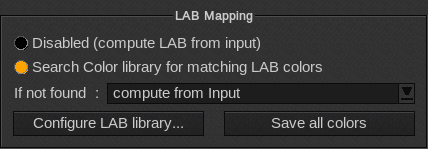
- Disabled (compute LAB from input): processes spot colors through the ICC engine.
- Search Color library for matching LAB colors: searches for the spot color in the libraries.
- If not found: if no corresponding color is found in the library, you can choose:
- Compute from input: computes the color in ICC.
- Disable color: prints the color as a process color, not a spot color.
- Do not print: prevents the image from being printed. When this option is selected you will need to resolve the issue before the image can be printed. This option is helpful for color critical print jobs where the spot color must be accurate.
- Configure LAB library: opens the LAB Color library window.
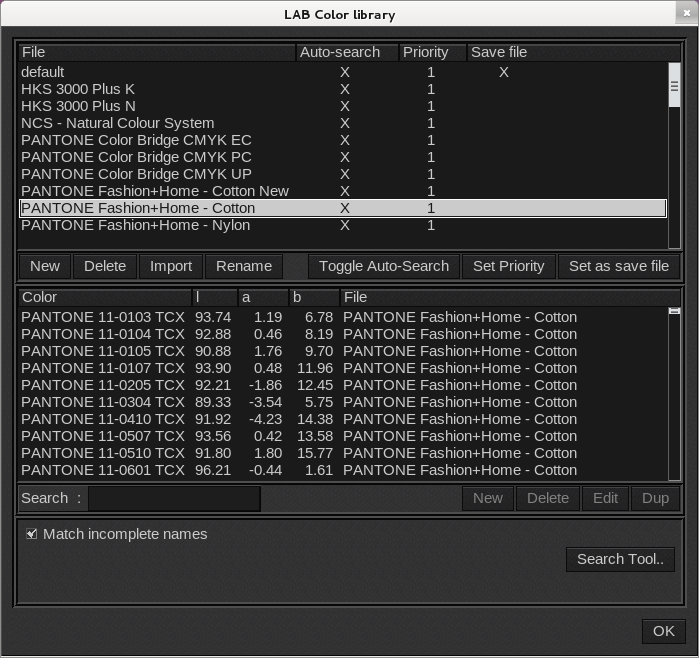
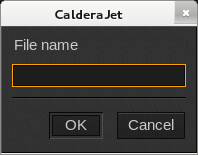
- New: creates a new library. Enter a name for the new library.
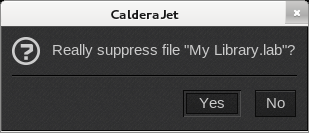
- Delete: deletes the selected library file. You will be prompted to confirm that you want to delete your selection.
- Import: imports a new library file to the list.
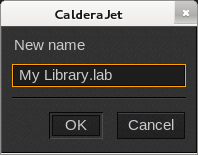
- Rename: opens a dialog box allowing you to rename the selected file. You can only rename custom libraries.
- Toggle Auto-Search: adds or removes the search in a library file. When there is an X in the Auto-search column, the file library will be parsed to find a match to the searched color. By default, the auto-search in the library is enabled.
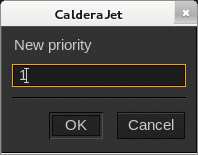
- Set Priority: indicates a level of priority. The search for a matching spot color will be done according to this priority, “1” being the highest priority. You can then change it following an ascending order that decreases the priority level. By default, the priority is 1.
- Set as save file: sets the custom library selected as the one where new spot colors will be saved by default.
In the second part of the LAB Color library window, you can find:
- Search: searches the color name you want to find in the libraries.
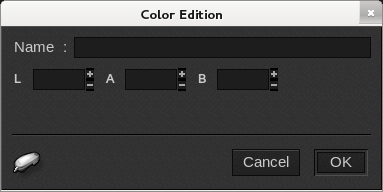
- New: adds a new spot color to the selected list. Enter a Name and the LAB values. You can use a spectrophotometer to get these values using the icon spectrophotometer.
- Delete: deletes the spot color from the list.
- Edit: reopens the Color Edition window to change the color name and/or LAB values.
- Dup: creates a copy of the selected spot color. Opens the Color Edition window where you can create a new name and change the color values. This is helpful for when you want to create a new spot color with values close to the original spot color.
- Match incomplete names: searches the libraries for partial matches.
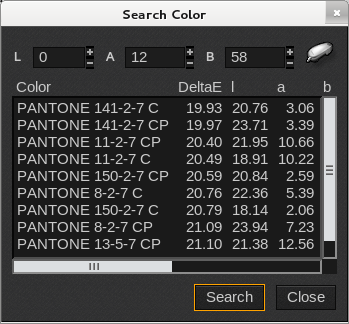
- Search Tools: opens the Search Color window. Here you can search for a spot color using its LAB values. Enter the LAB values manually or get them using a spectrophotometer. Then click Search. The color is searched for in the selected library and up to 10 sort results may appear. The results are listed by their DeltaE.
- Save all colors: saves all colors in the current “Save file” library with their LAB values.
Primaries Mapping
This section defines the rules that are used to find the CMYK or RGB values of a spot color.
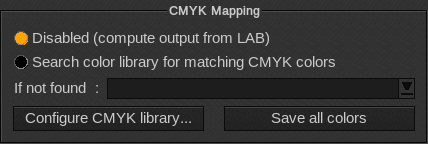
- Disabled (compute ouput from LAB): colors are processed through the ICC engine, from the LAB values of the spot color.
- Search Color library for matching CMYK colors: searches for the spot color in the libraries.
- If not found: if no corresponding color is found in the library, you can choose:
- Compute from LAB: computes the color in ICC.
- Disable color: prints the color as a process color, not a spot color.
- Do not print: prevents the image from being printed. When this option is selected you will need to resolve the issue before the image can be printed. This option is helpful for color critical print jobs where the spot color must be accurate.
- Configure CMYK library: opens the CMYK Color library window.
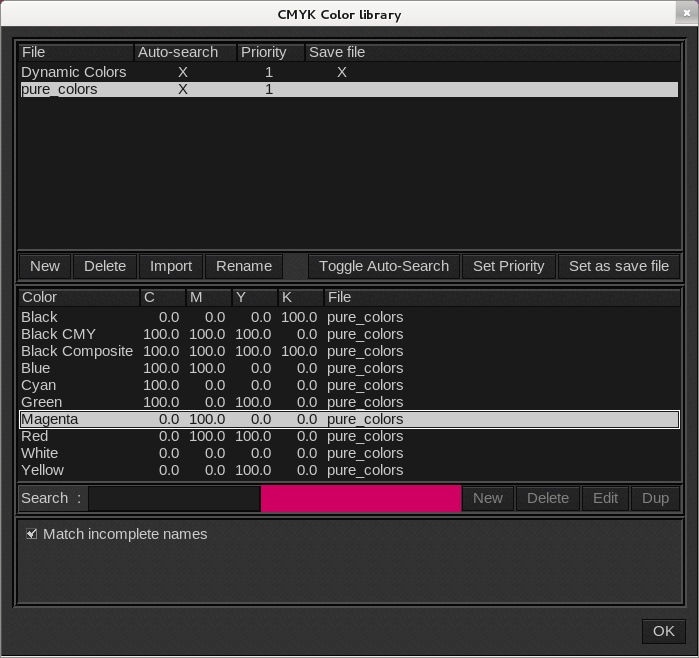
As you can see on the preview, the pure_colors library contains spot colors defined with 100% of their CMYK component: Magenta is 100% Magenta only while RED is 100% Magenta and Yellow, for example.
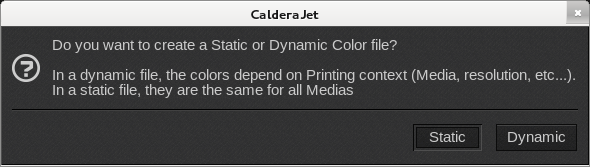
- New: creates a new library. First, you need to choose whether you want to create a Dynamic or a Static library. Dynamic spot colors depend on the printing context (resolution, media, quality…) whereas static libraries are the same for all medias. When you have chosen your type of library, enter the library name in the window that appears.
- Delete: deletes the selected library file. You must confirm the deletion.
- Import: allows you to import a new library file to the list.
- Rename: opens a dialog box allowing you to rename the selected file. You can only rename custom libraries.
- Toggle Auto-Search: adds or removes the search in a library file. When there is a cross in the Auto-search column, the file library will be parsed to find a match to the researched color. By default, the auto-search in the library is enabled.
- Set Priority: indicates a number of priority. The search of the matching spot color will be done accordingly to this priority: low numbers first. By default, the priority is 1.
- Set as save file: sets the custom library selected as the one where new spot colors will be saved by default.
In the second part of the CMYK Color library window, you can find:
- Search: enter in this field the color name you want to find in the libraries.
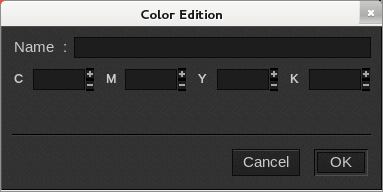
- New: adds a new spot color to the selected list. Enter a Name and the CMYK values.
- Delete: deletes the spot color from the list.
- Edit: reopens the Color Edition window to change the color name and/or values.
- Dup: creates a copy of the selected spot color. It opens the Color Edition window where you can add a new name or change the colors if you want to create a new spot color with close values.
- Match incomplete names:searches the libraries for partial matches.
- Save all colors: saves all colors in the current “Save file” library with their CMYK values.
- Enable V6/V7 rendering: uses an algorithm which works by simple color substitution. This algorithm will not process non solid spot colors, spot colors in gradations, or spot colors behind a transparency.