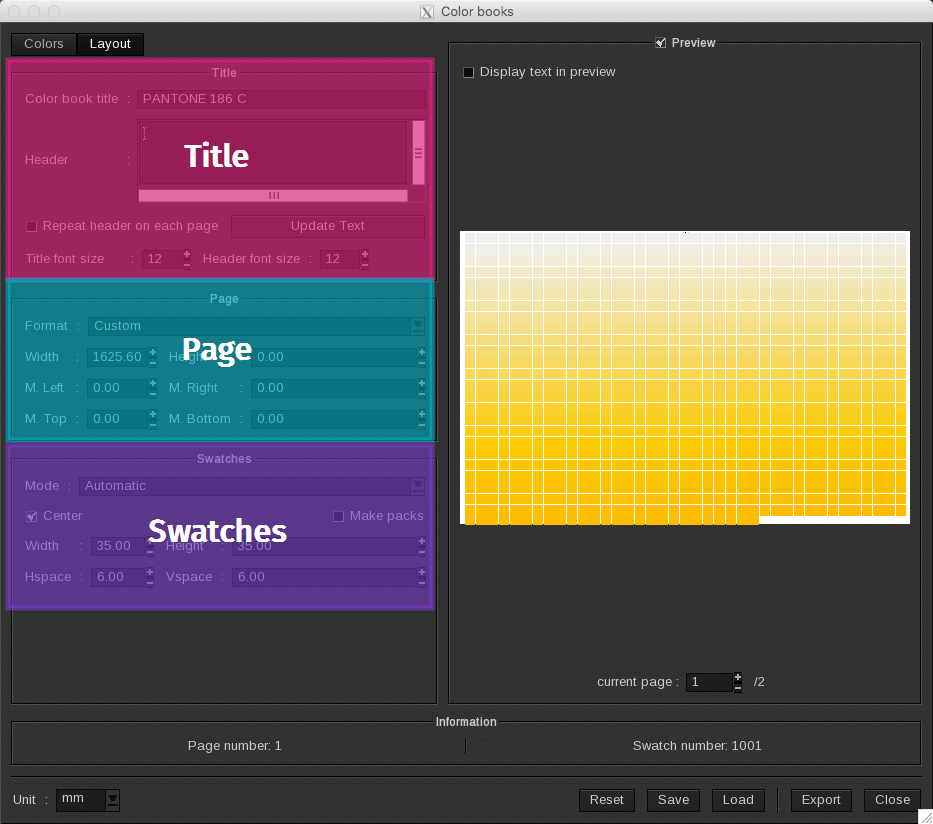
Title Area
The Title area allows you to add a title and a header to the ColorBook.
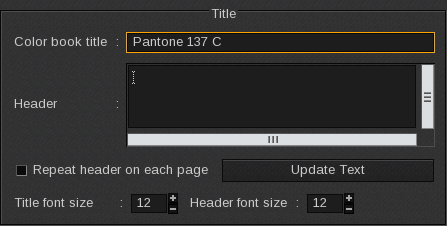
This information appears on the top of the page and will center align. The title is automatically populated on each page of the ColorBook.
-
- ColorBook title: the information typed in this field is automatically saved and dynamically reflected in the preview. When the “Targeted ColorBook” has been selected, the name of the color selected in the Spot Color management window appears in the title field. In the other modes “MyColorBook” appears by default.
-
- Title font size: adjusts the title size and dynamically updates the preview.
The Header allows you to include notes on the Colorbook without any character limitations. For example, you can include the date and additional comments in this field.
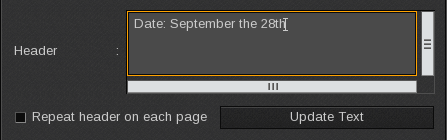
Click on Update Text to save the header text. Be aware that while the writing area is grey the text has not been saved yet.
-
- Header font size: adjusts the header font size dynamically.
-
- Repeat header on each page: when checked the header will be repeated on each page if the ColorBook has more than one page. When left unchecked, the header will appear only on the first page. In either case, the title will appear on all pages.
Page Area
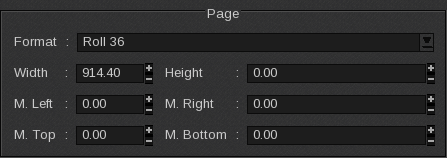
The Page area allows you to manage the page size and margins of the ColorBook. All changes are dynamically reflected in the preview.
-
- Format: the available formats are listed here. The format listed first in the list is shown as the default selection. The format changes to “custom” when the width or height is modified.
When you change a value manually without using “+” and “-“ tools, press Enter to validate the modification. The grey field indicates that the changes have not yet been saved. This tip is true in all Caldera RIP modules.
-
- Width: there is always a width of 1 for a minimum (mm or inch). By default, it takes the selected format value.
-
- Height: if the selected format is a roll, the height will stay at 0.00 meaning that there is no height defined. For a sheet, it takes its value.
If the selected format is a sheet, margins will be added on every sheet.
-
- M. Left, M. Right, M. Top and M. Bottom : the left, right, top and bottom margins are at 0.00 by default or take the selected format’s value. They can be changed manually.
If the addition of all margins does not provide enough space to display one swatch, the preview becomes blank with a red cross and no ColorBook can be created.
Swatches Area
The Swatches area sets up the swatch size and location on the page. All changes are automatically saved and dynamically reflected in the preview.

Three Modes are available:
-
- Automatic: in this mode the swatches are squares of 40.00 mm with 6.00 mm space between two swatches. Swatches are automatically centered and populated.
-
- Compact: in this mode the swatches are squares of 20.00 mm with 1.00 mm space between two swatches. Swatches are placed side by side to use minimal size on the media lengthwise.
-
- Manual: in this mode the user can define all settings:
-
- Center: when enabled the swatches are centered on the page. When disabled the swatches are aligned to the left margin.
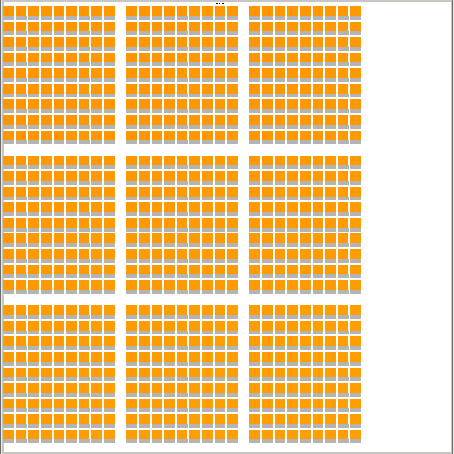
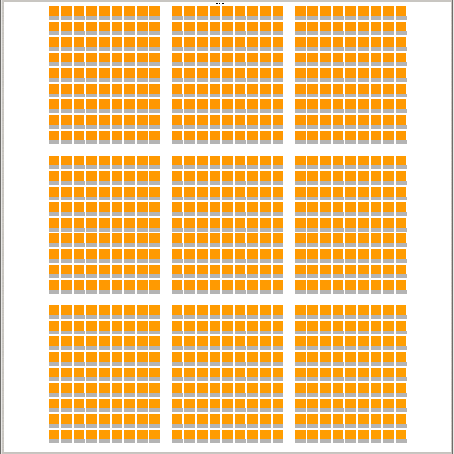
Example of two ColorBooks, one aligned to the left margin and one centered.
-
- Make packs: when enabled the swatches are regrouped by packs with a space of the size of a swatch between two packs. When left disabled the swatches are placed in compact mode.
Packs are blocks in which two components vary: one in the line and the other in the column. The others components vary from one pack to another. The pack size is determined by the number of variations and the number of swatches chosen for each component.
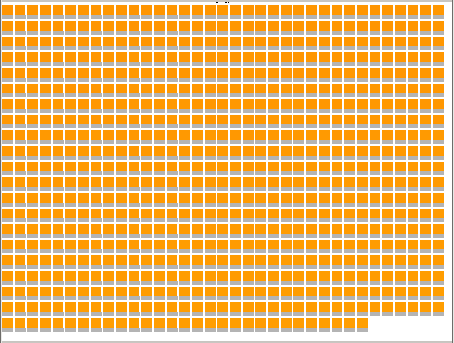
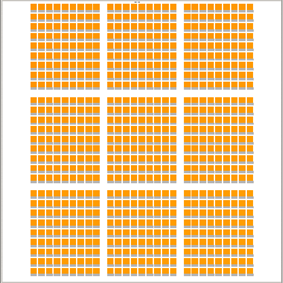
The image on the left is an example of compact mode. The image on the right is an example when Make packs is enabled.
-
- Width and Height: the swatch width and height is 20.00 mm by default. It must be between 5.00 mm (0.20 inch) and 999.00.
If the width and/or the height is larger than the printing area determined in the Page part, no swatch will be displayed. The preview becomes blank with a red cross and no ColorBook can be created.
-
- Hspace: horizontal space between two swatches. If the horizontal space is larger than the page width, only one swatch will be displayed per line.
-
- Vspace: vertical space between two swatches. If the vertical space is larger than the page height, only one swatch will be displayed per column.
Hspace and Vspace are 6.00 mm by default and must be between 0.00 and 999.00.