To export the ColorBook as a PDF file, click on Export and the following window opens:
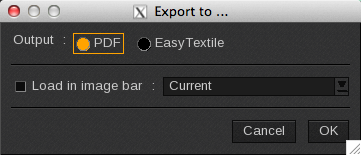
The EasyTextile import option is not used anymore.
The PDF export option exports a file created with the ColorBook generator and is locked with a password so it can only be used with Caldera RIP. The PDF generated cannot be opened with a PDF viewer.
When a ColorBook is created from a spot color library without the conversion to device space, the Spot Color encapsulated into the PDF document will keep the library’s colorimetric information. APPE detects and interprets them through the profile during the printing process. The Spot Color management has to be enabled.
Once you have set all parameters for your ColorBook, follow these steps to export it as a PDF file:
-
- Click on the Export button. The Export to… window opens
-
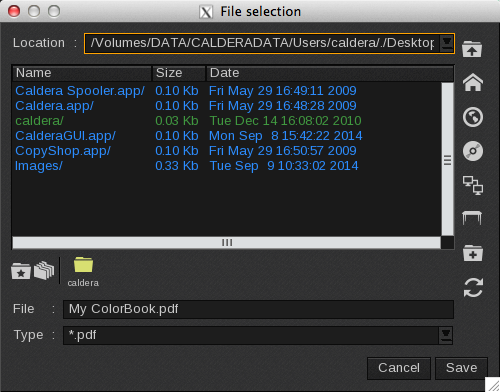
- Select PDF then click OK. The File selection window opens:
-
- By default the ColorBook title is used for the File name. It can be changed in the File field.
-
- Browse to the location where you want to save the file using the available options in the File selection window.
-
- Then click on Save.
-
- Your ColorBook is now saved to your specified location.
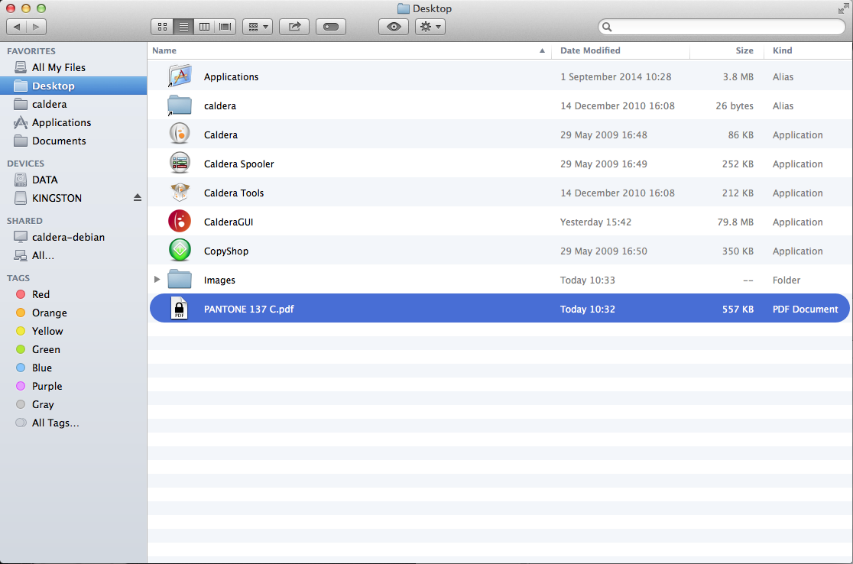
Automatic load in the ImageBar
By enabling the Load in image bar option, you can export the ColorBook to the PDF format and then open it automatically in the selected tab.
You can even create a new tab by writing its name directly in the Tab field. After clicking OK, the new tab will be added to the ImageBar and the PDF will be saved to the newly created tab.
If the PDF has several pages, each page is saved as shown in the screenshot below. The first page will not show a page number and the following pages will show “_p2; _p3; _p4; etc,”.
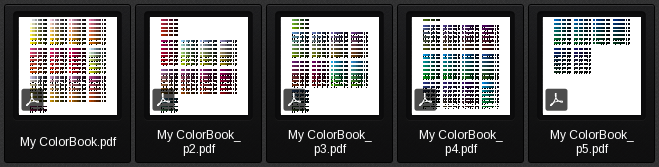
The PDF generated in the image bar has a size constraint. It cannot be larger than 13MB (it will be 10MB on average). This size constraint applies only to the preview image. For large ColorBooks, the preview will have a very low resolution. For example, the dpi will only be 36 dpi for a full ColorBook.
To achieve a higher preview resolution, use the Export to PDF option. You will also be able to select the preview resolution in Fileman. Warning: The higher the resolution, the larger the preview file size.