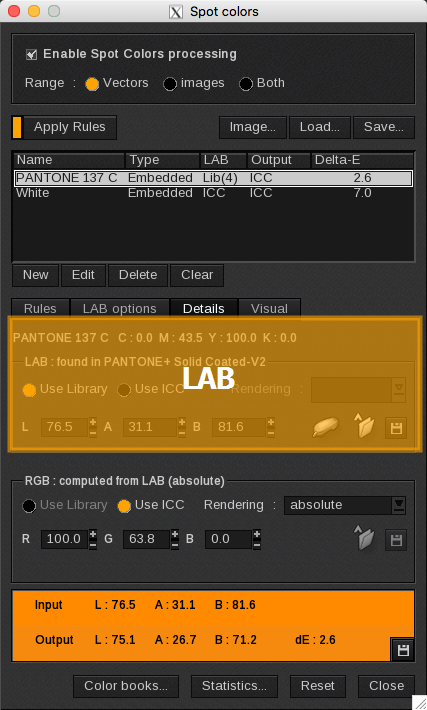
In this section you can define the input color in the LAB color space.
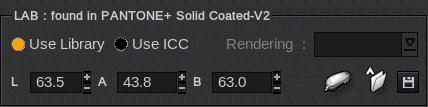
- Use Library: searches for the color in one of the variable files. If the color exists under a different name, you can either edit its name, or search for the color in the libraries (see Library).
- Use ICC: if the color cannot be retrieved in a library, its LAB value will be computed using the input CMYK values, as if it were a process color.
- Rendering: when Use ICC is activated, your rendering options are: perceptual, colorimetric, saturation and absolute.
- LAB: manually enter the LAB values into these fields.
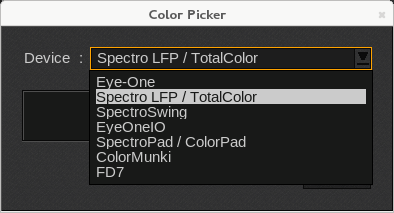
 Spectrophotometer icon: uses a spectrophotometer to get the LAB input values.
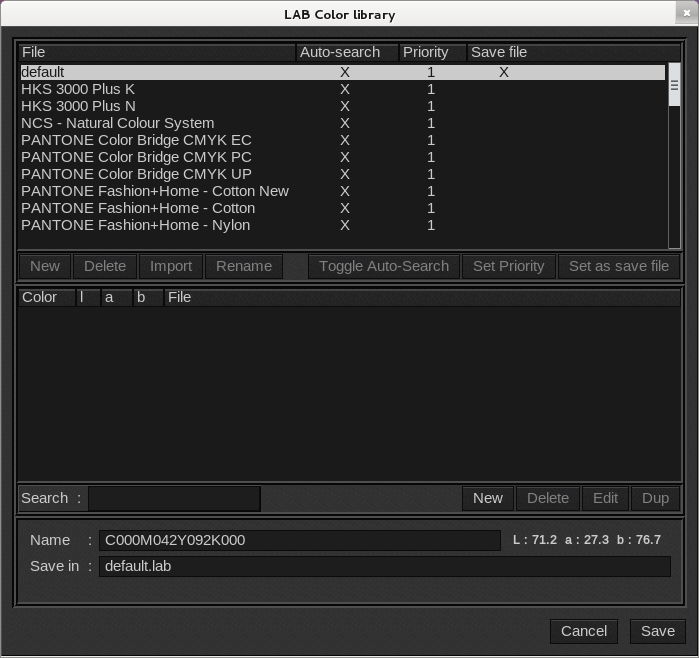
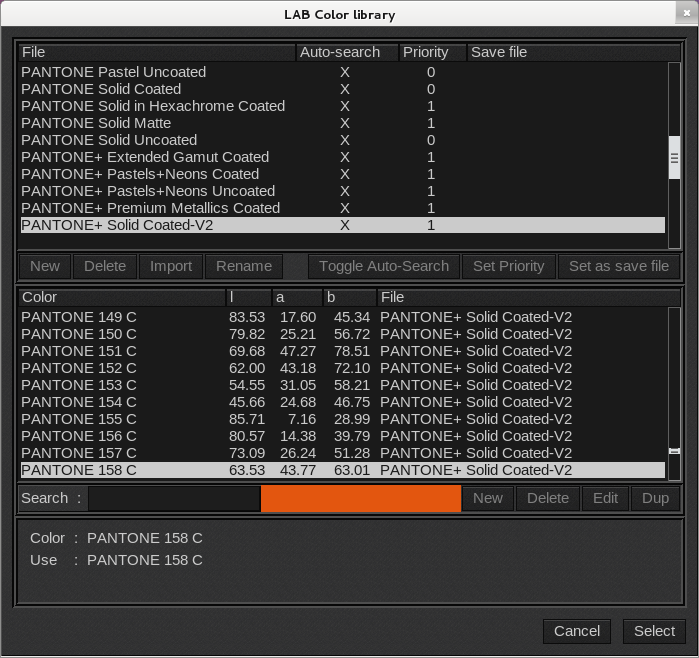
 Library icon: opens the LAB Color library window so you can search for a spot color in a specific color library. Select your color library from the File list. Then select the spot color from the Color list. You can use the Search field to help you find the spot color by its name. The New, Delete, Edit and Dup buttons shown below are only available for spot colors that belong to a custom library.
 Save icon: saves the spot color to a library. Enter a name for the spot color and then select a library from the library list. Your spot color will be saved to the library you select.