CalderaCloud provides visibility into production activity across your connected Caldera environments. This article explains how to sign in, review your production-site information, use the Global Dashboard, and monitor jobs.
Access CalderaCloud
-
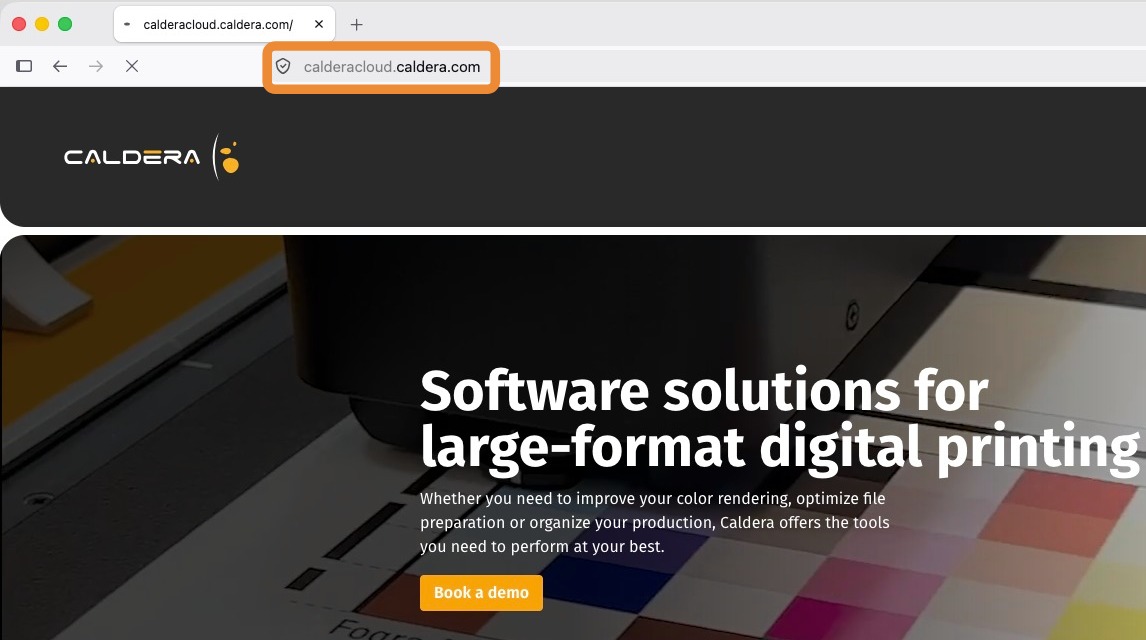
Open CalderaCloud from the Tools tab in CalderaDock, or go directly to calderacloud.caldera.com in your web browser.
-
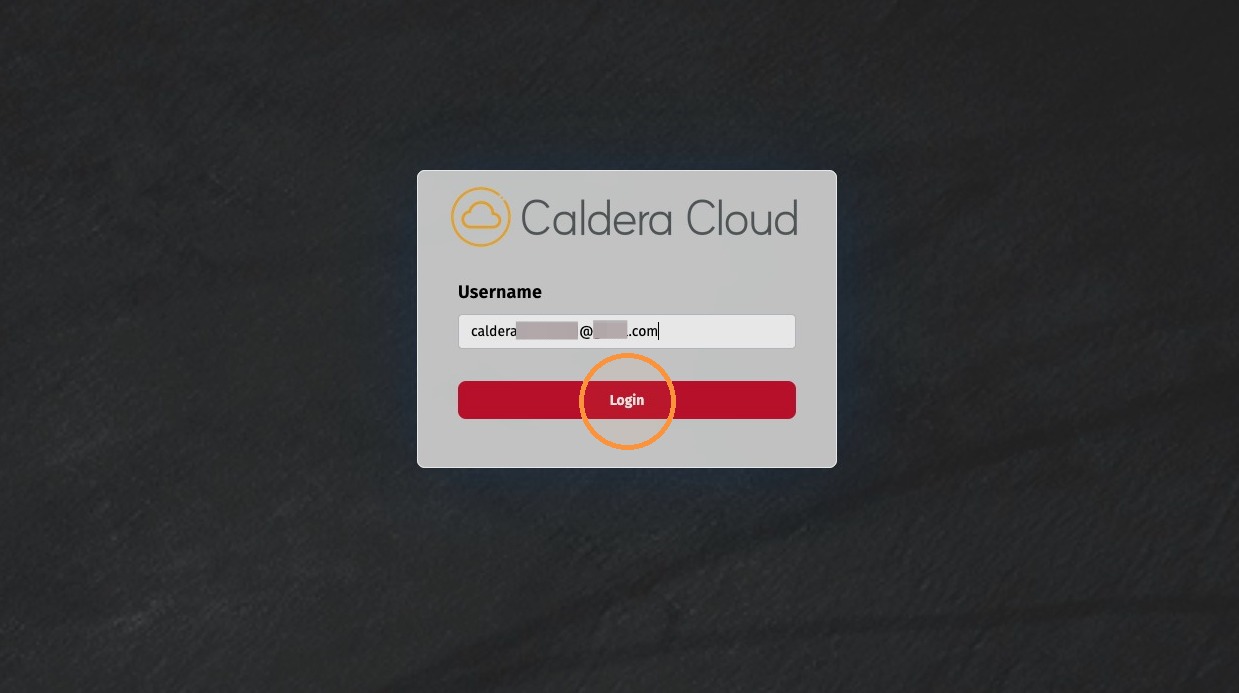
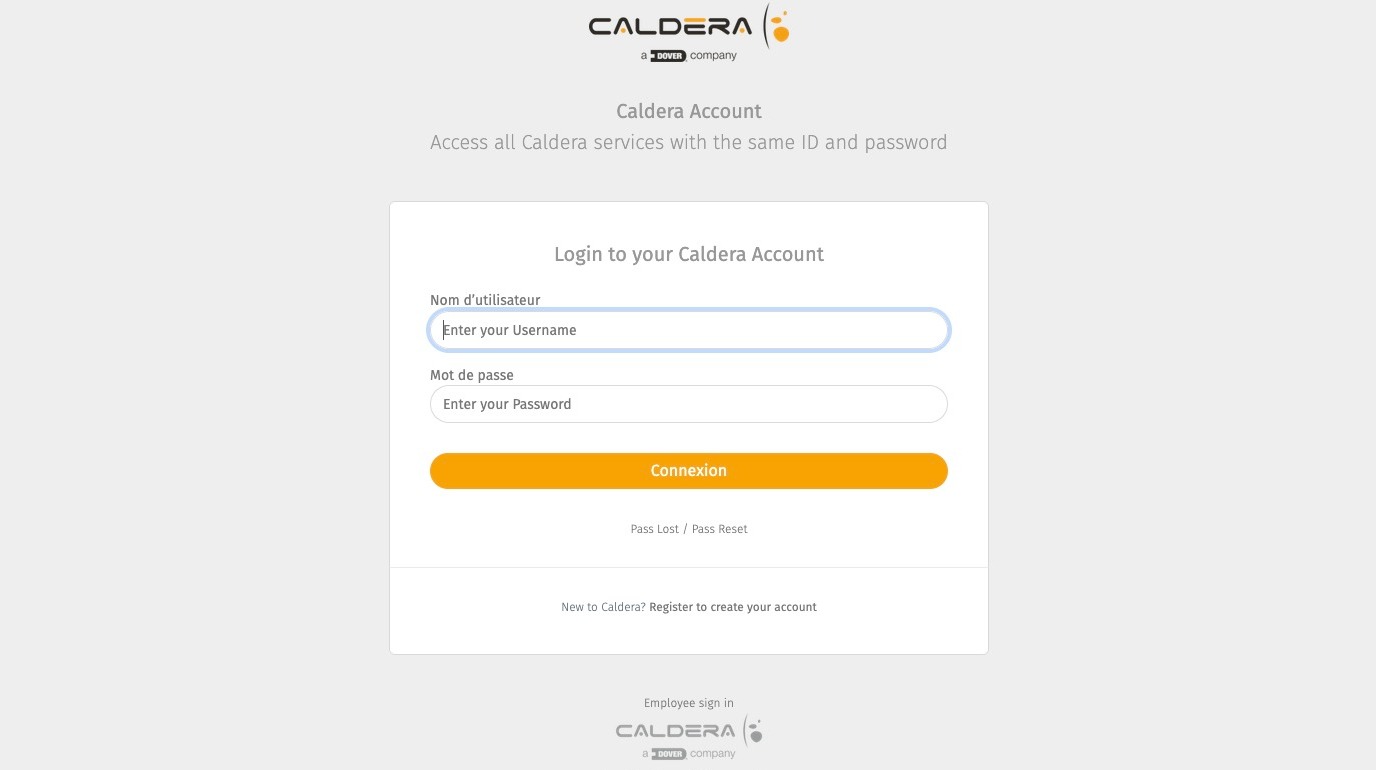
Enter the email address associated with your Caldera account, then click Login.
-
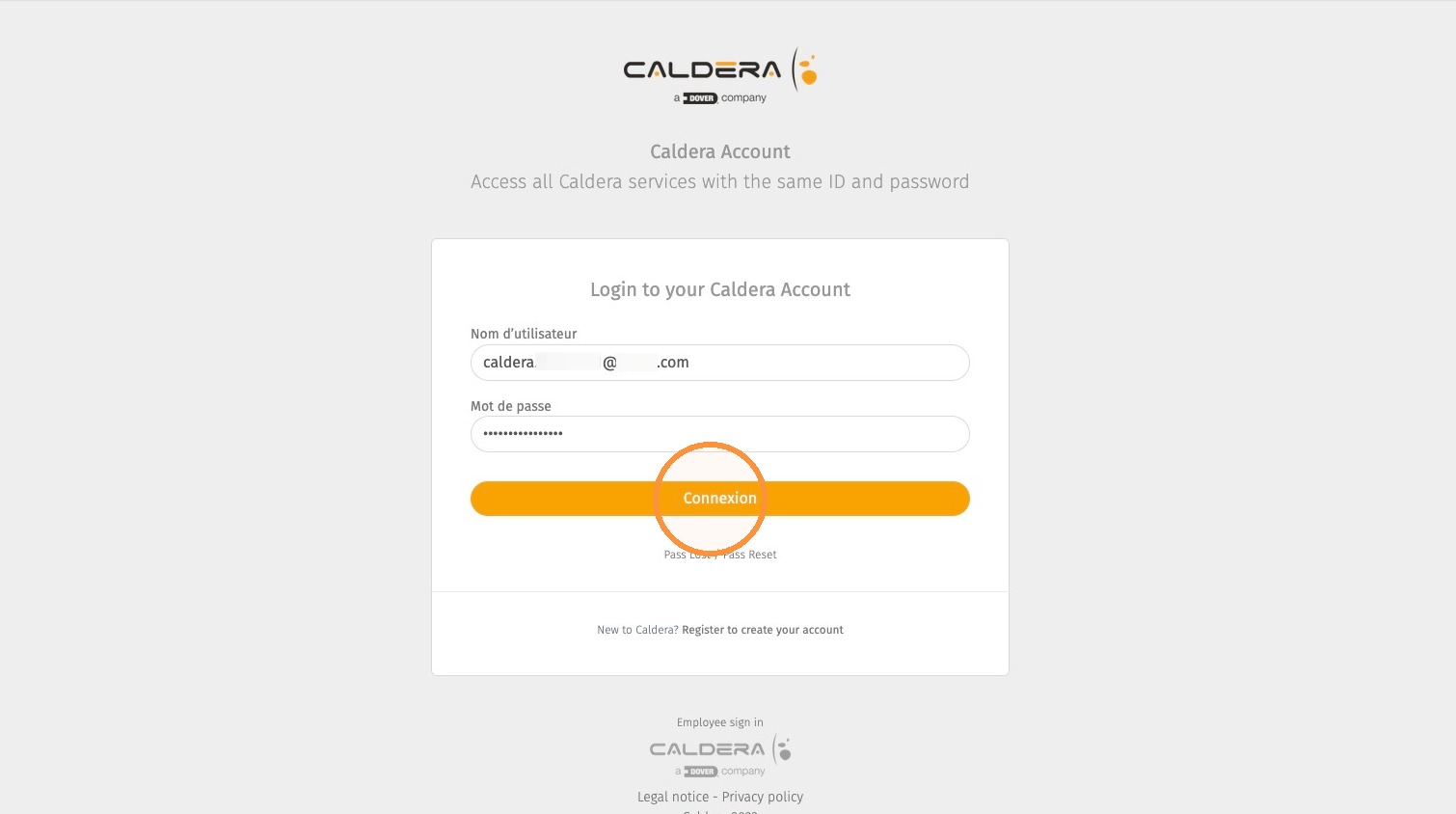
You are redirected to the single sign-on (SSO) page. Enter your Caldera credentials, the same credentials used for WorkSpace, then click Sign In.
Use the Global Dashboard
CalderaCloud opens on the Home tab, where the Global Dashboard provides an overview of all connected production sites. It displays each print shop’s status and production statistics.
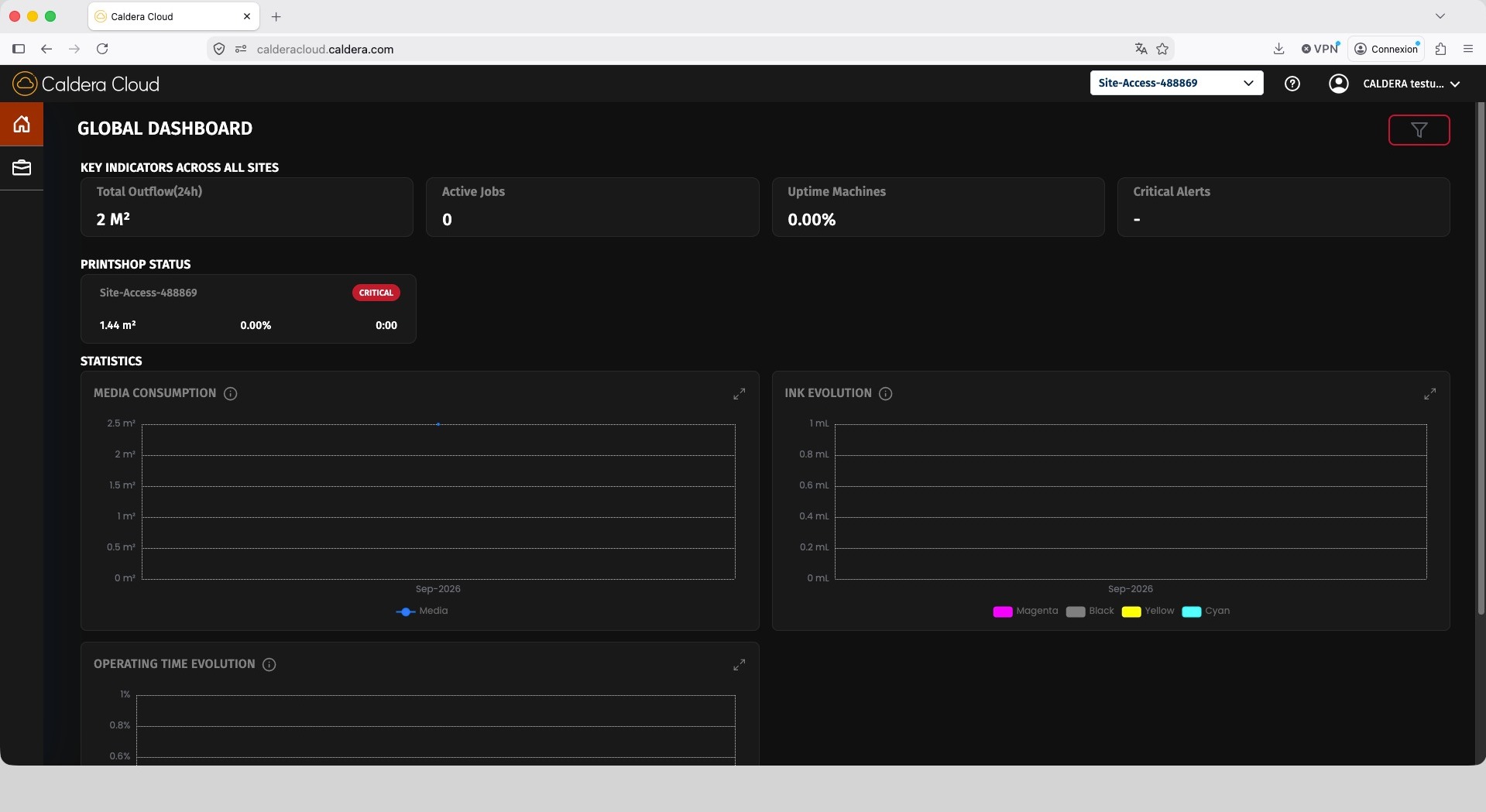
The dashboard includes statistics for media usage, ink usage history, and production trends. Select a statistic or hover over a graph to view more details.
Filter dashboard statistics
-
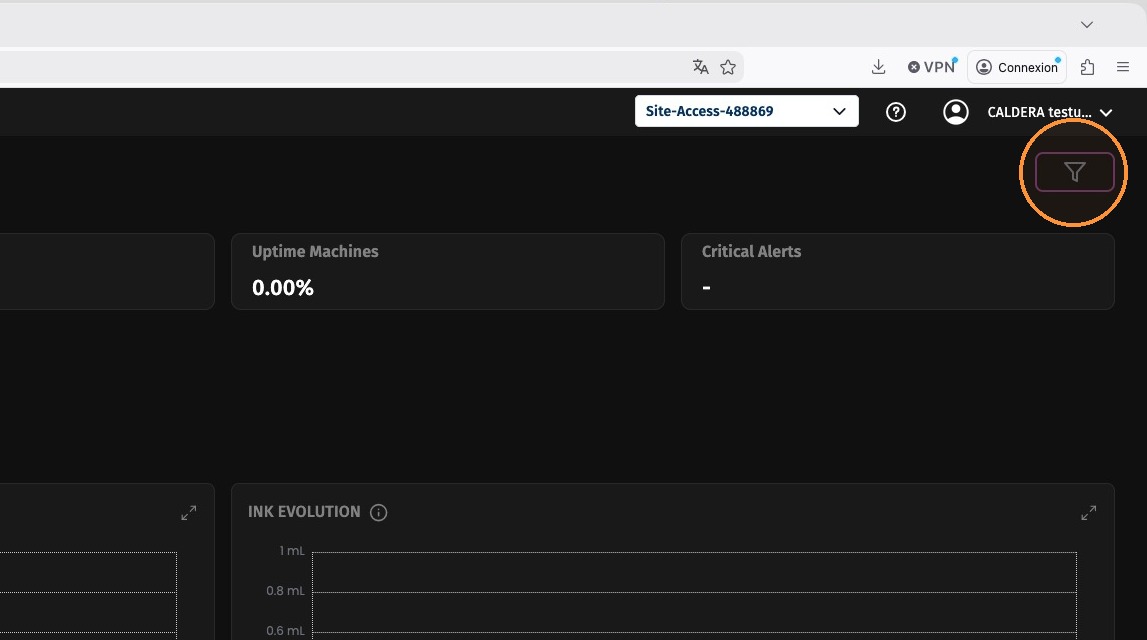
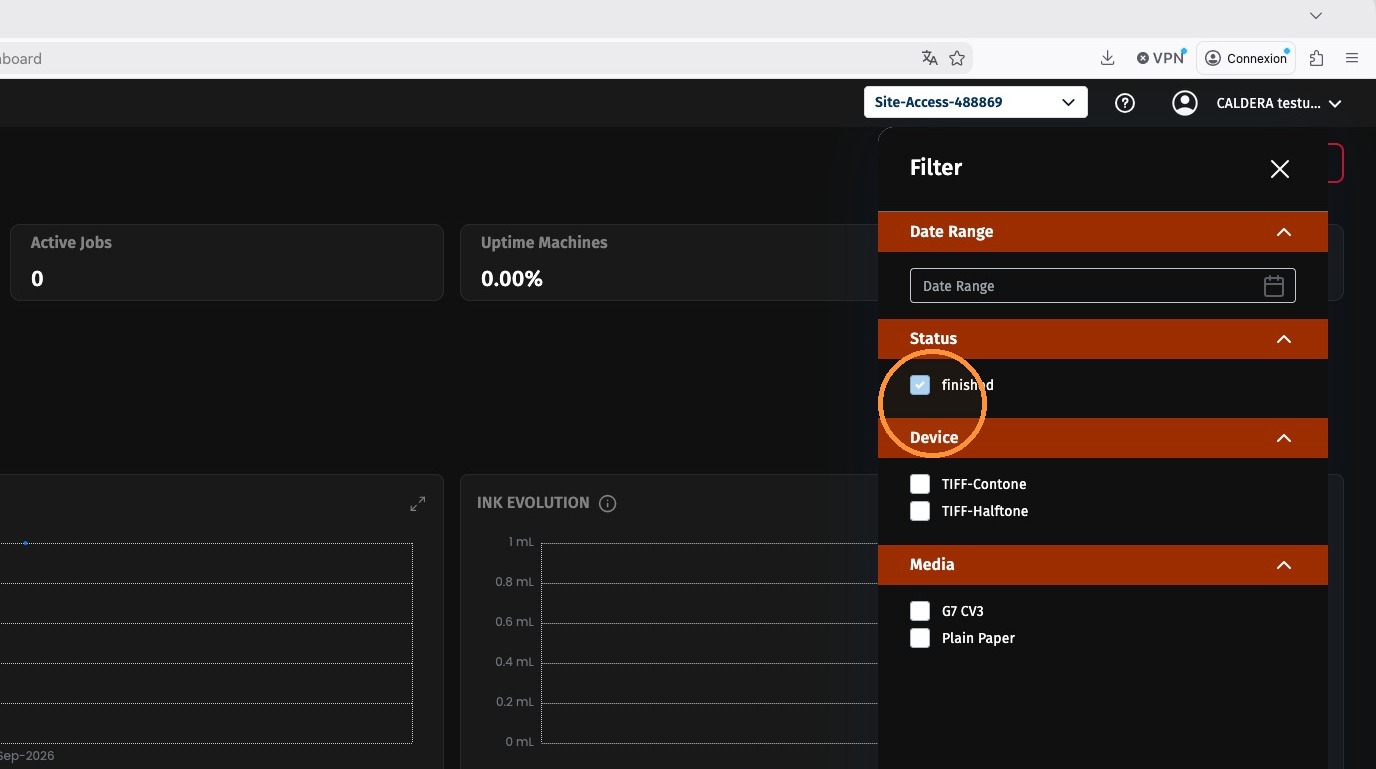
Use the filter panel on the right side of the Global Dashboard.
-
Filter the displayed statistics by date, status, device, and media.
-
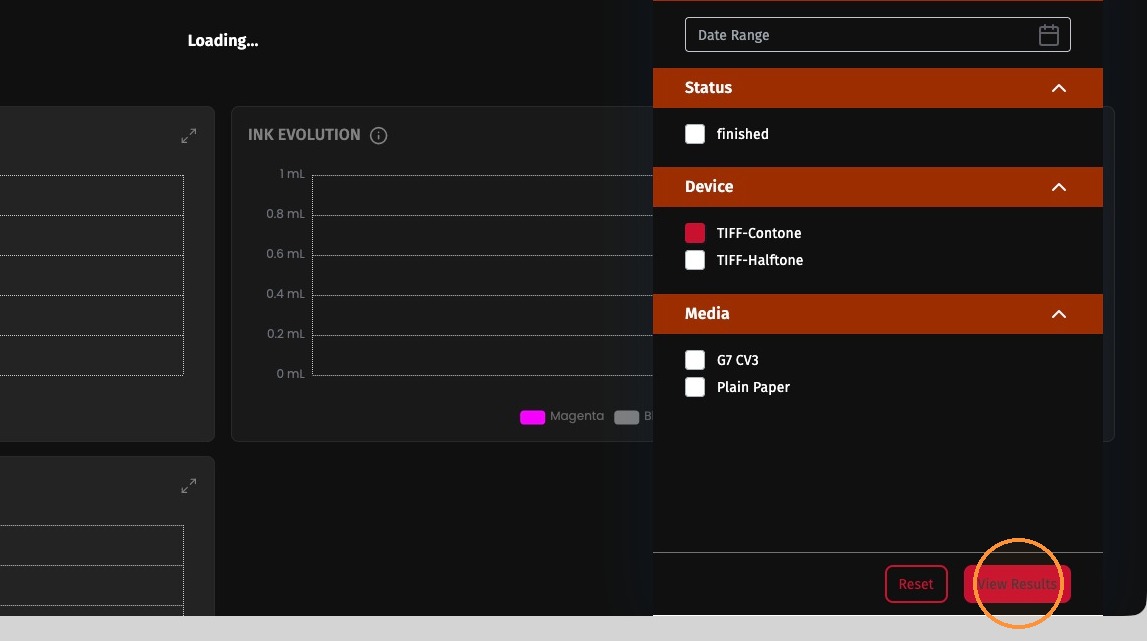
Click View Results to apply the filter.
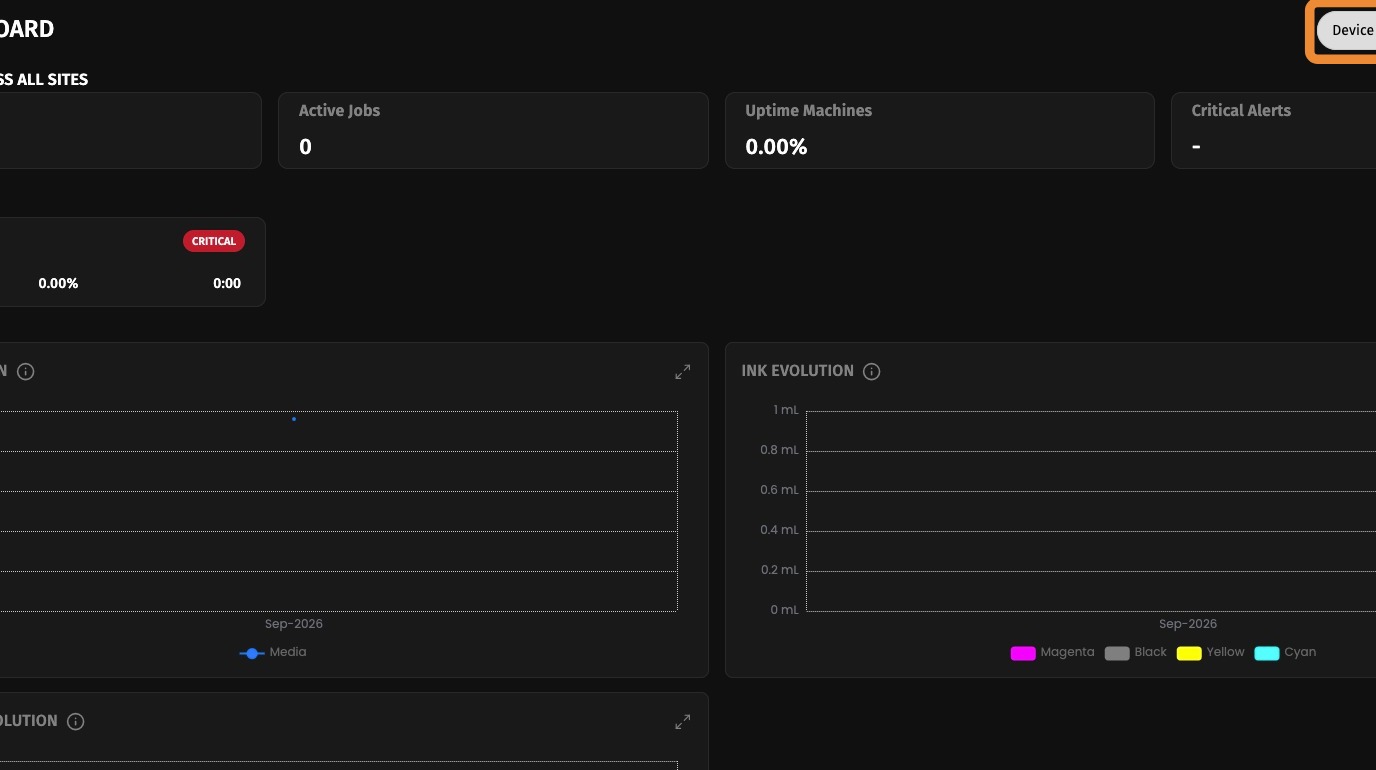
The applied filters are displayed in the upper-right corner of the dashboard.
Monitor jobs
-
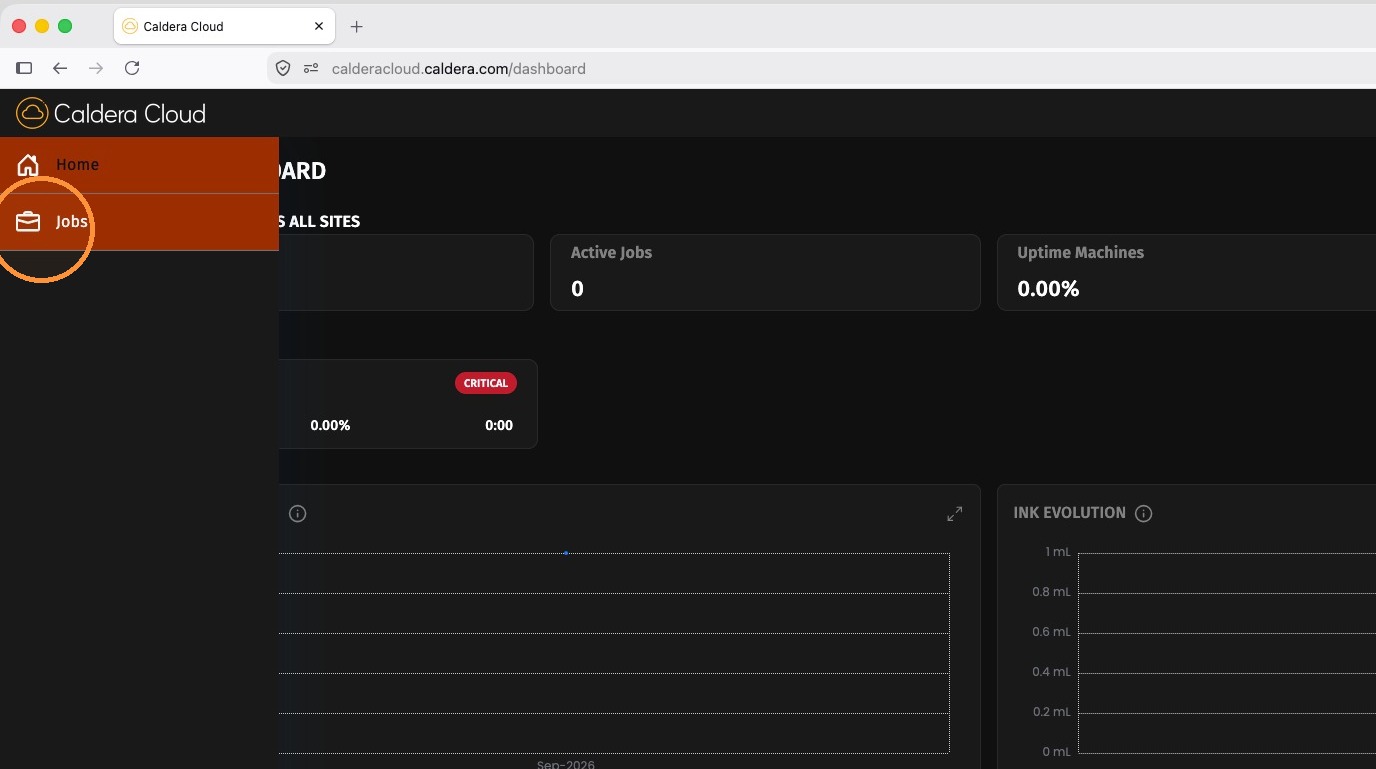
Open the Jobs tab.
-
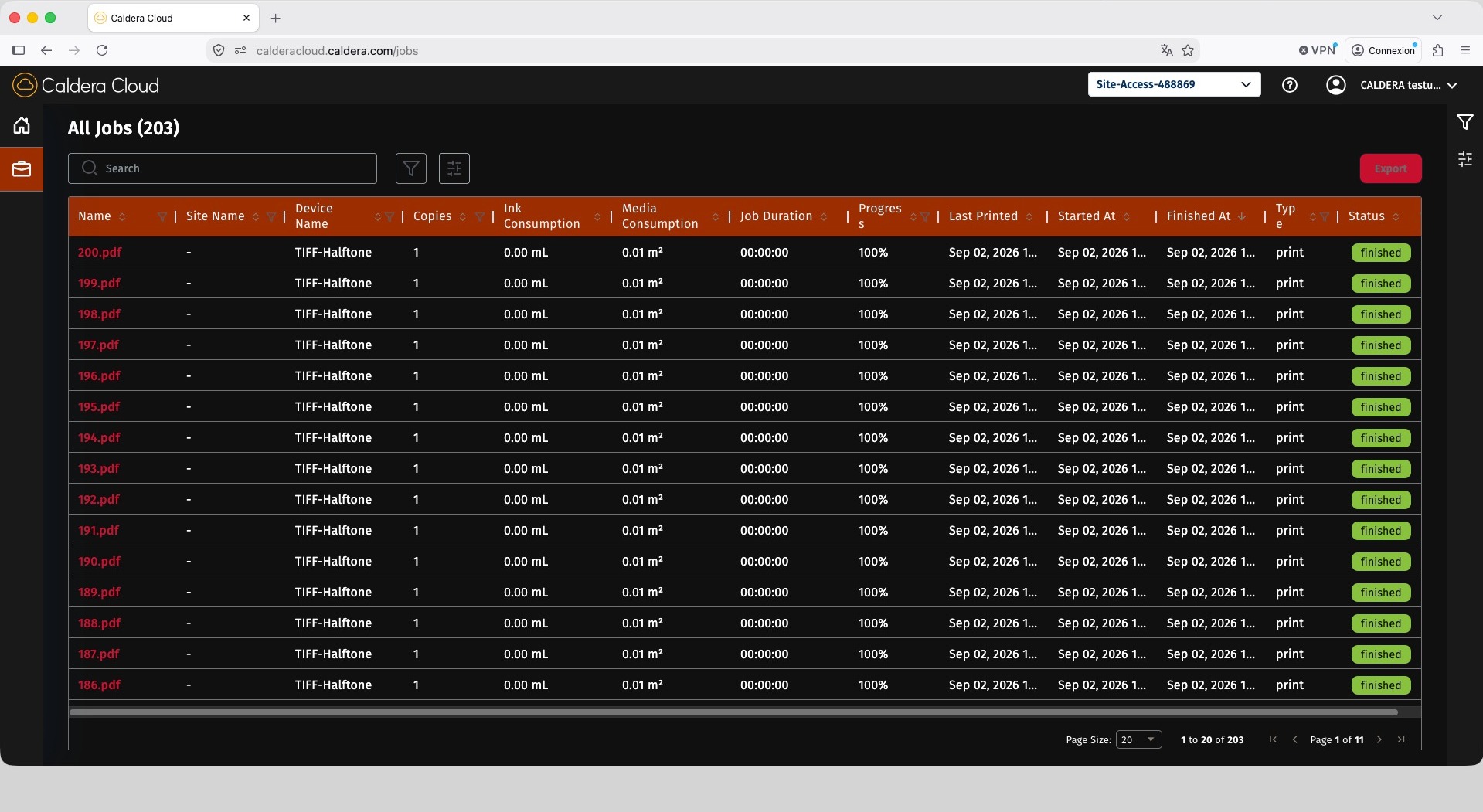
Review jobs from the printers detected at the current production site. The job list can be sorted using the available columns.
-
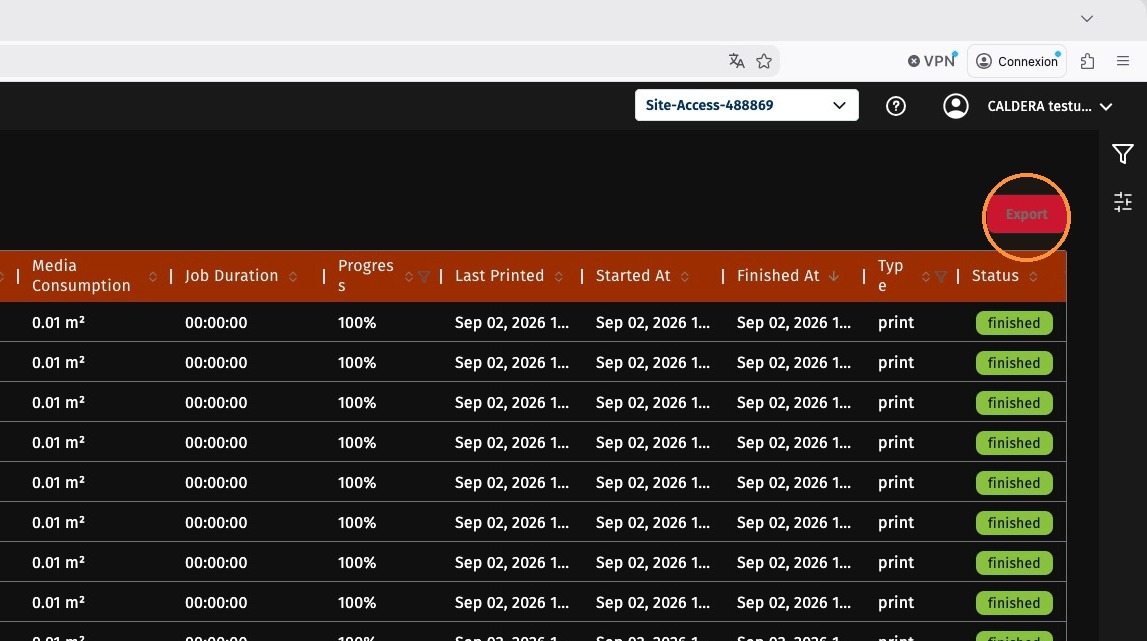
To export the complete job list in CSV format, click the export button.
Filter and customize the job list
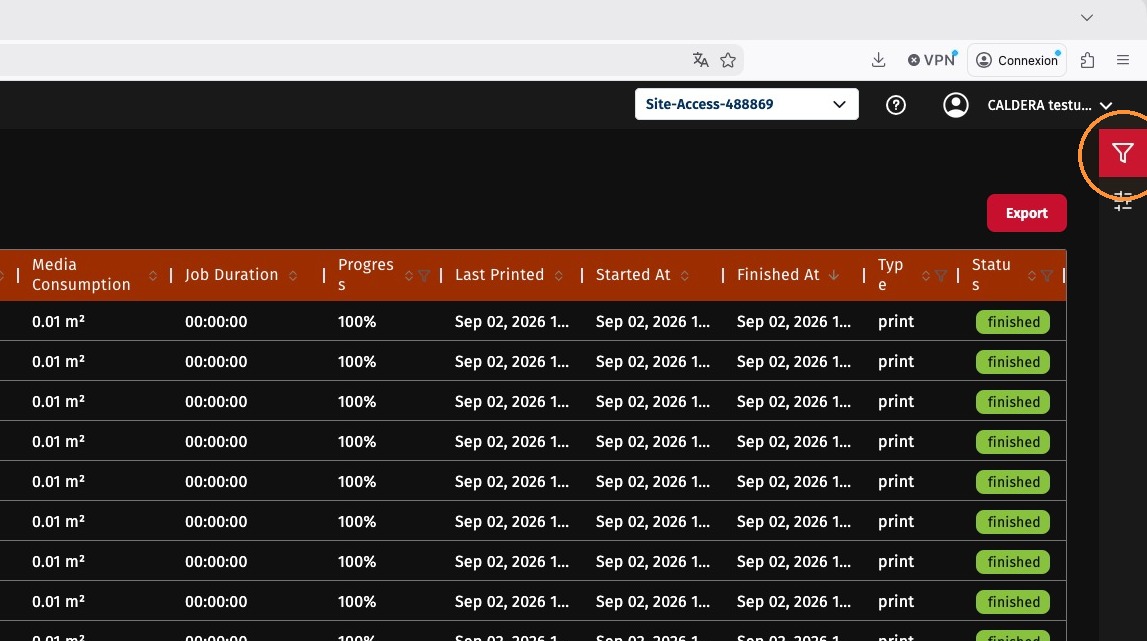
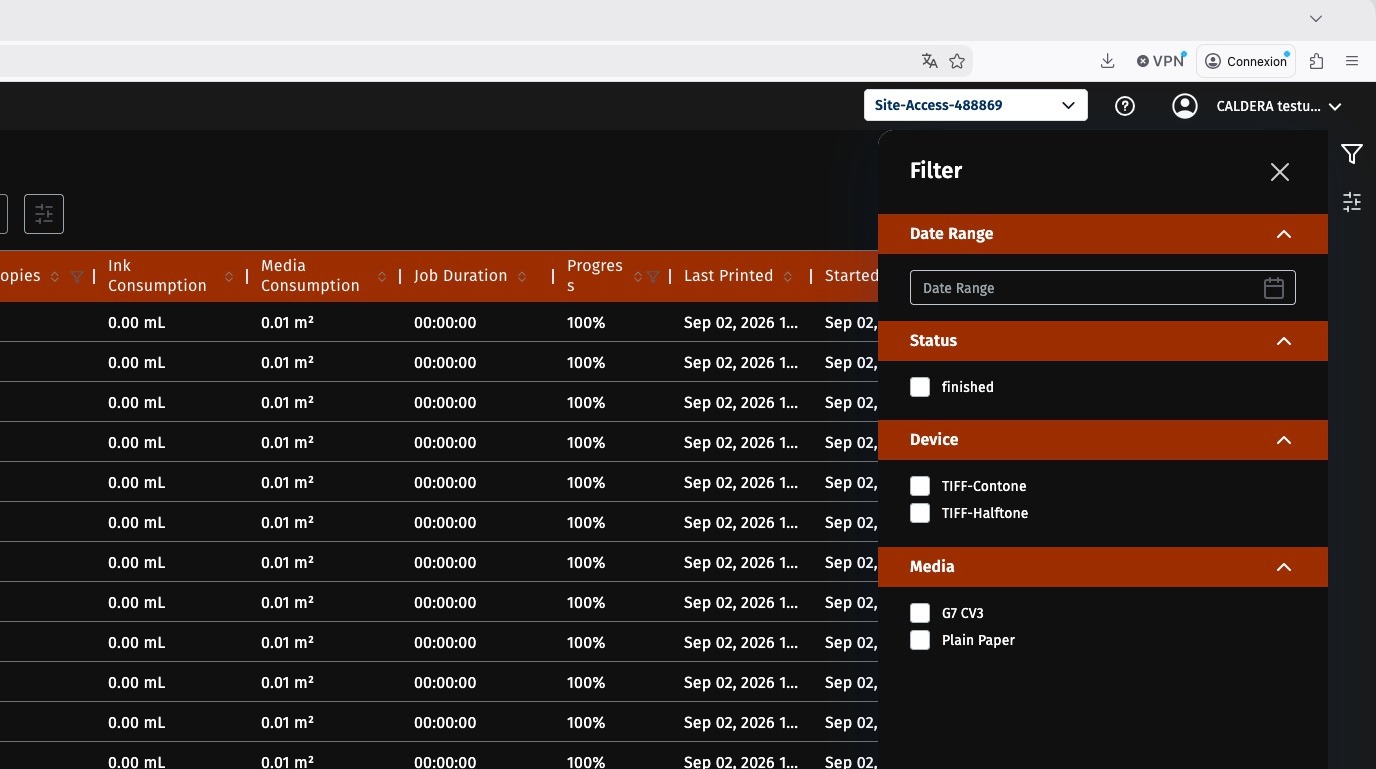
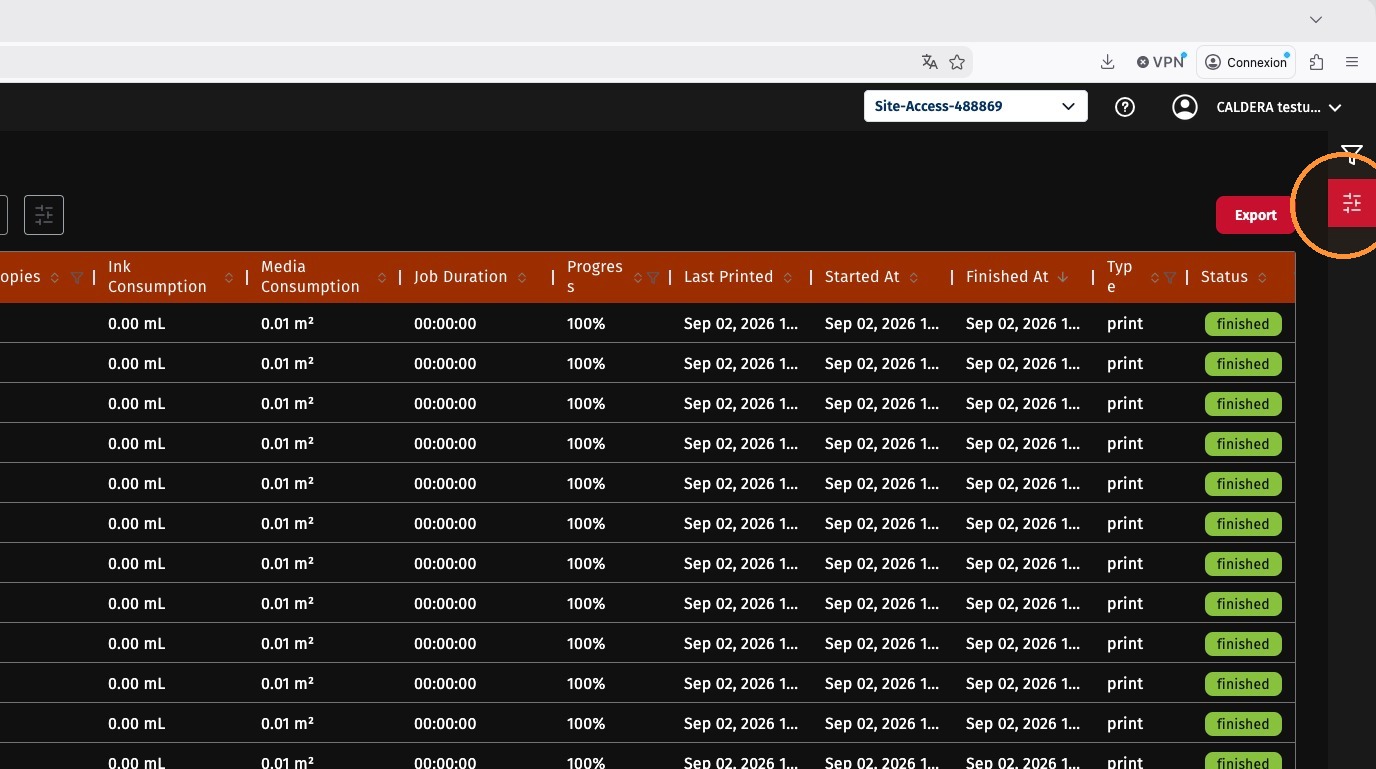
Use the filter panel in the Jobs section to filter jobs by date, status, device, or media.
You can also reorder the columns to adapt the job list to your needs.
View job details
-
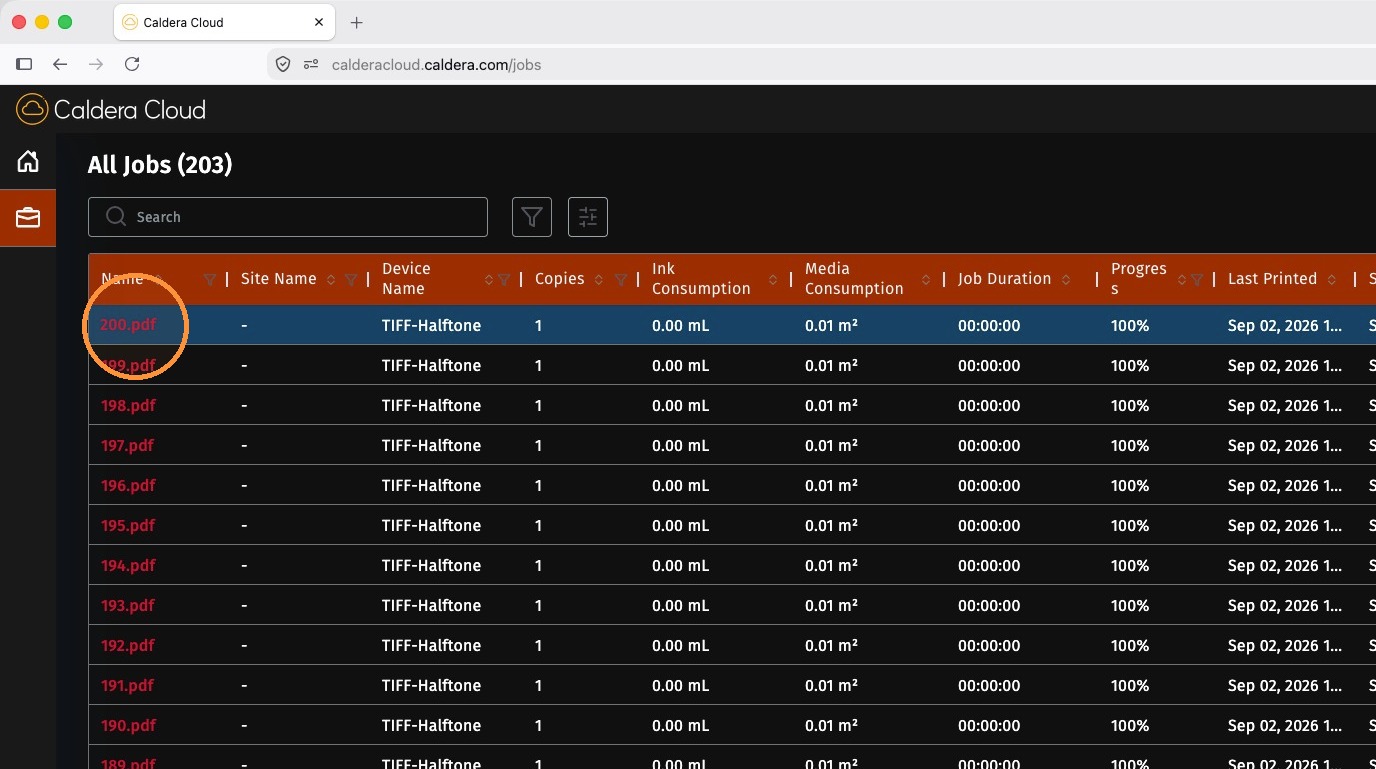
Select a job in the list.
-
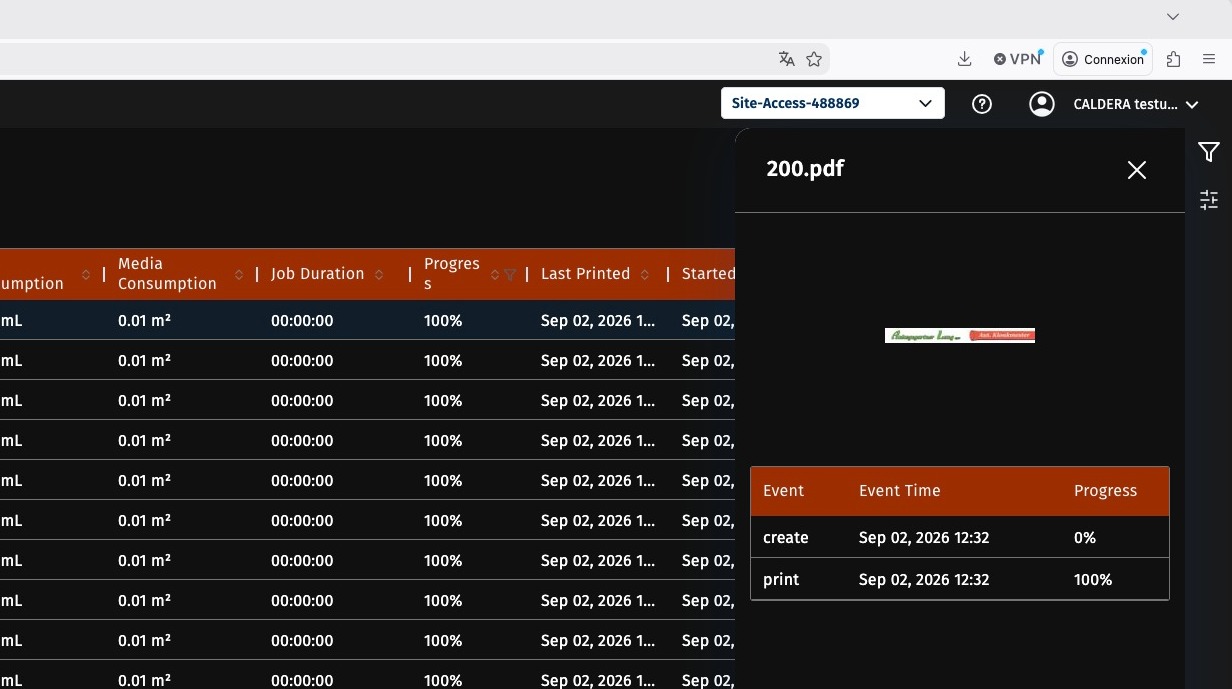
The details panel displays the events associated with the job, along with its timing and progress.
Review production-site and account information
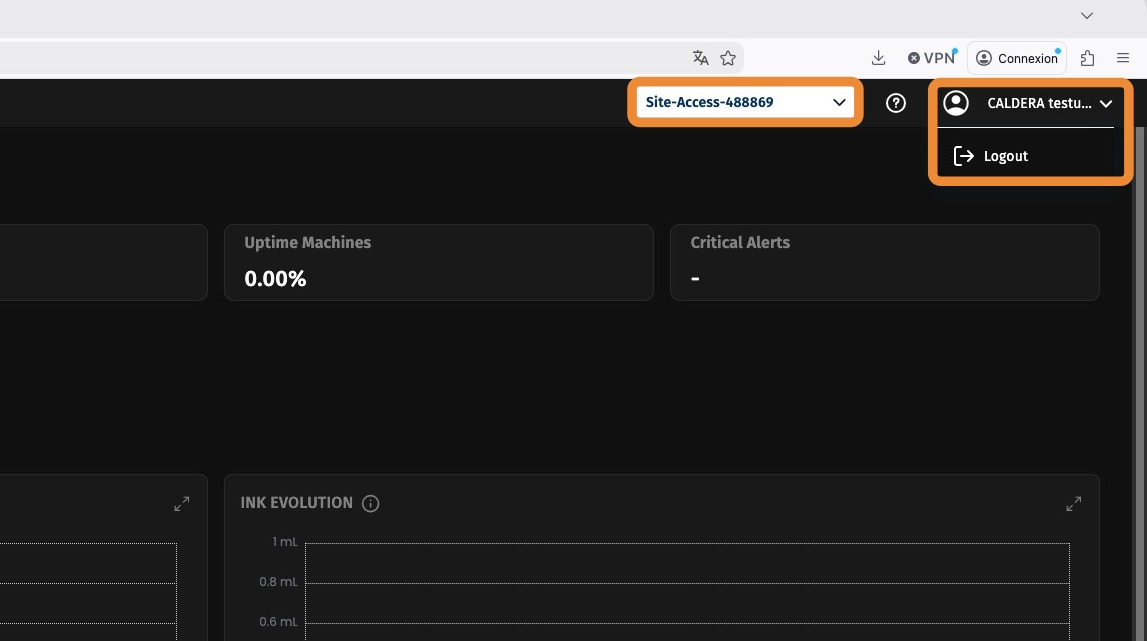
In the upper-right corner of CalderaCloud, you can review the following information:
- The name and address of the current production site.
- Your account information.
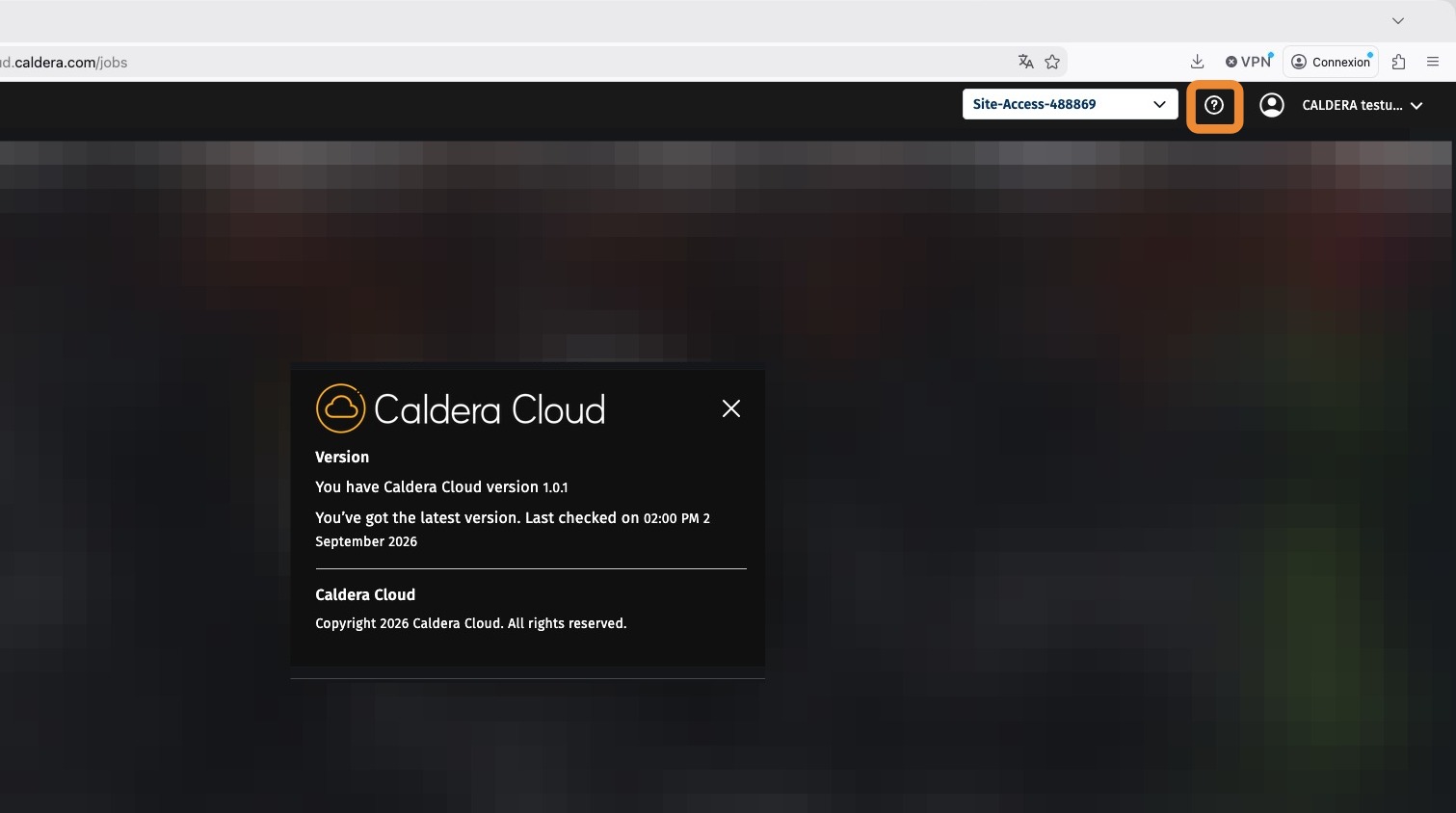
- The CalderaCloud version and legal information, available from the ? icon.