Your license needs an update every month. If you have an internet connection the renewal of your license is done automatically. Here are detailed all the ways to update your PrimeCenter's license. Please note that a difference occurs if you have an internet connection or not.
Warning
Beforehand your license needs to be activated on your PrimeCenter.
License update with an internet connection
Warning
- Make sure that your key server has an internet connection.
- If you have a Firewall, make sure that the 443 port is open (i.e. the standard port for HTTPS).
The PrimeCenter license is downloaded 6 hours after the license change so you have nothing to do.
License update without an internet connection
Info
Please note that an internet connection is however needed to get the update file. There is no problem to use another workstation to download it.
Download license update
-
On a workstation with internet, log in on Caldera WorkSpace and click My Registered Licenses on your profile menu.

-
In your licenses list, click the icon to download license updates. The extension of a license update is a .V2CP file.


Attach license update
-
On your PrimeCenter workstation, go to CalderaDock and go to the Licenses tab. Select Apply license file, choose the file you downloaded from Workspace and click Apply.

-
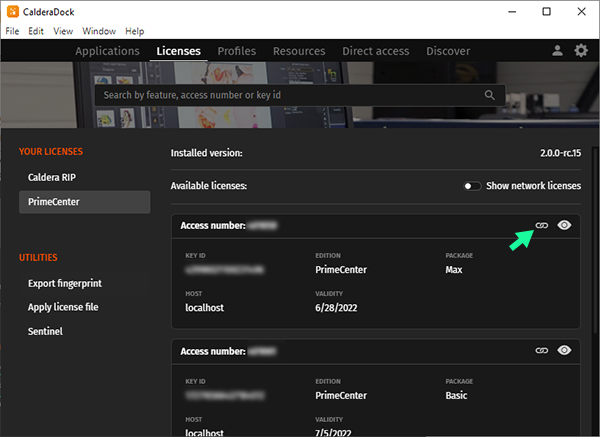
In the Licenses tab, a list of discovered licenses is shown, sorted by product. For PrimeCenter licenses, select the license you have just added and click the Attach button.
Info
The license status is the following: Pending for attachment, that's normal. It will disappear when Caldera PrimeCenter will be launched for the first time.
- Launch PrimeCenter from the Applications tab of CalderaDock or from your desktop icon.