G7® is a methodology developed by Idealliance for controlling color reproduction through neutral color calibration. While G7® is the methodology, G7® Grayscale is the state of a process conformed to the G7® methodology. GRACoL® and SWOP® are standards that verify G7® Grayscale conformity and conditions in the primary and secondary colors.
This article covers:
- A brief explanation of using G7 Colorspace in EasyMedia
- Scenarios in which the standard may not be achieved
A brief explanation of using G7 Colorspace in EasyMedia
The following features are part of the Print Standard Verifier (PSV) option, please contact sales or your reseller for more information.
| Info - Before profiling, make sure that the printer is in a stable condition, that the driver parameters are correctly set (drop size/number of passes/masking, etc.), and follow steps 1 and 2 to correctly set the ink restrictions and limits before performing G7 linearization. | ||||
Process to achieve G7 Grayscale
Depending on the desired results, these steps can be omitted or completed before checking the G7 Colorspace.
1. Linearize and set ink restrictions per the normal profiling process (create transitions beforehand if applicable per configured ink set).
2. Set global Ink Limit per the normal profiling process.
3. Step back to Linearization and select G7® linearization choosing the option to Run Wizard (Print/Measure/Build).
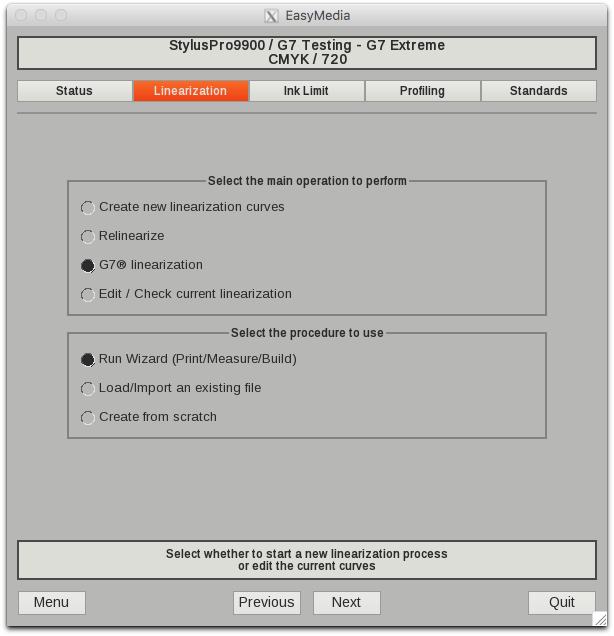
4. Print and read the P2P25X 2009 target (or the P2P51 available in V11.1 or higher).
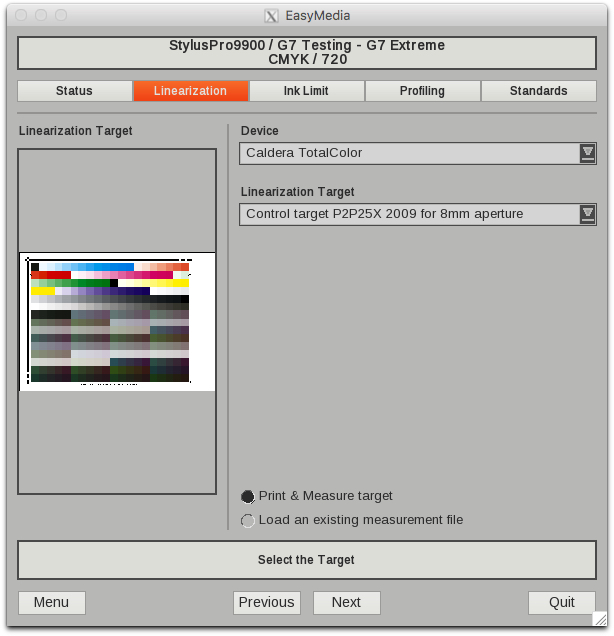
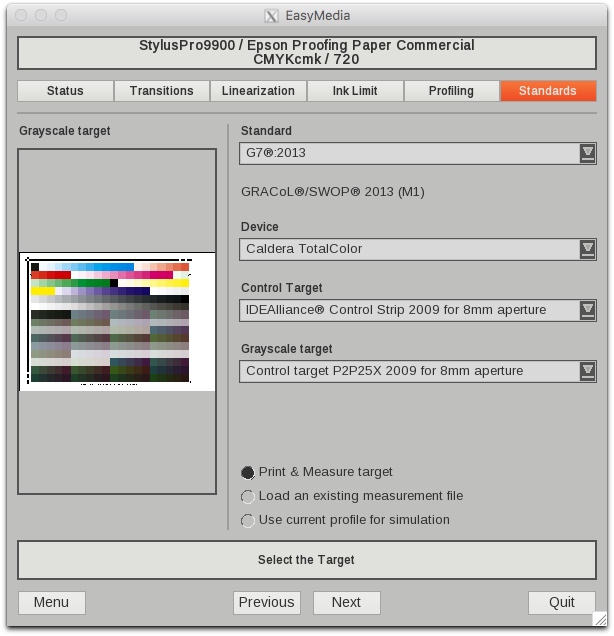
5. Skip forward to the Standards tab, and select the option to Run Wizard (Print/Measure/Build).
- The standards target will print with the improvements.
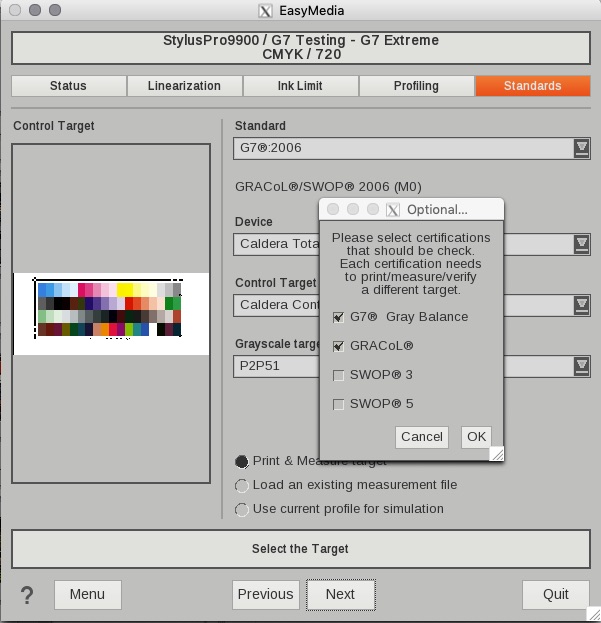
- Configure the target for the following, and deselect GRACol® while keeping Grayscale selected when prompted.
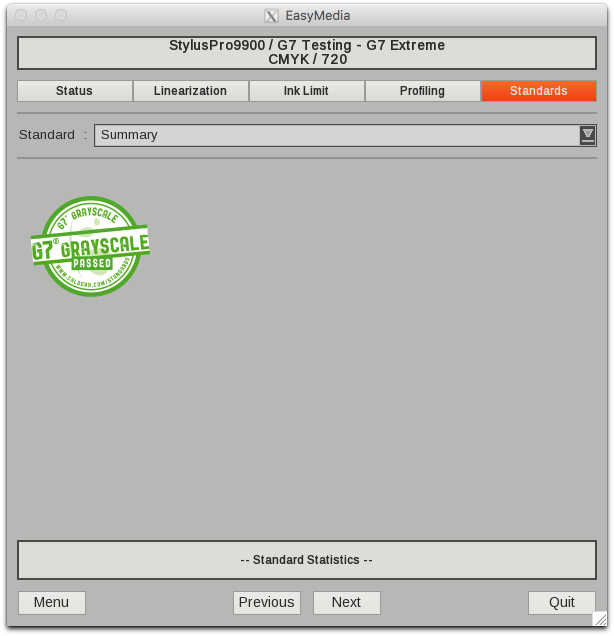
6. If the target patches pass
Step back to the Profiling tab and continue to create the ICC profile, and complete the profiling process.
 s
s
7. If the target patches do not pass
Go back to the Linearization tab in step 3, select G7® linearization and use the printed target (or print a new one under this step) of step 5 and read the patches using your measurement device.
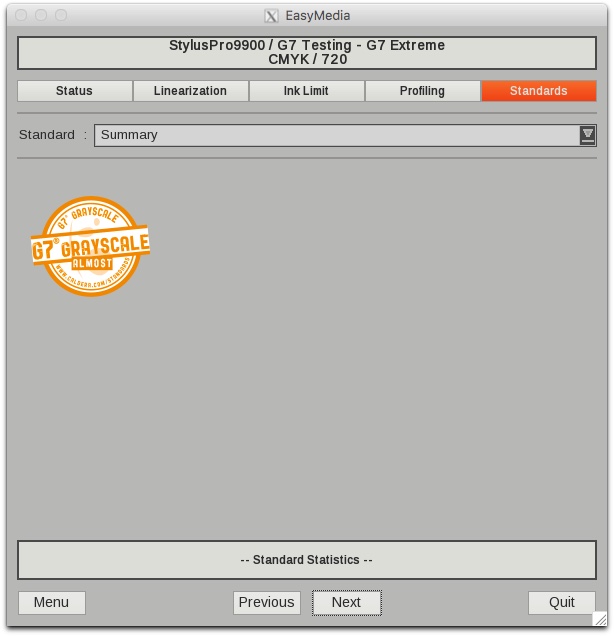
8. Go to step 5 and repeat steps 5 through 7 if necessary.
Process to check the G7 Colorspace
1. Print and read ICC charts and build a profile.
2. In the Standards tab select the appropriate standard, in the case of G7 Colorspace select GRACoL and select the appropriate P2P chart.
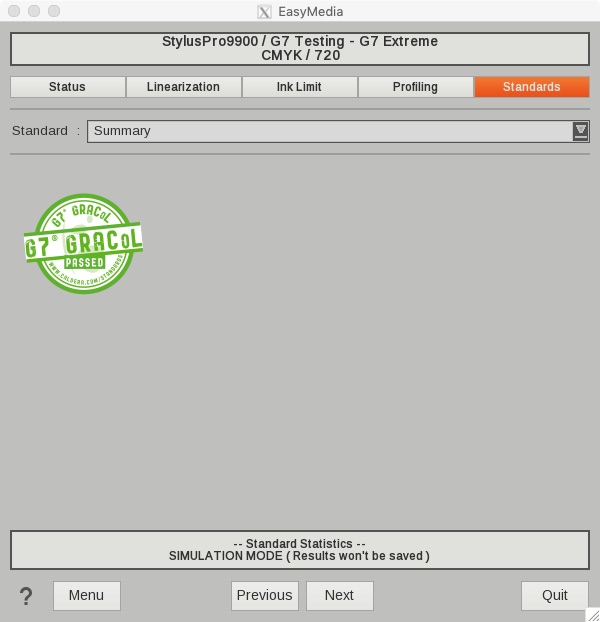
3. After printing and reading the charts, the results will be shown and additional details can be seen by selecting on the badge.
Scenarios in which the standard may not be achieved
Clicking on the badge will present you with a summary of pass/fail criteria: this can help you to determine what parameters need to be addressed if the verification fails. Take note to either use embedded GRACoL profiles or select the GRACoL2006 Coated1v2.icc or GRACoL2013 CRPC6.icc for the default CMYK Profile for CMYK files to comply with G7 specifications.
Hardware-related situations
If upon 3 attempts a successful G7 Grayscale standard cannot be achieved, verify the functionality and performance of your printer, inks, media, and measurement devices. Otherwise, G7 may not be achievable in the current configuration.
Third-party software
If third-party software is used to measure P2P patches, CGATS files can be loaded into EasyMedia. Instead of selecting Print & Measure target select Load an existing measurement file where the Device & Lin Target would normally be selected, then select Load another file and browse for your file on the next screen.
Using an old CalderaRIP version
If you are unable to achieve G7 Colorspace with CalderaRIP V11.2 or earlier, please refer to this article that speaks about how to change the dE metric from dE76 to dE00.
Spectrophotometer positioning issues (X-Rite iO2 table users)
Since CalderaRIP V15.0.2 we now guide you to correctly position your X-Rite iO2 table spectrophotometer. In case of doubts, or in case you have an older CalderaRIP version, take a look at the dedicated article.