Tips to improve neutrality or avoid color cast from grey scale or black & white files.
By default, Caldera will build grey using CMYK to create a deep black (function of the ICC profile). Under ideal circumstances (proper input profile and well balanced output profile) it should result in a neutral grey. However, there are some tricks to ensure a neutral looking grey when the ideal circumstances are not met.
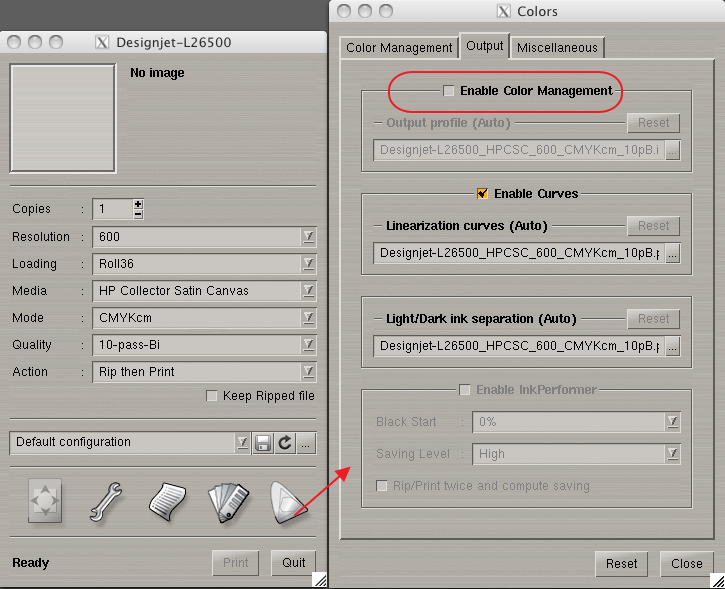
For a pure grey scale or black and white image, consider disabling the ICC color management (will now only use the black ink) and leave the curves active.
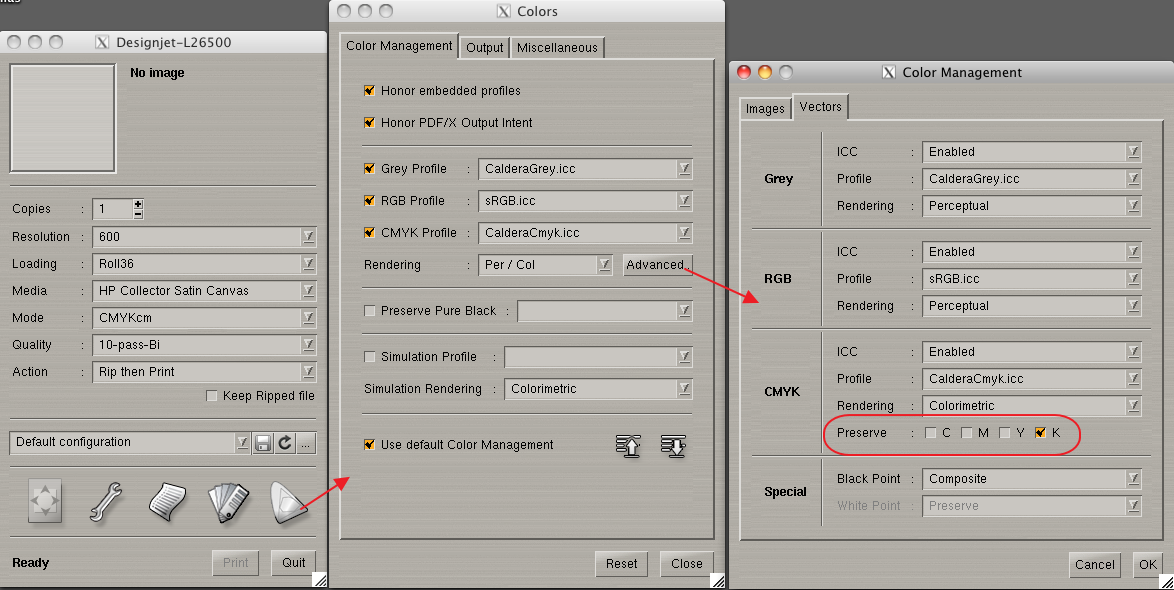
For CMYK files containing grey scales enabling "preserve black" will take the black out of the ICC color management and use the black ink only.
This option can be set for Image data (Images Tab) and Vector data (Vectors tab as displayed in the screenshot).
Using the full version of EasyMedia and assuming output profile related issues then you can rebuild the profile using a higher GCR value to maximize the black usage.
Rebuilding an ICC profile with different settings
Other reasons for a color cast could be the test file used, input profile used, printer out of calibration etc.
How to Re-linearize (only supported with custom profiles)
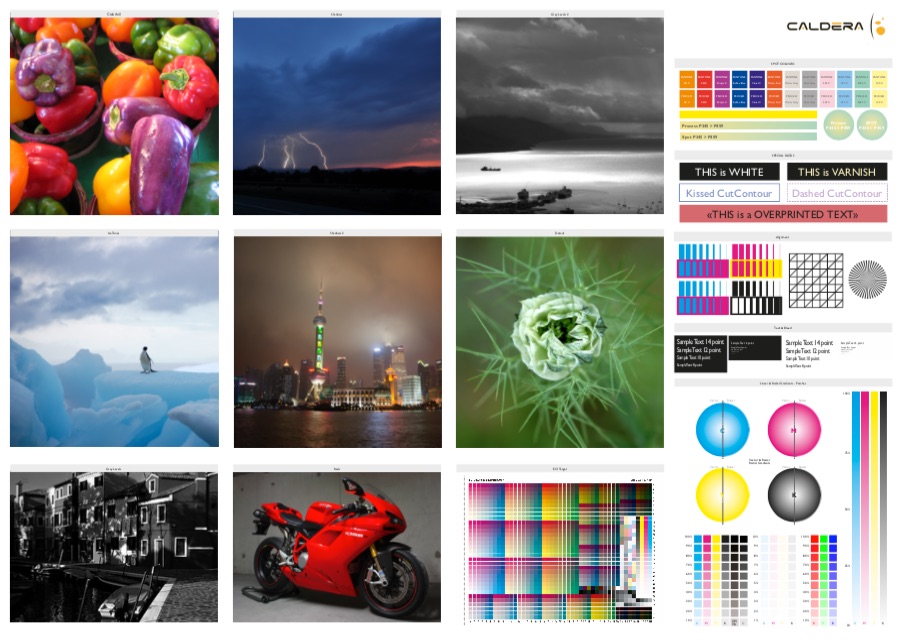
So in case of trouble consider using the Caldera test print and the default Caldera color management settings (file attached).