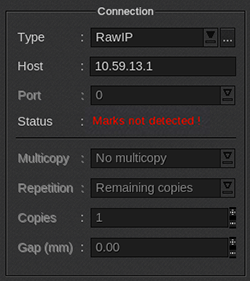
This article gives you some troubleshooting steps in case of Marks not detected error in the connection Status in VisualCut.
Tips & Tricks
Step size
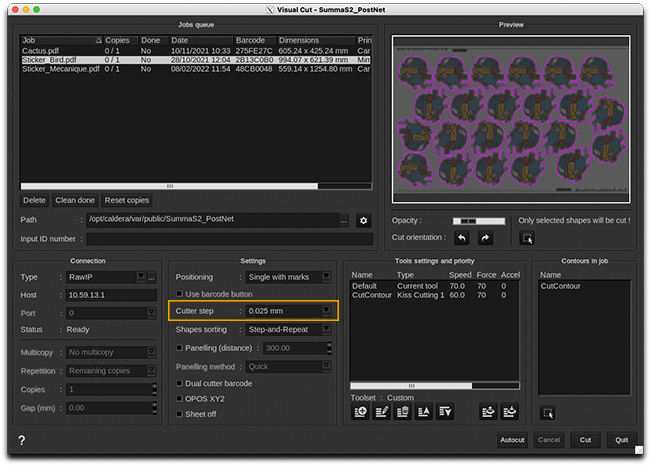
The most common reason for the cutter to not find the marks is due to incorrect step size. Make sure that the step size on the cutter is exactly the same as in VisualCut:
Maximum page size
With some cutters, like Graphtec cutters, there is a parameter for the maximum page size to limit detection to a certain distance. If the job size is longer than the maximum page size parameter, then marks can't be detected because the tool will not reach them.
Tool speed and acceleration
Try to lower the Speed (10-1050) and Acceleration (1-8) for the tool.
For some cutters like Graphtec cutters, also try to change parameters for the tool named "Register", which corresponds to registration marks detection. It allows to slow down the moving speed during the detection phase.

Rotation
With Single with marks positioning, try to rotate the image 90 degrees in VisualCut.
No barcode
If no barcode ID is printed, first press the Reset button in the Page Setup: it should preview the barcode in the Page Setup. If still not showing, reset the printer driver like explained in this article: How to: Reset printer driver to a factory default (V10 or newer).
| Warning - If the job is to narrow, the barcode can't be printed. | ||||
Align jobs
In case you want to cut several jobs in a row by using the Automatic Repeat mode in VisualCut, you must have the same alignment of the marks on the side of the media, where the cutter starts to look for marks. It should be like Roll A in the following diagram: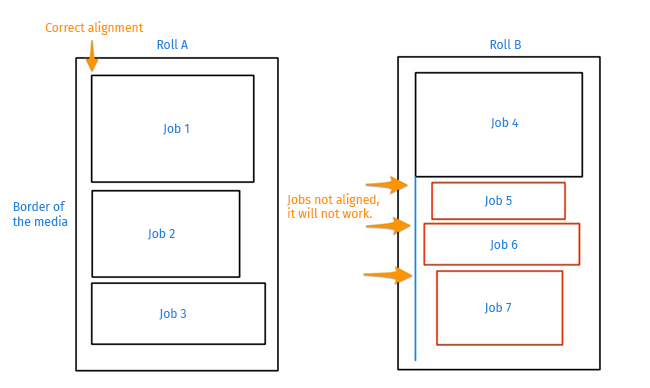
- Roll A: the cutter will find all the jobs as they are aligned on the border of the media, so it will know where to look for marks.
- Roll B: the cutter will only find the first job, Job 4, because the other jobs are not aligned on a the side of the media, so it will not find the marks of Job 5, Job 6 & Job 7 and it will not cut them.
You can align jobs on right or left side of the media directly in the Page Setup interface.

It is important to know that:
- Even just a few millimetres of non-alignment will make the cutter fail.
- The side of alignment depends on lamination step:
- If there is a lamination step, you need to align on left side.
- If there is no lamination step, you need to align on right side.
Latest version
Make sure that the cutter is on its latest firmware. Also make sure that you're using the latest version of CalderaRIP with its latest update, as allowed by your license.