The Global settings are three buttons located at the bottom right of the Spooler:
- Log File...: Opens the log file window for the selected printer.
- Setup...: Opens the Spooler Setup window.
- Quit: Closes the Spooler window.
Log file button

The Log file window displays a log of your completed or aborted jobs for the selected printer. The log window title contains the location of the log file on your workstation. This window displays the following information:
- Date: Date the job was processed.
- Job: Name of the job file.
- User: User who launched the job.
- From: Workstation IP address from which the job was launched.
- Time: Duration of the job.
- Copies: Number of printed copies.
- Ink usage: Ink usage, calculated during the ripping stage.
- Ink cost: Ink cost, calculated with the Ink usage and global Ink cost set in CostProof.
- Media: Media name.
- Media usage: Media usage, calculated during the ripping stage.
- Media cost: Media cost, calculated with the media usage and global media cost set in CostProof.
- Status: Job status.
- Total: Number of jobs in the log file.
- Close: Closes the window.
Setup button
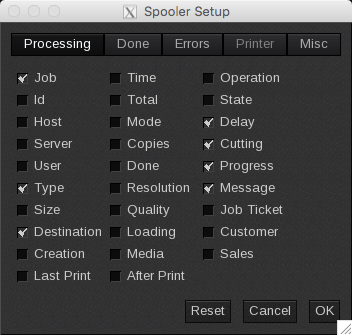
The Spooler Setup window allows you to configure which columns are displayed in the job lists within the Spooler window. You can customize the job information shown in each list by making selections in the Spooler Setup window. Three buttons are located at the bottom of the window:
- Reset: Discards your changes and apply the default settings.
- Cancel: Closes the window without saving.
- OK: Saves your changes and closes the window.
Processing, Done, and Errors tabs
|
 |
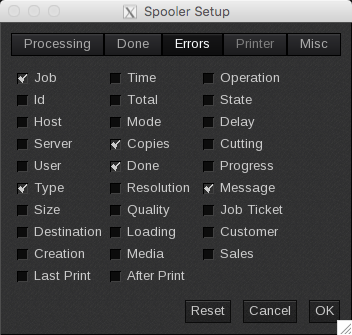 |
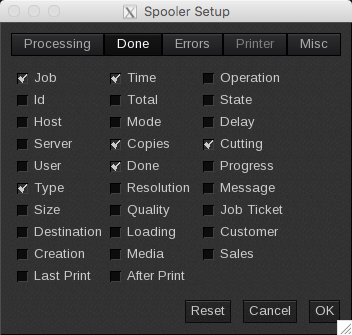
The Processing tab allows you to manage the columns displayed in the Running Jobs list, while the Done tab controls the columns in the Completed Jobs list. The Errors tab manages the columns in the Errored Job list.
To add a new column to any job list, simply select the corresponding checkbox. The previous images show the default settings.
- Job: Name of the job.
- Id: ID number given to the current job. When the server is first launched, the number "1" is given.
- Host: Displays the name or IP address of the workstation that sent the print.
- Server: Name of the printer.
- User: Username of the person who is the owner of the job.
- Type: Job format (PDF, Composite, Raster, Ripped File…).
- Size: Disk size used for storing the job data (in Mb).
- Destination: Shows whether the job will be printed directly, saved on disk, or both.
- Creation: Creation date of the job.
- Last Print: Date of the last print.
- Time: Printing time.
- Total: Total number of copies printed.
- Mode: Printing mode.
- Copies: Number of copies required.
- Done: Number of copies already done.
- Resolution: Printing resolution.
- Quality: Printing quality.
- Loading: Loading required for this print.
- Media: Media for which the job has been prepared.
- After Print: What to do with the job after it is printed.
- Operation: Date of the most recent modification.
- State: Job state of the last print.
- Delay: For Autonest jobs, this value is the number of minutes remaining until the job is to be printed. Displayed only if a time-cut option has been set in the Nest–O–Matik rules.
- Cutting: Indicates if a cutting file was generated with the print.
- Progress: Current progress.
- Message: Warning or error message for the job.
- Job Ticket: Displays the Job Ticket number if known.
- Customer: Displays the "Customer name", if known.
- Sales: Displays the "Sales name", if known.
Printer tab
Not available in recent versions of CalderaRIP.
Misc tab
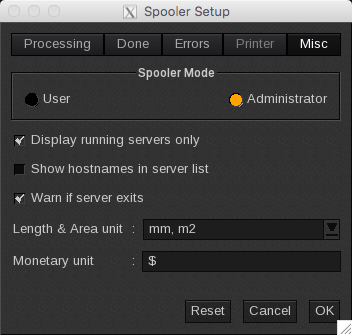
This tab displays additional global settings:
-
Spooler Mode: Here you can choose whether the Spooler will be used in "User" or "Administrator" mode:
- User: Allows Spooler access only to the printers that are installed on the workstation and appear on the ApplicationBar.
- Administrator: Allows Spooler access to all printers on the network by using the host Manager option.
- Display running servers only: Displays only the printers that are currently running (e.g. a printer in Stopped status will not be displayed).
- Show hostnames in the server list: Displays the hostnames in the list of servers.
- Warn if server exits: Checking this box will warn you if a server is stopped (e.g., through the ServerAdmin module).
- Length and Area unit: Sets the units that will be used to measure the dimensions and areas. It can be metric (mm, m2) or imperial (inch, sq.ft.).
- Monetary unit: Enter the monetary unit you want to use with CostProof.