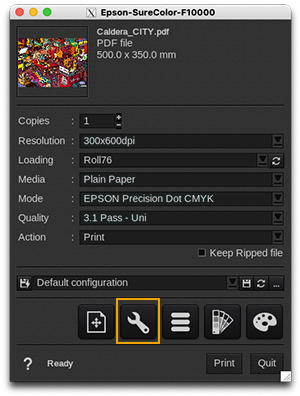
Printer
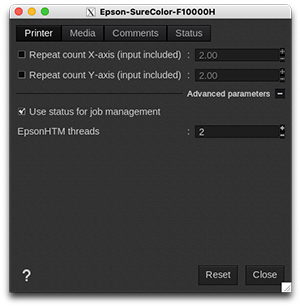
- Repeat count X-axis (input included): if enabled, the printer will repeat the input data horizontally with a defined number of repetitions.
- Repeat count Y-axis (input included): if enabled, the printer will repeat the input data vertically, with a defined number of repetitions.
This feature reduces the amount of data transferred to the printer. It's a built-in feature of printer comparable to Caldera Step&Repeat option but trimmed down. For more complex usage, you should use Step&Repeat with the cost of increased data transfer to the printer.
Advanced parameters
- Use status for job management: the driver will react according to the printer status: wait for the end of the previous print in order to launch a new one, check the job compatibility with the media loaded, etc.
- EpsonHTM threads: used to do parallel computation when EPSON Precision Dot mode is in use. If you set too many threads, the printing process may slow down. Leave this value to its default, or try for yourself if increasing the number of threads increases the speed. Everything will be specific to your workstation.
Media
 |
 |
-
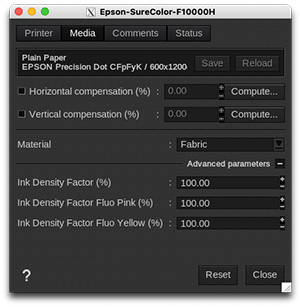
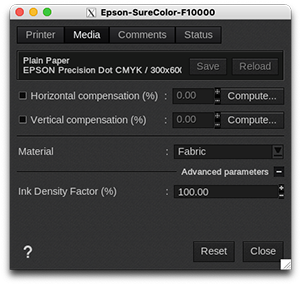
Information: at the top of the window, you are able to see information about your media. There you have access to two actions:
- Save: when you click on this button, the current media settings are saved to the selected media profile (printer, media, resolution, mode) so there will be applied for any new job using the same print configuration. If you don't save, the changes you made are only applied to the current job.
- Reload: will revert back to default as set during profiling or the last saved changes.
- Horizontal and vertical compensation (%): not supported. We recommend not to modify this. Any deviation is likely to be mechanical on the printer's side.
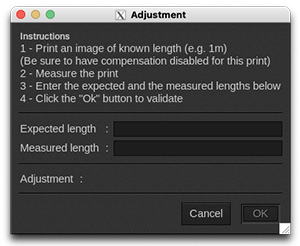
- Material: select the reference media that is the closest to the current media. The reference media contains predefined settings you can use to set your media parameters:
-
- Fabric Thin
- Fabric
- Rigid
- Ink Density Factor (%): maximum level of ink allowed. Increasing this factor might increase the Gamut but it might also create over-inking issues. This value indicates the absorption capability of the medium being used, and directly impacts the output and ink usage.
Only for Epson SureColor SC-F10000H:
- Ink Density Factor Fluo Pink / Fluo Yellow (%): maximum level of ink allowed.
Comments
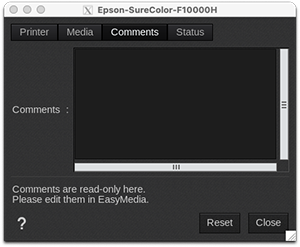
On this tab you can see comments coming from the EasyMedia module. It can include comments from the global media window and from the profile project window.
Status
 |
 |
-
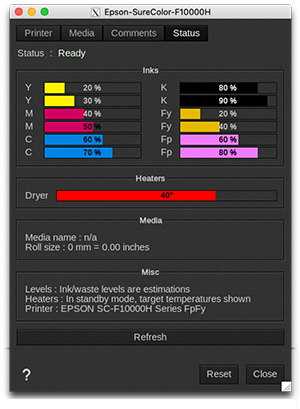
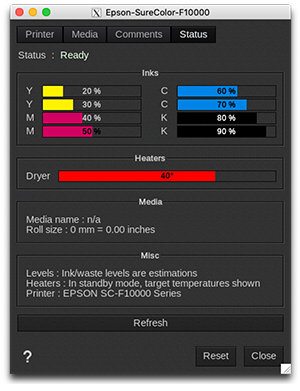
Status: global state of the printer:
- Ready
- Not available
- Printing
All data is coming from the printer, if it is not available, nothing can be displayed.
- Inks: information about the ink configuration and the inks levels in %.
- Heaters: temperature level of the Dryer.
- Media: information about the media loaded on the printer.
- Misc: complementary info about the printer (model, serial number, firmware version).
- Refresh: button to refresh the tab.