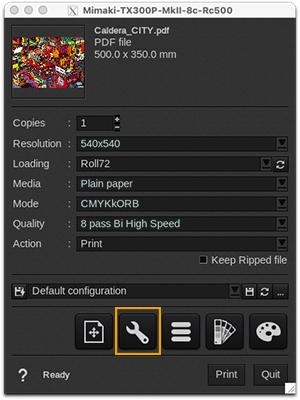
Printer
-
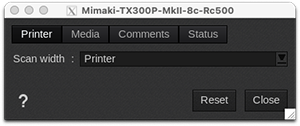
Scan width: Define the scanning behavior of the printer carriage, also referred to as Logical Seek in Mimaki printer manuals. Available options:
- Printer: The carriage scans the full print width, regardless of the size of the printed area.
- Job: The carriage scans only across the width of the printed area.
Media
-
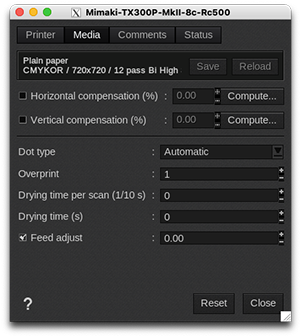
Information: at the top of the window, you are able to see information about your media. There you have access to two actions:
- Save: when you click on this button, the current media settings are saved to the selected media profile (printer, media, resolution, mode) so there will be applied for any new job using the same print configuration. If you don't save, the changes you made are only applied to the current job.
- Reload: will revert back to default as set during profiling or the last saved changes.
- Horizontal compensation (%): we recommend not to modify this. Any deviation is likely to be mechanical on the printer's side.
- Vertical compensation (%): this can be useful if you detect an increase or decrease in the length due to heating or media tension which is common when printing on vinyl or textiles for example. To calculate the compensation, click Compute and follow the software’s instructions.
- Dot type: this function allows the user to select either a variable dot size (Automatic) or any fixed dot size (Large, Medium or Small).
- Overprint: this performs additional passes to increase ink density. The user can define the amount of overprint layers with a factor between 1 and 9.
- Drying time per scan (1/10 s): add a delay between each scan to allow the ink to dry a little between each pass. Type the number wanted or use the + and - buttons. Duration is measured in 1/10 second.
- Drying time (s): duration allowed to the drying after the print (in seconds).
- Feed adjust: set the media feed adjustment level value. The value 0.00 disables this function (use value set on panel) but a number between -255 and 255 enables it (use selected feed adjustment level). This option is used when you see white lines or darker lines between passes.
Comments
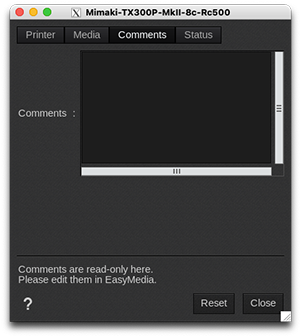
On this tab you can see comments coming from the EasyMedia module. It can include comments from the global media window and from the profile project window.
Status
-
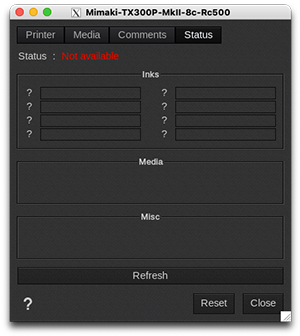
Status: global state of the printer:
- Ready
- Not available
All data is coming from the printer, if it is not available, nothing can be displayed.
- Inks: information about the ink configuration and the inks levels in %.
- Media: information about the media loaded on the printer.
- Misc: complementary info about the printer (model, serial number, firmware version).
- Refresh: button to refresh the tab.