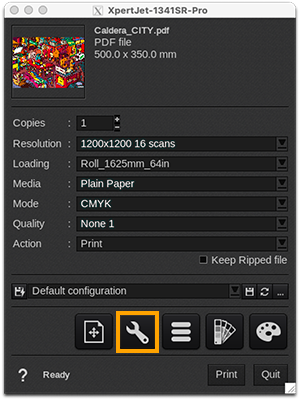
Printer tab
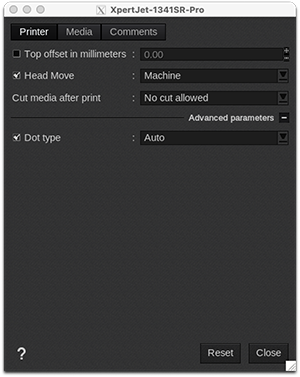
- Top offset (mm): adjust the top margin from -10 to 500mm.
-
Head move: enable this option to limit the movement of the printhead carriage across the printer's width. You can choose between:
- Job: printhead carriage moves only over the job's width sent by CalderaRIP
- Machine: printhead carriage moves all along printer's width
- Media: printhead carriage move all along media's width
-
Cut media (after print): the embedded cutter will separate the job from the roll at the end of print according to the chosen following parameter:
- No cut allowed
- Single 2 steps high pressure
- Single 3 steps high pressure
- Double 2 steps high pressure
- Double 3 steps high pressure
- Single 2 steps low pressure
- Single 3 steps low pressure
- Double 2 steps low pressure
- Double 3 steps low pressure
Advanced parameters
- Dot type: this function allows the user to select either a variable dot size (Automatic) or any fixed dot size (Large, Medium or Small).
Warning
Since this advanced parameter is not included in the profile, the user is advised to use a fixed drop resolution and dot selection in the Media tab, instead of this parameter (more information below).
Media
-
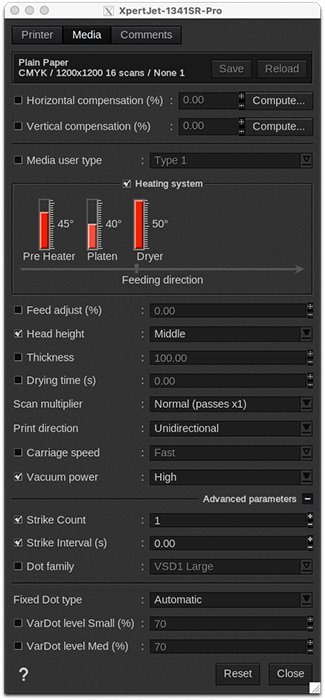
Information: at the top of the window, you are able to see information about your media. There you have access to two actions:
- Save: when you click on this button, the current media settings are saved to the selected media profile (printer, media, resolution, mode) so there will be applied for any new job using the same print configuration. If you don't save, the changes you made are only applied to the current job.
- Reload: will revert back to default as set during profiling or the last saved changes.
- Horizontal compensation (%): we recommend not to modify this. Any deviation is likely to be mechanical on the printer's side.
- Vertical compensation (%): this can be useful if you detect an increase or decrease in the length due to heating or media tension which is common when printing on vinyl or textiles for example. To calculate the compensation, click Compute and follow the software’s instructions.
- Media user type: type 1 to 15 to match a specific media parameter set on the printer's panel.
- Heating system: some Mutoh models allow you to manipulate temperatures at various points where the media passes through, thanks to their ventilation system:
- "Pre-Heater" (just after media loading)
- "Platen" (where the media is printed)
- "Dryer" (where the media exits the printer)
Beyond the default settings in CalderaRIP, it is possible to change the values of each stage from 0° C (fan off) to 50° C.
- Feed adjust: set the media feed adjustment level value. The value 0.00 disables this function (use the value set on the panel) but a number between -5.00 and 5.00 enables it (use the selected feed adjustment level). This setting is useful for avoiding light or dark lines between passes.
-
Head height: adjust the gap between the head and the plate by selecting one of the following parameters:
- Low (only on the 1641SR driver)
- Low1 or Low2 (only on the Pro models/drivers)
- Middle
- High
- Thickness: enter the media thickness in millimeters. If disabled, media thickness set on the printer's panel will be used.
- Drying time (s): duration allowed to the drying after the print (in seconds).
-
Scan multiplier: multiplies the number of printing passes to slow-down printing and reduce banding. This doesn't affect ejected ink quantity:
- Normal (passes x1)
- Quality (passes x2)
- High quality (passes x4)
- Print direction: choose if the printing is Bidirectional or Unidirectional.
- Carriage speed: adjust the speed of carriage movement between "Normal" and "Fast". Note that a faster movement may lead to more droplet spreading.
-
Vacuum power. You can choose the vacuum power:
- Low
- Middle (default option on the 1641SR driver)
- High (default option on the Pro models/drivers)
- Ex High
- Off (only on the Pro models/drivers)
Advanced parameters
- Strike count: The printer will do several passes (from 1 to 9) on the same spot. Values above 1 increase ink density.
- Strike Interval (s): pause between passes from 0 to 5 s. May improve ink drying at the expense of printing speed.
-
Dot family. Set of Variable Sized Droplets (VSD) that are used.
- On the Pro models/drivers:
- VSD1 Large
- VSD2 Medium
- VSD3 Small
- 1641SR:
- VSD1 Large
- VSD3 Medium
- VSD4 Small
- On the Pro models/drivers:
Info
In case of low ink density when using a medium family droplet, we recommend using a large droplet family to increase ink density and have a larger gamut.
- Fixed Dot type: this function allows the user to select either a preselected dot size (Automatic) or force a fixed dot size (Large, Medium or Small) for fixed-dot resolutions.
- Vardot level Small (%): maximum percentage of Small dots in the variable dot mix (Small, Medium, Large).
- Vardot level Med (%): maximum percentage of Medium dots in the variable dot mix (Small, Medium, Large).
Comments
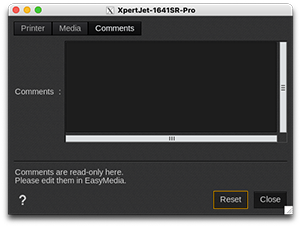
On this tab you can see comments coming from the EasyMedia module. It can include comments from the global media window and from the profile project window.