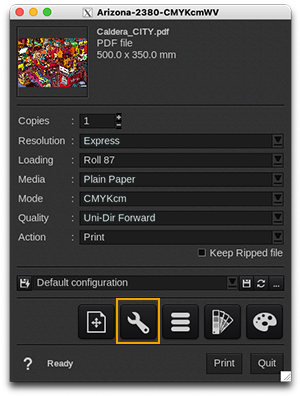
Printer tab
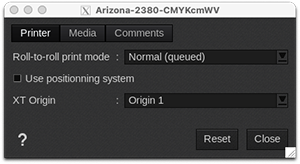
-
Roll-to-roll print mode: you have the choice between:
- Normal (queued): the jobs are sent to the controller queue, so you will have to manually click "Print" on the controller to start printing.
- Immediate: the jobs are printed automatically, without any action on the controller.
- Use positioning system: enable this option to be able to position jobs on the sheets from CalderaRIP. By default this option is disabled to let you position jobs on the sheets from the controller.
|
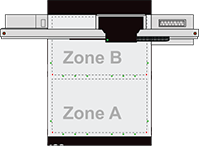 |
Media tab
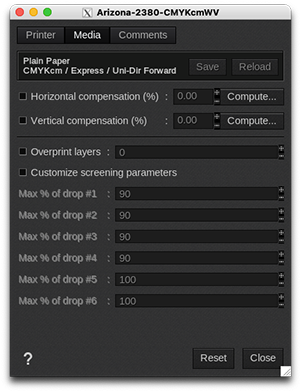
-
Information: at the top of the window, you are able to see information about your media. There you have access to two actions:
- Save: when you click on this button, the current media settings are saved to the selected media profile (printer, media, resolution, mode) so there will be applied for any new job using the same print configuration. If you don't save, the changes you made are only applied to the current job.
- Reload: will revert back to default as set during profiling or the last saved changes.
- Horizontal compensation (%): we recommend not to modify this. Any deviation is likely to be mechanical on the printer's side.
- Vertical compensation (%): this can be useful if you detect an increase or decrease in the length due to heating or media tension which is common when printing on vinyl or textiles for example. To calculate the compensation, click Compute and follow the software’s instructions.
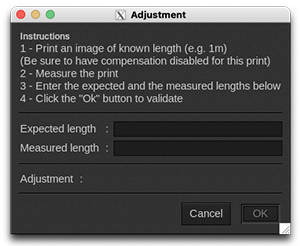
- Overprint: this performs additional passes to increase ink density. The user can define the amount of overprint layers with a defined factor.
-
Customize screening parameters: enable this feature if you want to limit the maximum percentage of the 3 sizes of dots. By default this feature is disabled. Meaning that the RIP software is already using the best variable drop mix to print. If you feel comfortable, you can enable this feature and choose different drop mix and compare the result with the default one.
- Max % of drop #1: from 0 to 100% (Default=90%)
- Max % of drop #2: from 0 to 100% (Default=90%)
- Max % of drop #3: from 0 to 100% (Default=90%)
- Max % of drop #4: from 0 to 100% (Default=90%)
- Max % of drop #5: from 0 to 100% (Default=100%)
- Max % of drop #6: from 0 to 100% (Default=100%)
Comments
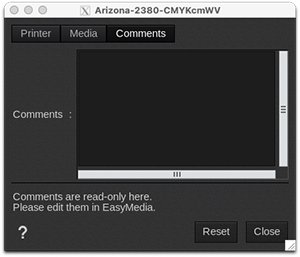
On this tab you can see comments coming from the EasyMedia module. It can include comments from the global media window and from the profile project window.