Printer tab
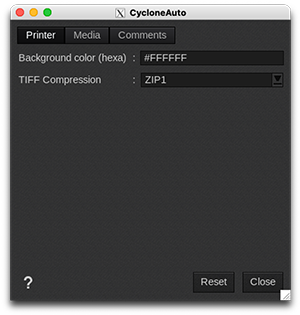
- Background color (hexa): RGB color in HTML hexadecimal format. Indicates to the printer which background color to use to simulate the T-shirt in its user interface (the default color is white, #FFFFFFFF). This option is mainly intended to be used by automated submission workflows.
-
TIFF Compression: You can select the compression method for the TIFF file. The default option, ZIP1, provides a good balance between file size and performance and typically does not require modification. However, if your production needs a different compression method, the available options are:
- ZIP: A common compression method that reduces file size while maintaining a good level of quality and performance.
- LZW: This stands for "Lempel-Ziv-Welch," a fast and efficient compression algorithm ideal for images with large areas of similar colors. It performs well with upscaled images.
- Packbits: A simple compression method that is effective for images with repetitive data, offering a balance between compression and speed.
- None: No compression is applied, resulting in the largest file size but also the fastest processing time.
- ZIP 1, 3, 5, 7, and 9: Variants of the ZIP compression method, with increasing levels of compression that trade off file size for processing speed. Higher numbers indicate greater compression, which may affect performance.
Media tab
-
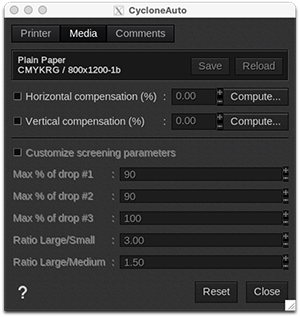
Information: at the top of the window, you are able to see information about your media. There you have access to two actions:
- Save: when you click on this button, the current media settings are saved to the selected media profile (printer, media, resolution, mode) so there will be applied for any new job using the same print configuration. If you don't save, the changes you made are only applied to the current job.
- Reload: will revert back to default as set during profiling or the last saved changes.
- Horizontal compensation (%): we recommend not to modify this. Any deviation is likely to be mechanical on the printer's side.
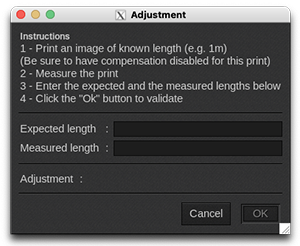
- Vertical compensation (%): this can be useful if you detect an increase or decrease in the length due to heating or media tension which is common when printing on vinyl or textiles for example. To calculate the compensation, click Compute and follow the software’s instructions.
Only available with grayscale/variable drop resolutions:
-
Customize screening parameters: enable this feature if you want to limit the maximum percentage and/or mixture of the 3 sizes of dots. By default, this function is disabled, which means that CalderaRIP is already using the best variable droplet mixture for printing. If you feel comfortable and you need to build a new media profile, you can turn this feature on to choose a different droplet mixture and change the printed colors:
- Max % of drop #1: from 0 to 100% (Default=90%)
- Max % of drop #2: from 0 to 100% (Default=90%)
- Max % of drop #3: from 0 to 100% (Default=100%)
-
- Ratio Large/Small: from 1 to 6 (Default=3)
- Ratio Large/Medium: from 1 to 6 (Default=1.50)
Comments tab
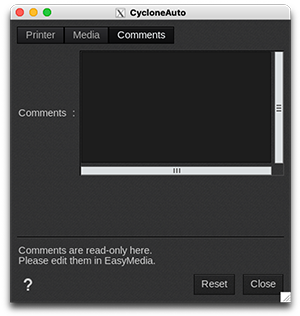
On this tab you can see comments coming from the EasyMedia module. It can include comments from the global media window and from the profile project window.