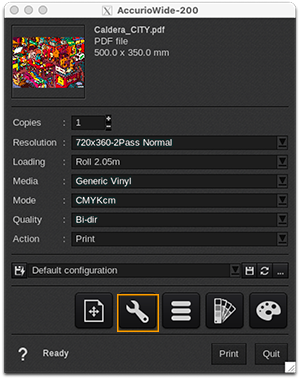
Printer tab
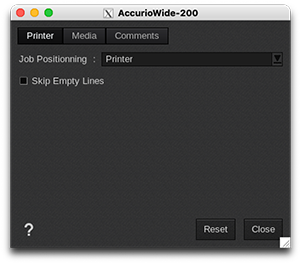
Job Positioning:
- Disabled: no position is sent to the printer, so it needs to be positioned on the printer.
- Printer: an X/Y position is sent and the printer automatically knows where to start.
- Software: white padding is added to the image to position it on the printer.
Skip Empty Lines: By checking this box, the driver will automatically allow the printer to skip large white surfaces, speeding up the print. This can be useful in the case of a particular application or in the case of regressions.
Media tab
-
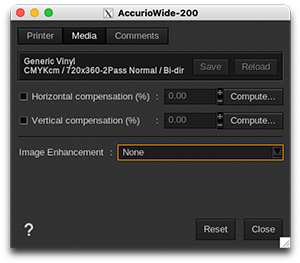
Information: at the top of the window, you are able to see information about your media. There you have access to two actions:
- Save: when you click on this button, the current media settings are saved to the selected media profile (printer, media, resolution, mode) so there will be applied for any new job using the same print configuration. If you don't save, the changes you made are only applied to the current job.
- Reload: will revert back to default as set during profiling or the last saved changes.
- Horizontal compensation (%): we recommend not to modify this. Any deviation is likely to be mechanical on the printer's side.
- Vertical compensation (%): this can be useful if you detect an increase or decrease in the length due to heating or media tension which is common when printing on vinyl or textiles for example. To calculate the compensation, click Compute and follow the software’s instructions.
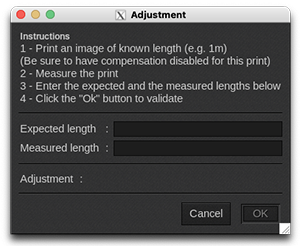
Image Enhancement: This setting is applied by the printer to optimize image quality. Options are None, Gradient, and Fine Mask.
Comments tab
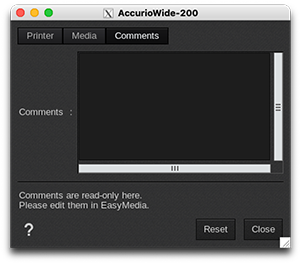
On this tab you can see comments coming from the EasyMedia module. It can include comments from the global media window and from the profile project window.