In PrimeCenter, you can add print bleed to your images, whether they are rectangular or have specific shapes, to prevent unwanted white edges after cutting.
There are two methods to add bleed:
- Advanced bleed: Apply the Advanced bleed function to imported files or exported layouts for greater flexibility. See this article for an example use case.
- Standard bleed: This article explains how to configure this method.
Version note
In PrimeCenter V5, the tool Print bleed has been renamed Bleed. The functionality and settings remain the same.
Applying bleed in a recipe
Info
When working with multipage PDFs, the configured bleed is applied to all pages.
Accessing the Bleed settings
- Go to the Print bleed module
.
- Choose a bleed type:
- None: No bleed is applied.
- Shape: Bleed is based on the cut contour(s).
- Canvas: Bleed is rectangular.
- In the recipe configuration panel, go to the Files tab and open Import settings.
- Under Tools, click to open the tool list.
- Select Bleed (formerly Print bleed) to open the tool configuration.
- Configure its settings.
Applying bleed
Manually
- Configure the bleed settings.
- Select one or more images in the File manager.
- Right-click and choose Print bleed. The configured bleed is applied to the selected files.
Starting with PrimeCenter V5, you can also apply Bleed manually in File Editor using the Tools panel.

 Automatically
Info
- Since PrimeCenter V3.0, bleed is applied to all manually or automatically imported files. In previous versions, it was only applied when fetching files from an input folder.
- Since PrimeCenter V4.0, bleed can be applied automatically for all packages.
- Configure the bleed settings.
- Import files manually into the File manager or run the recipe to fetch files from a defined input folder.
- The configured bleed is automatically applied to imported files.
Configuring print bleed
Shape type
Method
-
Duplicate: Duplicates the last pixels at the image edge to generate bleed.
- Bleed inside contours: Enable this option if the shape has internal cut contours.
| Input file without bleed | Duplicate method | Duplicate method with bleed inside contours |
- Mask: If the image already contains bleed, this method reveals the existing bleed and adjusts its size.
| Input file with bleed | Mask method |
Contours
You can select one or more cut contours from the Cut contours list (formerly "Dictionary") to use as the bleed reference.
Size
Define the bleed width.
| 3 mm | 10 mm |
Canvas type
Good to know
When using Canvas type, a cut contour named CutContourAuto is automatically generated.
Method
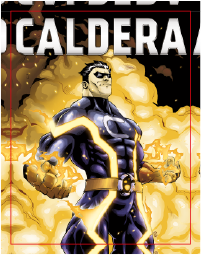
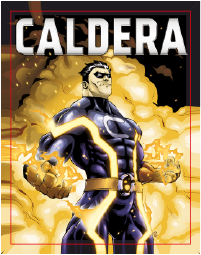
- Duplicate: Duplicates the last pixels at the image edge.
- Mirror: Reflects pixels at the image edge to generate bleed.
- Stretch: Stretches the last 2 mm of pixels at the image edge to generate bleed.
 |
 |
|
| Duplicate method | Mirror method | Stretch method |
Click the images to zoom
Target
- Edges: Generates bleed from the edges only, leaving corners empty.
- Edges & Corners: Generates bleed from both edges and corners.
| Edges target | Edges & Corners target |
Size
Set the bleed width for each edge of the image.